Staging a Tablet Sign-up
This tutorial walks through staging a self-service sign-up and handing it to a new student, covering the essentials only. For full detail on every screen, including the prospect's flow and the Sign-ups page, see the Tablet Intake reference.
Prerequisites
- You need at least one active membership plan. See Membership Tiers.
- To stage a card sign-up, a Stripe account must be connected. Cash sign-ups work without one.
1. Open the Staging Modal
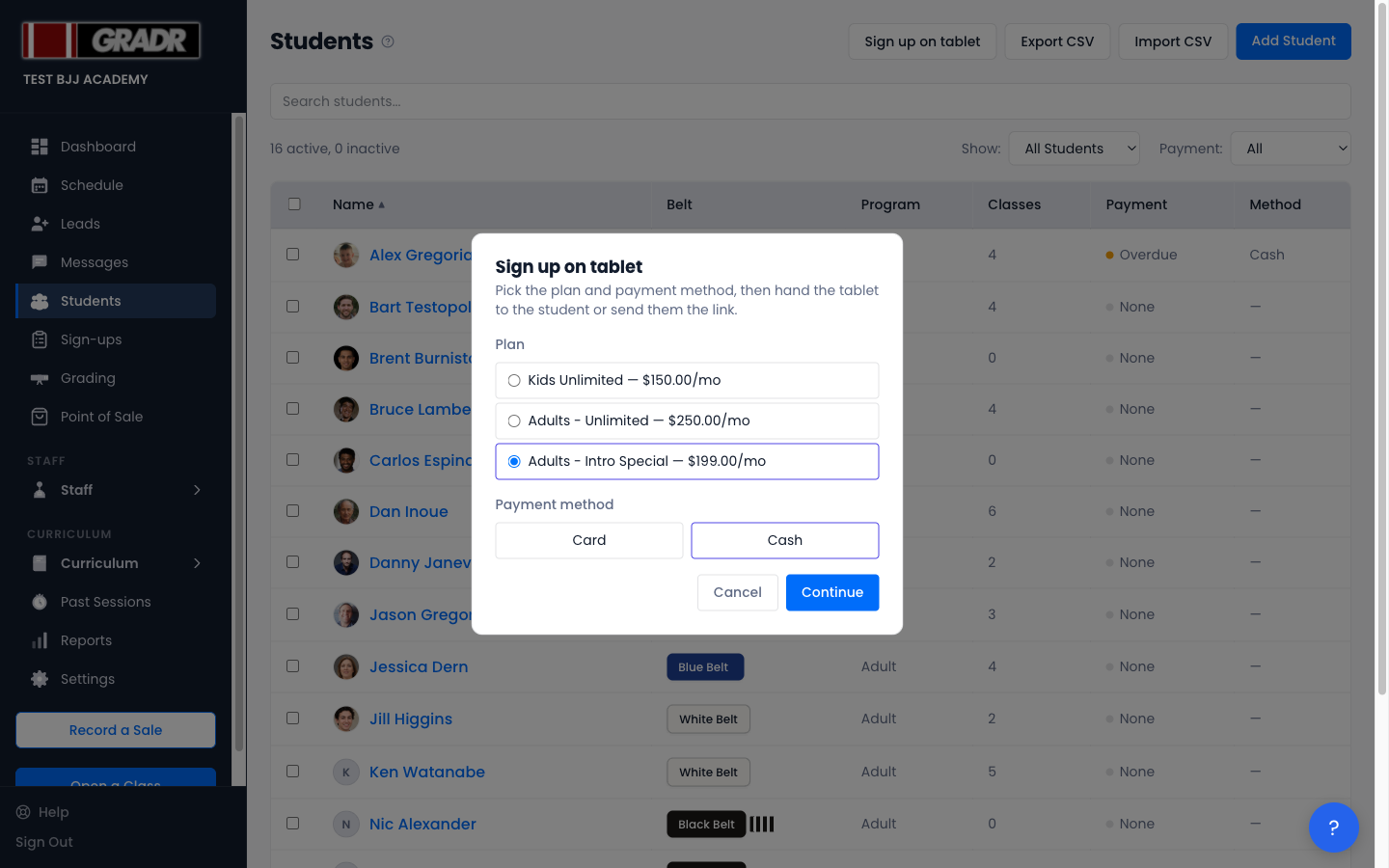
Go to Students and click Sign up on tablet.
To start from a lead instead, open the lead's detail page and use its Sign up on tablet button, and the sign-up is pre-filled from the lead and linked back to it automatically.
2. Choose the Plan and Payment Method
Pick the one plan the student is signing up for, then choose Card or Cash, and click Continue. This is the only plan and price the student will ever see.
3. Hand Off the Link
GRADR stages the sign-up. The handoff options appear next.
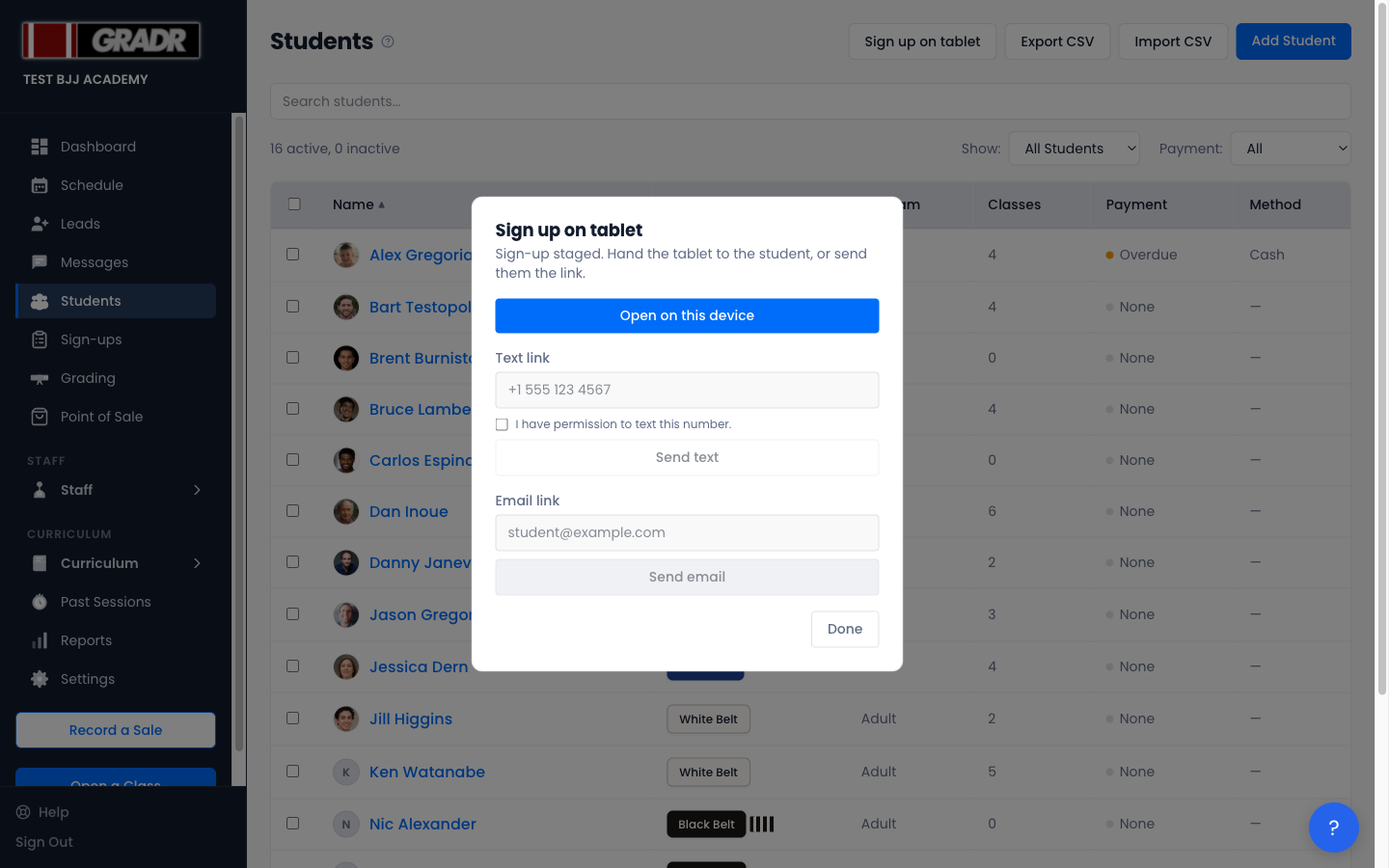
- Open on this device — opens the sign-up page in a new tab; hand the student the tablet.
- Text link — sends the link by SMS (tick the consent box first).
- Email link — sends the link by email.
The student now completes their own details, signs the waiver, and pays. You don't need to do anything else. A cash sign-up appears in your Students list as soon as they finish; a card sign-up appears once Stripe confirms the payment. See Tablet Intake → The Prospect's Sign-up for what they see.
4. Track It on the Sign-ups Page
Open Sign-ups in the sidebar to see the staged link under Outstanding.
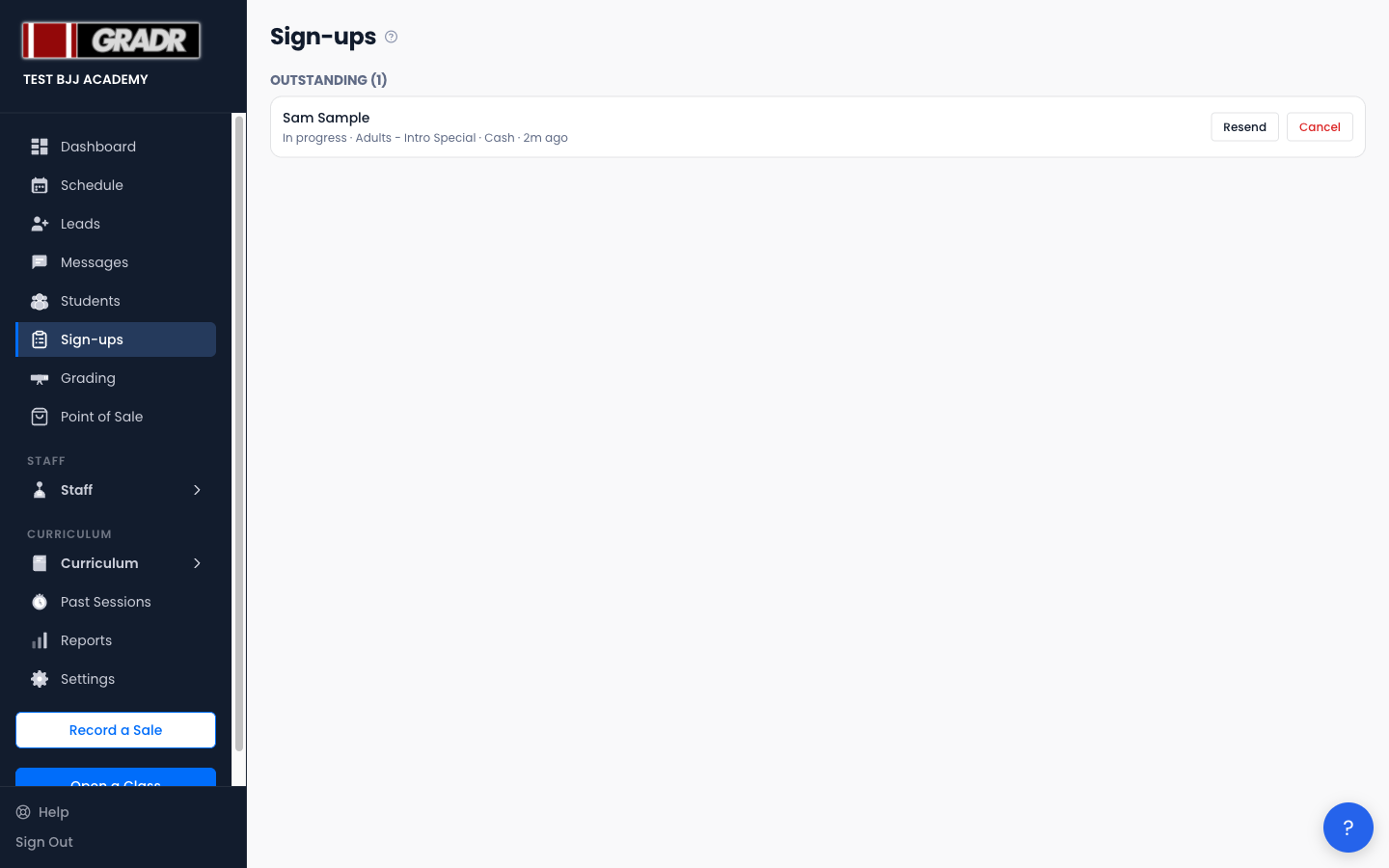
From here you can Resend the link or Cancel it, and when the student finishes, the sign-up moves to Completed. Watch for a Possible duplicate — review badge if their email matches an existing student.
See the Tablet Intake reference for more on the Sign-ups page and how old sign-ups are cleaned up automatically.
Related
- Students — where sign-ups land once completed
- Leads — starting a sign-up from an existing lead
- Settings — Payments — the Stripe connection card sign-ups use