Adding a Non-BJJ Student
This tutorial walks through adding a member who trains a non-BJJ discipline, say a Muay Thai student, so they're tracked for attendance and billing without ever showing up on your grading screens. For the full picture, see the Disciplines & Non-BJJ Members reference.
Prerequisites
- You need the non-BJJ discipline to exist first. If you haven't created it yet, do that in Settings → Programs & Classes → Disciplines. See Setting Up a Discipline.
1. Create the Discipline (Once)
In Settings → Programs & Classes, find the Disciplines section and click Add Discipline. Pick a colour, type the name (e.g. Muay Thai), and click Add.
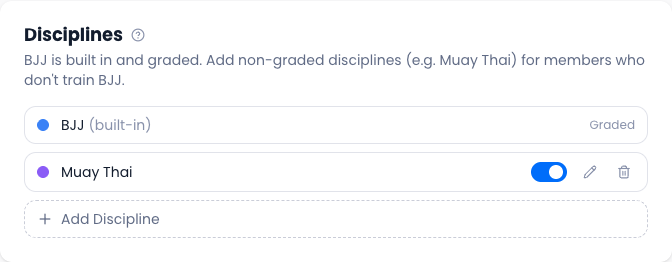
You only do this once per discipline. Every future student and class can then be assigned to it.
2. Add the Student
Open Students and click Add Student. Fill in their name, contact details, date of birth, and start date as usual.
3. Set Their Disciplines
In the Disciplines field, deselect BJJ and select the discipline they train (e.g. Muay Thai). If they train both, leave BJJ selected and add the other.

A student with no BJJ won't appear on any grading surface; the belt and stripe fields no longer apply to them.
4. Save
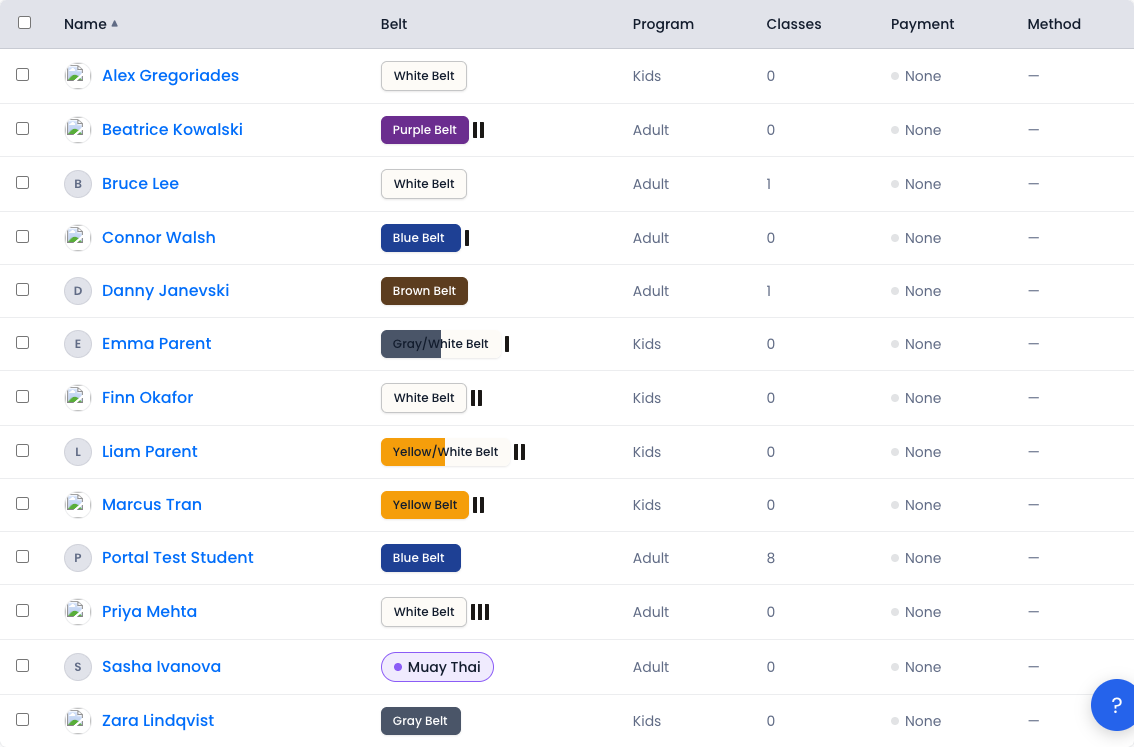
Click Add Student. Back in the roster, your new member shows their discipline's coloured pill where BJJ students show a belt.
5. (Optional) Give Them Classes to Attend
For the member to book and be checked into the right classes, tag those classes with their discipline. In Schedule → Template view, open a class and set its Discipline dropdown. Non-BJJ members are only offered classes that match one of their disciplines.
See the Disciplines & Non-BJJ Members reference for how attendance, the kiosk, and the student portal behave for non-BJJ members.
Related
- Schedule — set a class discipline so members can book and check in
- Grading — why non-BJJ members never appear on grading screens
- Tutorial: Onboarding a New Student