Tablet Intake
Let a new student sign themselves up. You stage the sign-up (pick one membership plan and a payment method), then hand them a gym tablet or send them a link. The prospect fills in their own details, signs the waiver, and pays (by card or cash). Nothing is added to your student list until they finish.
Tablet Intake lives under Sign-ups in the sidebar and is started with the Sign up on tablet button on the Students page (and on any lead's detail page).
Staging a sign-up is an owner action. The prospect's page is the only place the plan's price is ever shown. A link you text or email carries just your gym name and the link, never the plan or the price.
Staging a Sign-up
Open the Students page and click Sign up on tablet. (You can also start from a lead's detail page; the intake is then pre-filled from the lead's details and linked back to it.)
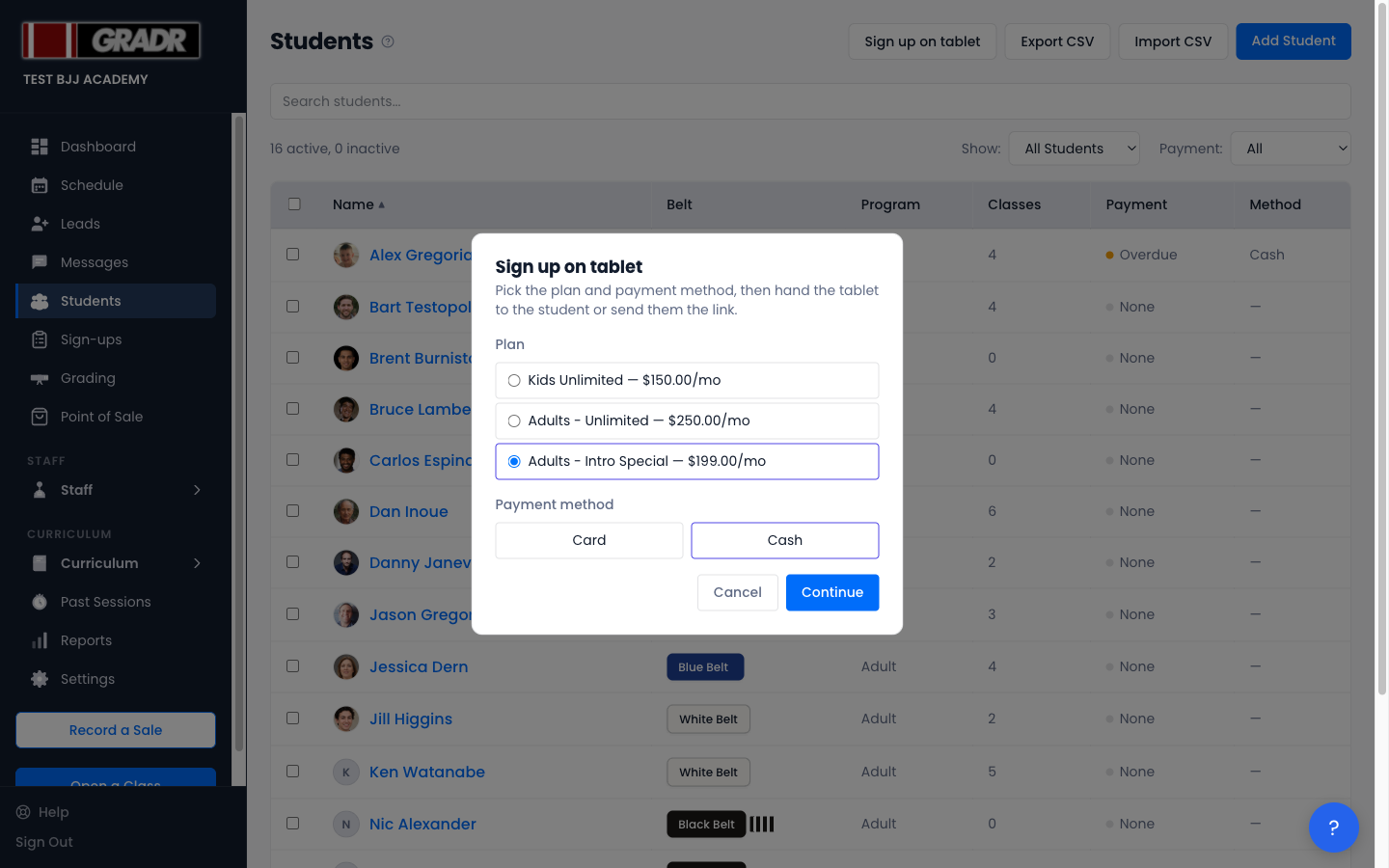
- Pick the plan. Choose exactly one of your active membership plans. This is the only plan the prospect will see.
- Pick the payment method — Card or Cash. Card requires a connected Stripe account; if you haven't connected Stripe, the Card option is disabled and a note explains why.
- Click Continue.
GRADR stages the sign-up and shows the handoff panel.
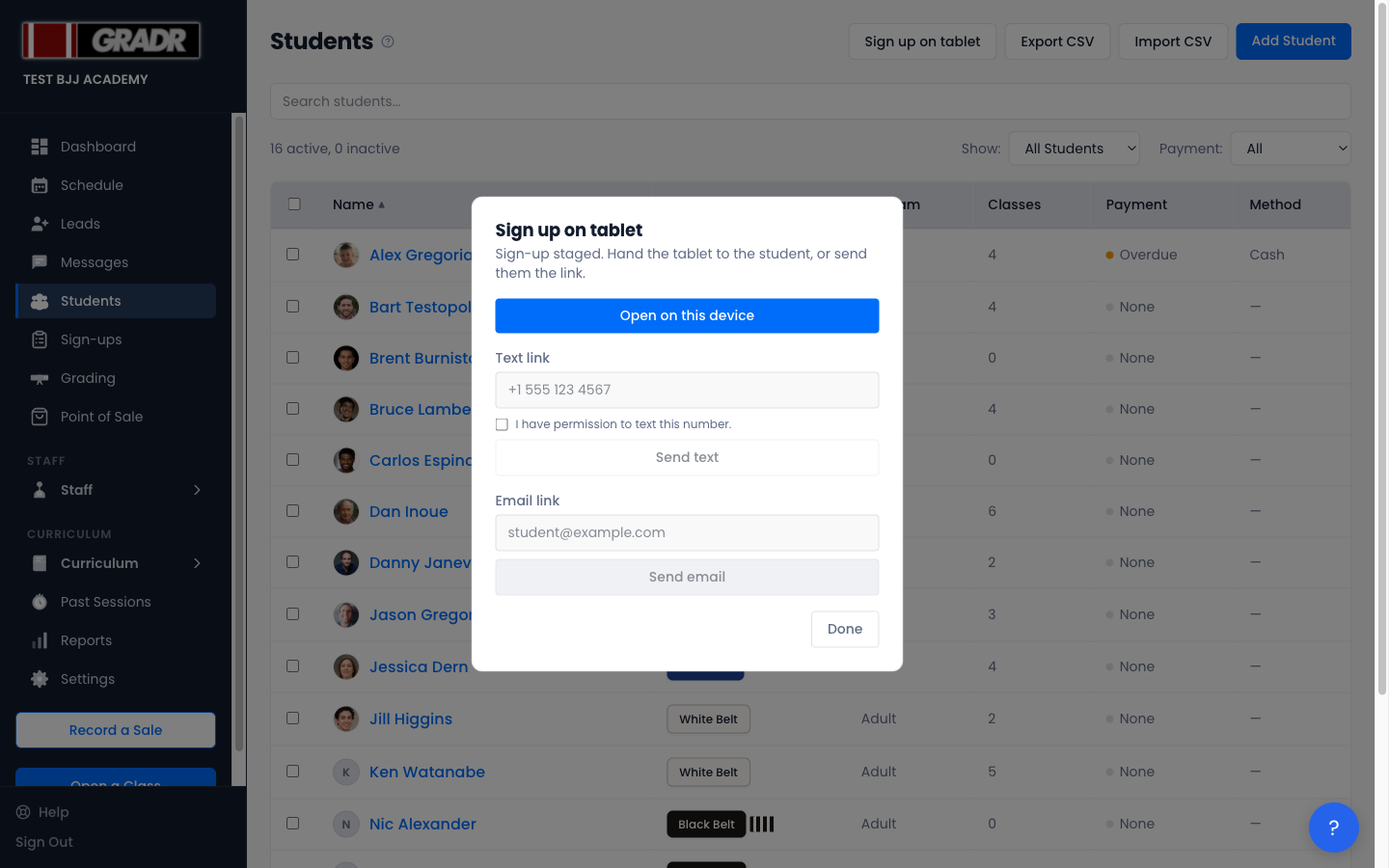
From here you choose how the prospect gets to their sign-up page:
- Open on this device — opens the sign-up page in a new tab. Hand the tablet to the prospect.
- Text link — sends the link by SMS. You must tick the box confirming you have permission to text the number.
- Email link — sends the link by email.
The Prospect's Sign-up
The sign-up page is gym-branded and shows the single staged plan at the top. The prospect works through three steps.
1. Their details
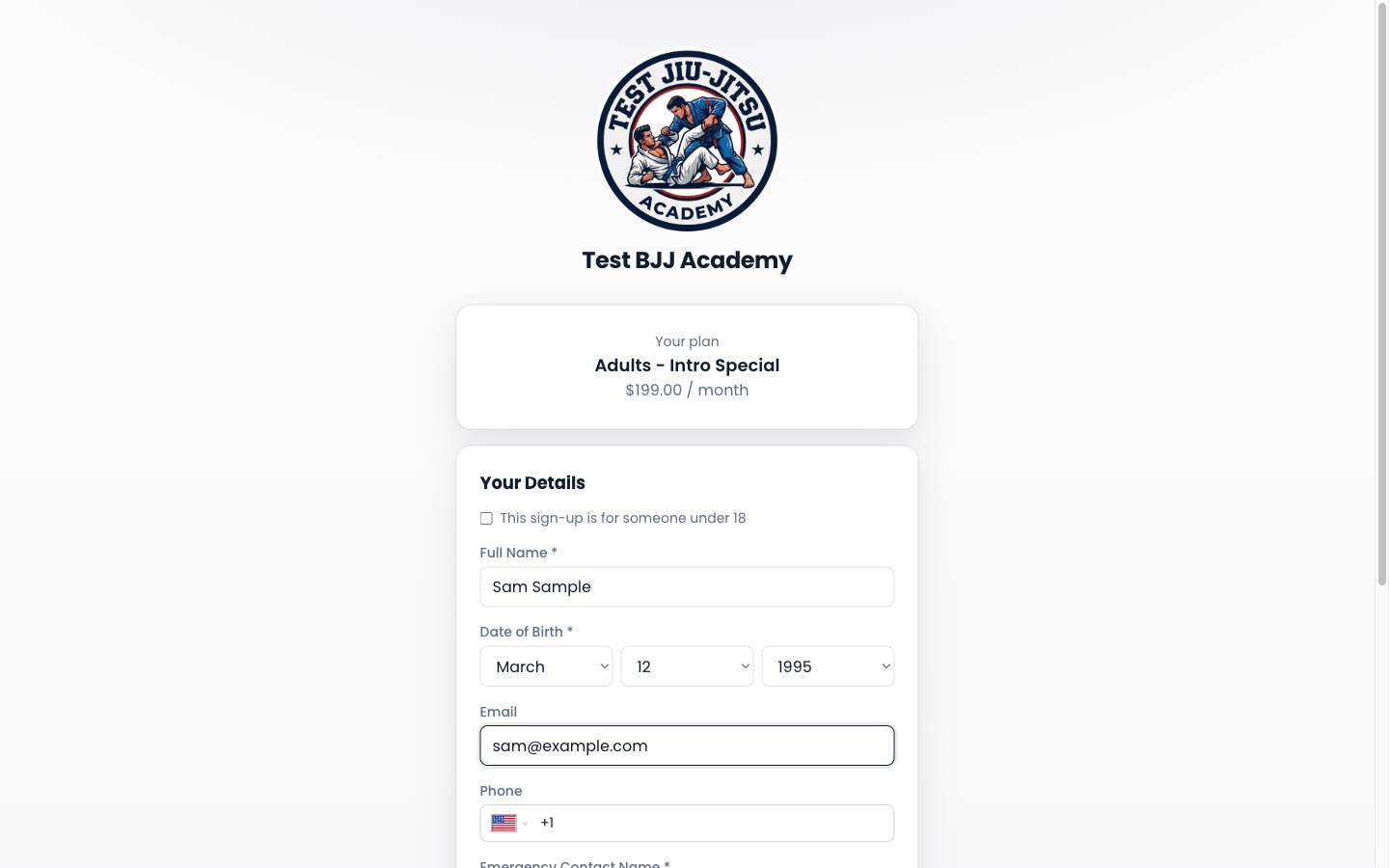
The prospect selects the Program they're joining (Adult or Kids) and enters their name, date of birth, contact details, emergency contact, and experience level. Ticking This sign-up is for someone under 18 switches the form to collect parent/guardian details instead.
2. The waiver
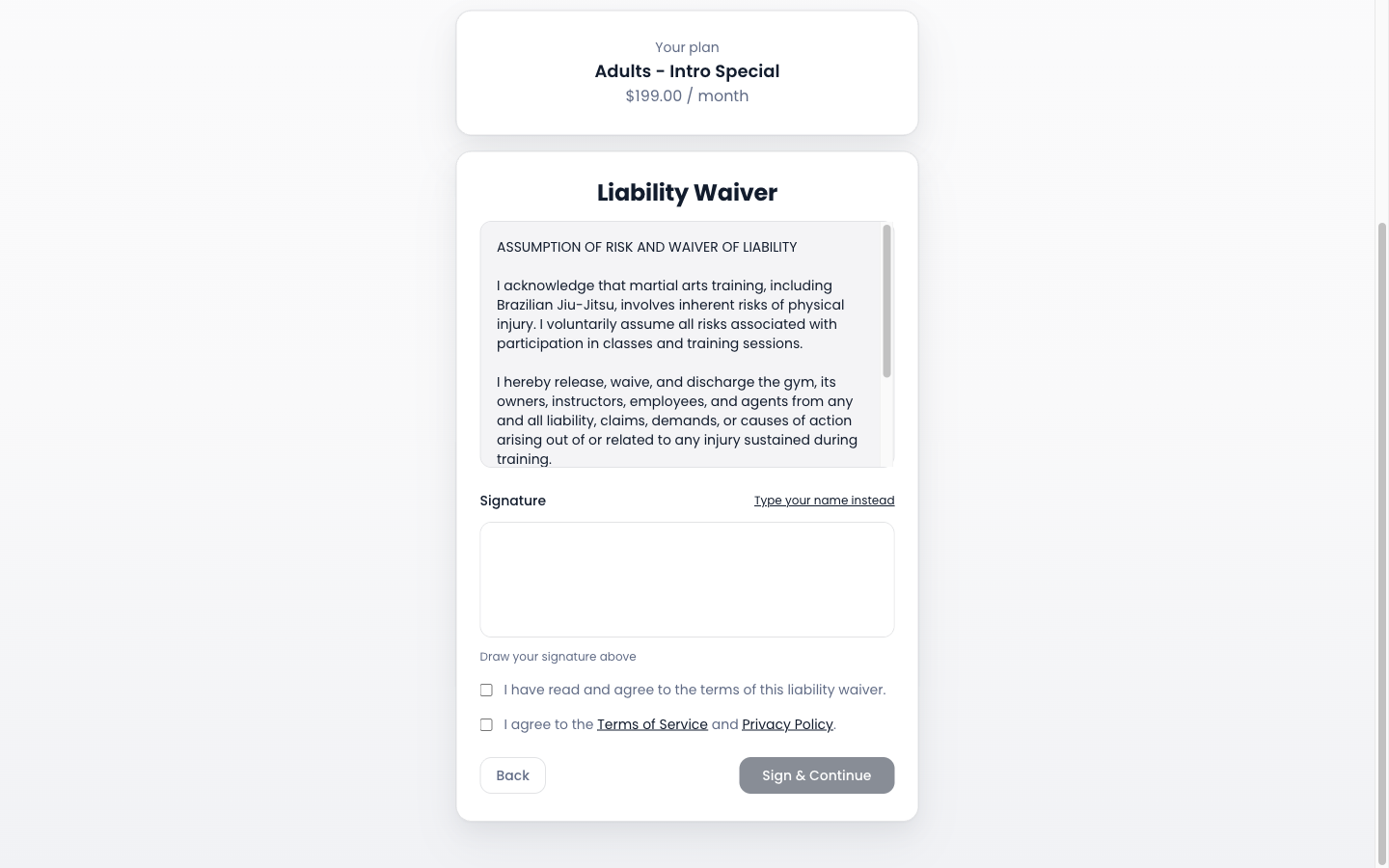
The prospect reads your gym's liability waiver, signs on screen, and agrees to the Terms of Service and Privacy Policy. Minors get a parental-consent waiver requiring the guardian's name.
3. Payment
The last step depends on the payment method you staged.
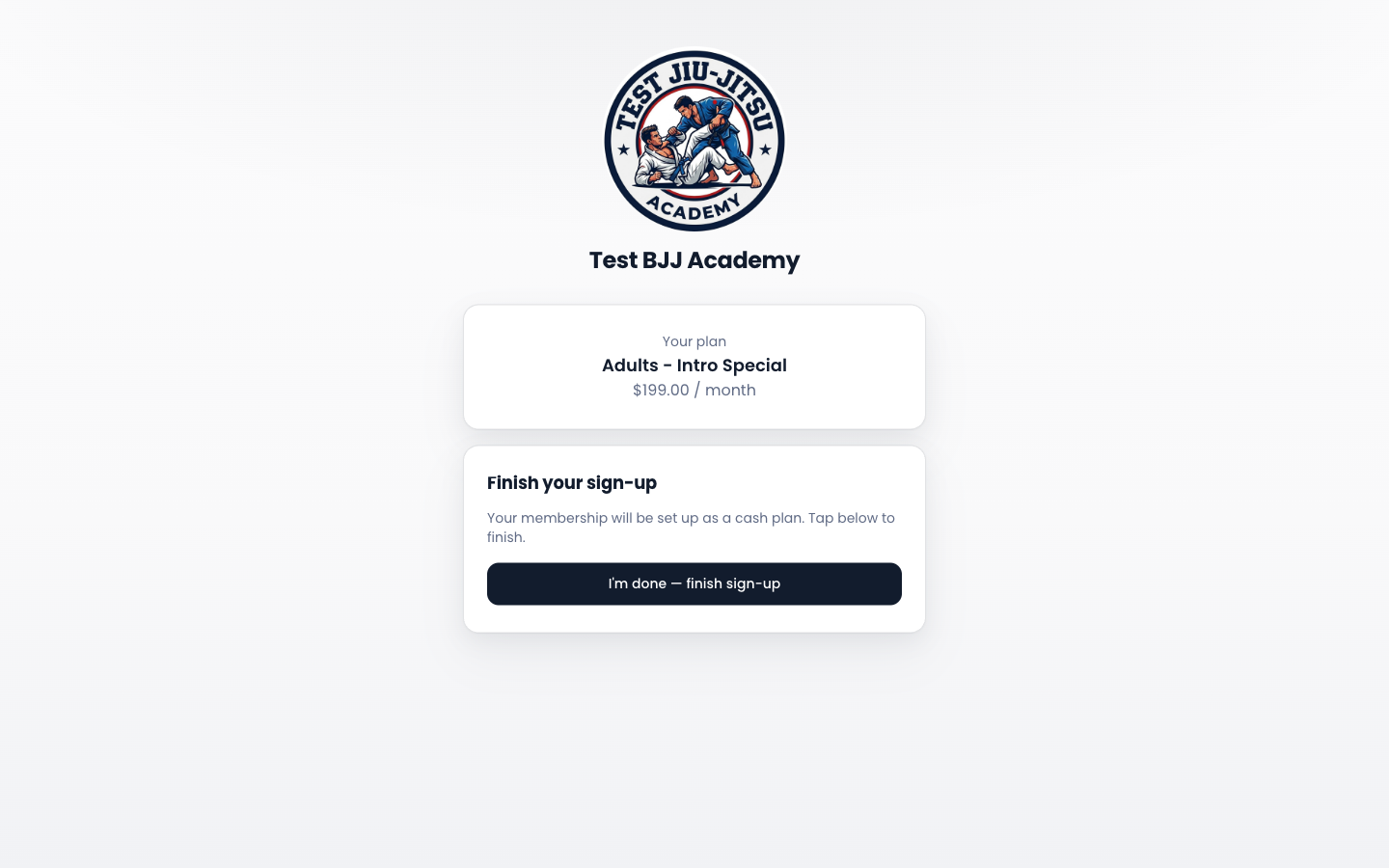
- Cash — the prospect taps to finish and is set up as a cash plan immediately. They land on a confirmation screen and appear in your Students list right away.
- Card — the prospect is taken to a secure Stripe payment page. They return to a confirmation screen while the payment is being confirmed.
A cash sign-up creates the student the moment the prospect finishes. A card sign-up stays pending (no student is created) until Stripe confirms the payment. This is why a card sign-up can briefly show as still "In progress" on your Sign-ups page after the prospect has paid; it flips to Completed once the payment lands.
A staged sign-up link is valid for 72 hours. The prospect can leave and come back to a half-finished sign-up within that window. After it expires, the link shows a friendly "this link has expired" screen. Stage a new one.
The Sign-ups Page
Sign-ups in the sidebar is your view of every self-service sign-up, grouped into three sections.
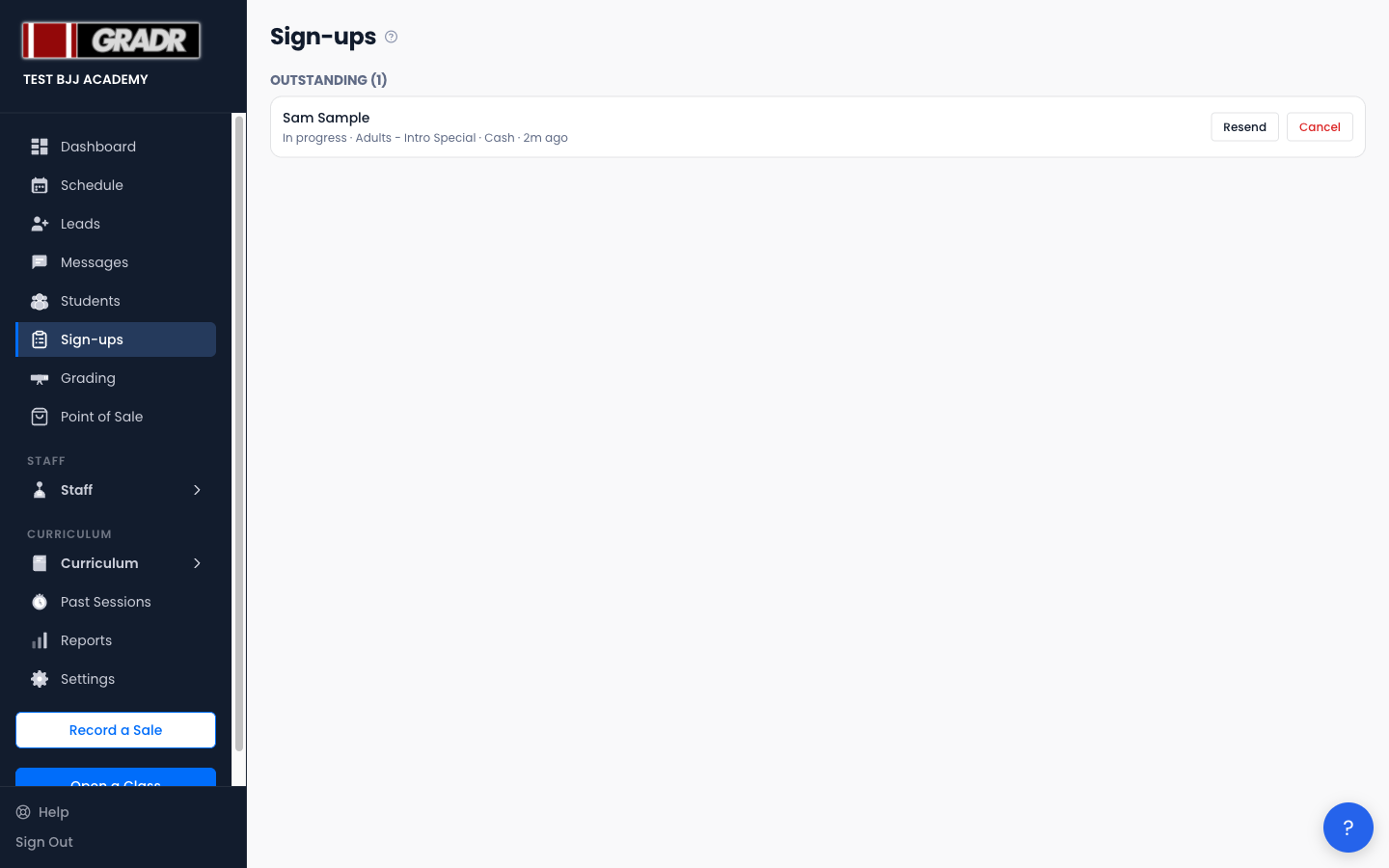
- Outstanding — staged links that are still live and unfinished. Each row has Resend (text or email the link again) and Cancel (stop the link working).
- Completed — sign-ups the prospect finished. A Possible duplicate — review badge appears on a completed sign-up whose email matches an existing student, so you can check before you end up with two records for one person.
- Abandoned — links that were cancelled, expired, or otherwise didn't complete.
You don't have to tidy up the Sign-ups page. GRADR automatically purges the personal details of abandoned and expired sign-ups, and of completed sign-ups older than 30 days (by then the details live on the student record). Cancelling or purging a sign-up never affects a student who was already created from it.
Related
- Staging a tablet sign-up — a step-by-step walkthrough.
- Students — where a completed sign-up lands.
- Leads — start a pre-filled sign-up from a lead.
- Membership Tiers — the plans you can stage.