Retention Alerts
Configure the rules behind the Retention Alerts card on your Dashboard: when a student is flagged as inactive, and which membership anniversaries you want to be reminded of. This is a dashboard surfacing tool, not an email system. GRADR shows you who needs attention, and you decide how to reach out.
Retention Alerts do not send any email. The feature surfaces at-risk and milestone students on your dashboard so you can follow up personally. There is no retention email template.
How it works
GRADR watches each student's check-in history and membership tenure. When a student crosses a threshold you've set here, they appear in the Retention Alerts card on your dashboard, where you can act on them.
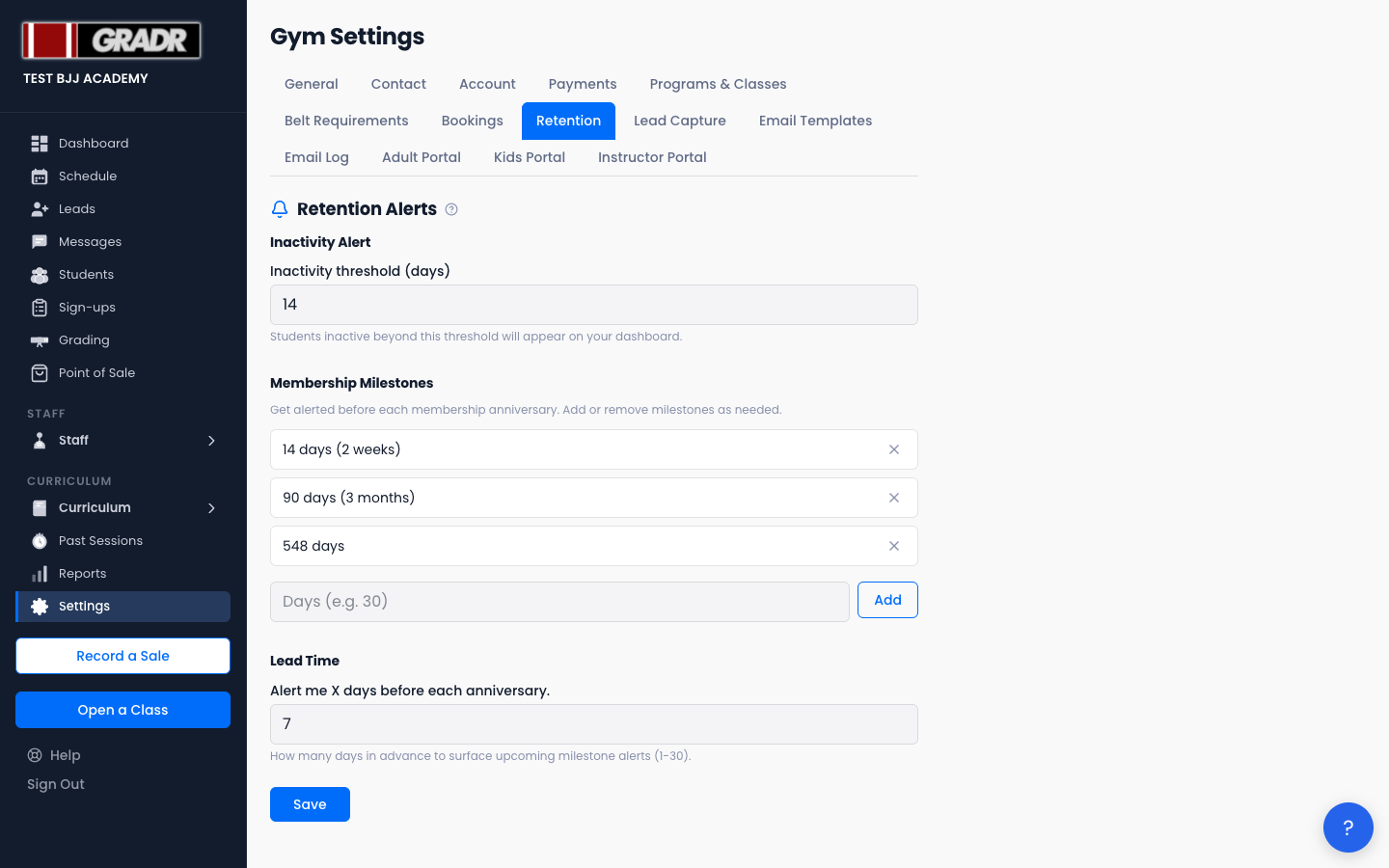
The settings tab has three sections, all saved together with a single Save button at the bottom.
Inactivity Alert
Set the Inactivity threshold (days): the number of days without a check-in before a student is flagged on your dashboard. The default is 14. Lower it to catch quiet students sooner; raise it to reduce noise.
Membership Milestones
Define the training anniversaries you want to be reminded of, measured in days since the student joined (the defaults are 14, 90, and 548 days). GRADR shows each milestone in a friendly form, for example 90 days (3 months) or 365 days (1 year).
- To add a milestone, enter a number of days and click Add.
- To remove one, click the ✕ next to it.
Use these to prompt a check-in conversation, a belt-progress chat, or a small gesture at meaningful points in a student's journey.
Lead Time
Set how many days before each membership milestone you want the alert to appear (1–30, default 7). This gives you a window to prepare rather than being notified on the day itself.
Reviewing Flagged Students
Flagged students appear in the Dashboard's Retention Alerts card. Reach out directly, offer an incentive, or update their status if they've already cancelled.