Membership Tiers
Define the membership plans you offer: their names, prices, billing cycles, session caps, and (optionally) minimum-commitment contracts. Tiers are assigned to students when they join and drive all recurring billing through Stripe as well as the cash-billing workflow.
Membership Tiers live in Settings → Payments, in the section below Cash Payment Reminders.
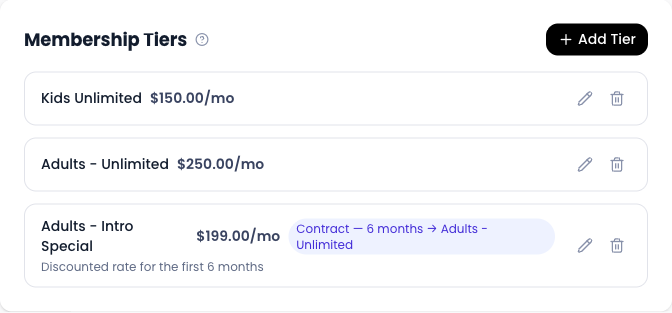
Tier Types
Every tier is one of two types. Pick the type up front, when you create the tier.
- Recurring — renews automatically on a billing cycle (weekly through yearly). Used for ongoing memberships.
- Fixed-duration — a one-time charge that grants access for a set number of days (e.g. a 30-day intro pass or a 10-day visitor pass). Does not renew.
You cannot switch a tier between Recurring and Fixed-duration once any students are assigned to it.
Creating a Recurring Tier
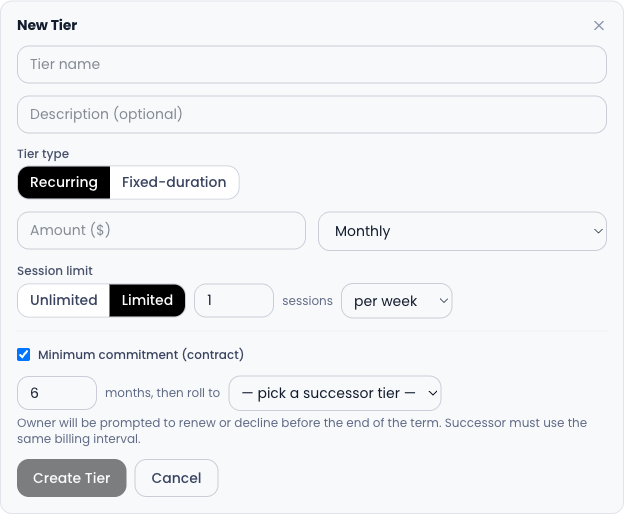
- Go to Settings → Payments.
- Scroll to Membership Tiers and click Add Tier.
- Enter the Tier name (e.g. "Adults — Unlimited") and an optional Description.
- Leave the Tier type toggle on Recurring.
- Enter the Price (in the gym's billing currency).
- Pick a Billing cycle from the dropdown. The supported options are:
- Weekly
- Every 2 weeks
- Monthly
- Every 3 months
- Every 6 months
- Yearly
- Set the Session limit:
- Unlimited — the student can attend any number of classes.
- Limited — set the count plus the period (per week or per month).
- (Optional) Tick Minimum commitment (contract) to make this a contract tier. See Contract tiers below.
- Click Create Tier.
Creating a Fixed-Duration Tier
Use a fixed-duration tier for intro specials, visitor passes, or any pass that should expire automatically without renewing.
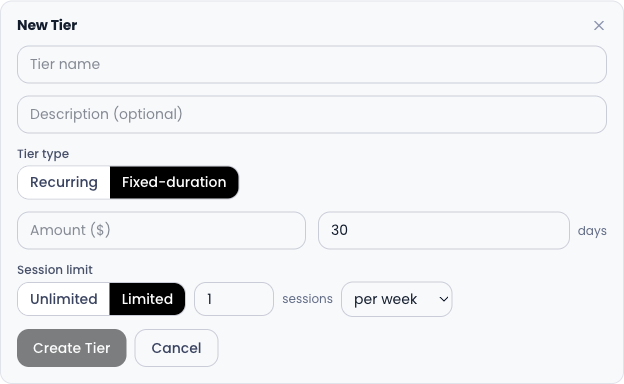
- Click Add Tier.
- Enter the Tier name and optional Description.
- Switch the Tier type toggle to Fixed-duration.
- Enter the Price.
- Set the Duration in days (e.g.
30for a 30-day pass). - Set the Session limit if you want to cap how many classes the student can attend during the pass, the same Unlimited / Limited choice as recurring tiers.
- Click Create Tier.
Fixed-duration passes do not support contracts. The student's membership expires automatically when the duration is up; their status flips to Expired and they can no longer check in until you assign a new tier.
Contract Tiers
A contract tier locks the student into a recurring tier for a minimum number of months. When the commitment ends, the owner is prompted to renew (roll the student onto a successor tier) or decline (cancel the membership).
A typical use case: a discounted intro tier (e.g. "Adults — Intro Special, $199/mo for 6 months") that rolls onto the standard tier (e.g. "Adults — Unlimited, $250/mo") at the end of the commitment.
To set up a contract tier:
- Create the discounted tier as a recurring tier.
- Tick Minimum commitment (contract) in the form.
- Set the commitment length in months (e.g.
6). - Optionally pick a successor tier — the tier the student rolls onto when the commitment ends. This is optional: if you leave it empty, renewing simply lifts the commitment and the student stays on the same tier.
If you do set a successor, it must match the contract tier's billing interval and interval count (e.g. a "every 3 months" contract must roll to an "every 3 months" successor, not just any monthly-ish tier).
Once a student is assigned a contract tier, GRADR stamps the commitment end date on their profile and surfaces them in the Contracts ending soon dashboard card a configurable number of days before the end date. The owner can act on the contract from that card or directly from the student's Billing tab.
Editing a Tier
Click the pencil icon next to a tier to edit it. You can change the name, description, price, billing cycle, session limit, and contract settings.
Editing a tier's price does not automatically update existing student subscriptions. Students on the old price continue at their current rate until their subscription is manually updated or they re-enroll.
Two restrictions:
- You cannot switch a tier between Recurring and Fixed-duration once any students are assigned to it.
- You cannot deactivate a tier that is the successor of another contract tier; remove the contract reference first.
Deactivating vs Deleting a Tier
GRADR uses a two-step delete model so you never lose historical data.
| Action | What it does | When you can do it |
|---|---|---|
| Deactivate | Hides the tier from the dropdown when assigning new students. Existing assignments are preserved. The tier is greyed out in the Membership Tiers list. | Any active tier, unless it's the successor of a contract tier. |
| Permanently delete | Removes the tier row entirely. | Only on an already-deactivated tier that has no students still assigned to it. |
To deactivate, click the trash-can icon next to an active tier. To permanently delete an already-deactivated tier, click the trash-can icon again.
Currency
All tiers in a gym share a single billing currency, configured in Settings → Payments → Payment Settings → Billing Currency. The currency selector is locked as soon as any active tier exists. To change the currency, you have to deactivate every tier first.
GRADR supports 22 currencies including USD, AUD, GBP, EUR, CAD, NZD, and others.