Email Templates
Customize the transactional emails GRADR sends on your behalf: trial confirmations, shift notifications, waiver reminders, and more. Each template has a fixed purpose and a set of merge tags you can use to personalize the content.
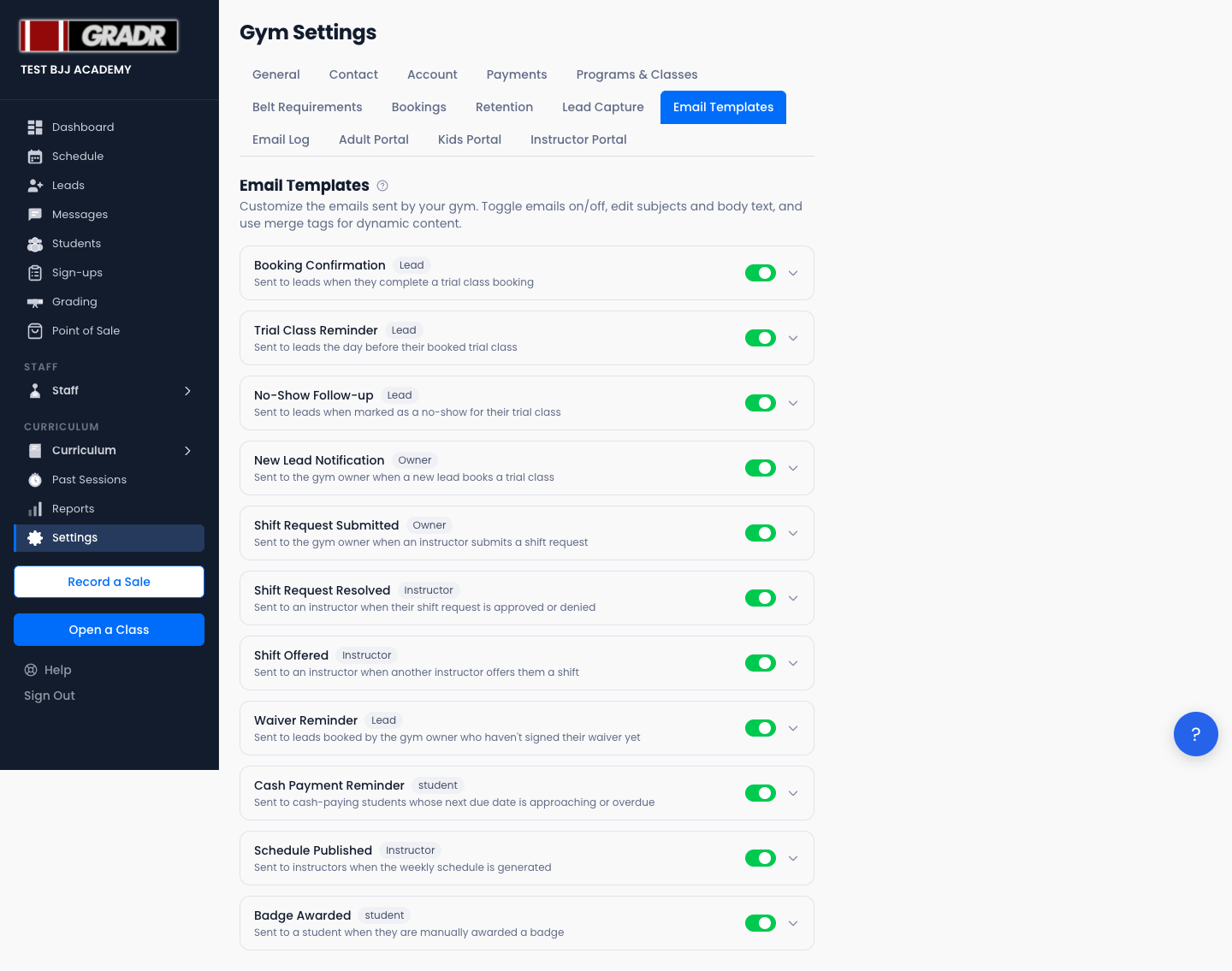
Editing a Template
- Go to Settings → Email Templates.
- Click a template card to expand its editor.
- Update the Subject and Body as needed.
- Click any merge tag chip below the body to insert it at the end of the body, for example
{{lead_name}}or{{class_time}}. Only the tags valid for that template are shown. - Click Save.
Each template card shows the recipient (Lead, Owner, or Instructor) and a Customized badge once you've edited it away from the default.
Enabling and disabling
Each card has a toggle. Switch it off to stop GRADR sending that email entirely, without losing your customizations. Switch it back on at any time.
Resetting to default
Once a template is customized, a Reset to Default button appears in its editor. Click it to discard your changes and restore GRADR's original wording.
Available Templates
| Template | Recipient | When it sends |
|---|---|---|
| Booking Confirmation | Lead | When a lead completes a trial class booking |
| Trial Class Reminder | Lead | The day before a booked trial class |
| No-Show Follow-up | Lead | When a lead is marked as a no-show for their trial |
| Waiver Reminder | Lead | To a lead booked by the gym who hasn't signed their waiver yet |
| New Lead Notification | Owner | To you, when a new lead books a trial class |
| Shift Request Submitted | Owner | To you, when an instructor submits a shift request |
| Shift Request Resolved | Instructor | To an instructor when their shift request is approved or denied |
| Shift Offered | Instructor | To an instructor when another instructor offers them a shift |
| Schedule Published | Instructor | To instructors when the weekly schedule is generated |
| Cash Payment Reminder | Student | To a cash-paying student whose next due date is approaching or overdue |
| Badge Awarded | Student | To a student when they're manually awarded a badge |
Emails GRADR sends that you don't control
A few emails come from GRADR itself rather than from your gym, so they don't appear in the table above and can't be edited or switched off:
- Account ready — sent when an account is created, to you when your gym is set up and to a student when they join. It confirms the account works and explains how to add GRADR to a phone's home screen.
- Portal invite — the link a student uses to set up their Student Portal login.
- SMS opt-in request — sent when you click Ask for SMS opt-in on a student or instructor, so they can give consent themselves.
These are part of how accounts and access work, which is why they're not optional. Everything you can customize is in the table above.
Merge Tags
Merge tags are inserted with double curly braces, for example {{lead_name}} or {{class_time}}. Each template exposes only the tags relevant to it. They appear as chips under the body editor, and clicking one inserts it into the body.
Email Log
To see which emails have actually been sent and their delivery status, go to Settings → Email Log.
Related
- Settings — Email Log — see which emails have actually been sent
- Settings — Bookings — triggers the booking confirmation email
- Shifts — triggers the shift request and offer emails