Email Log
A record of every automated email GRADR has attempted to send from your account: booking confirmations, trial reminders, lead notifications, shift emails, waiver reminders, and more.
This includes the emails you don't control, such as account-ready confirmations and portal invites, so it's the place to check whether a student actually received their invite. See Email Templates.
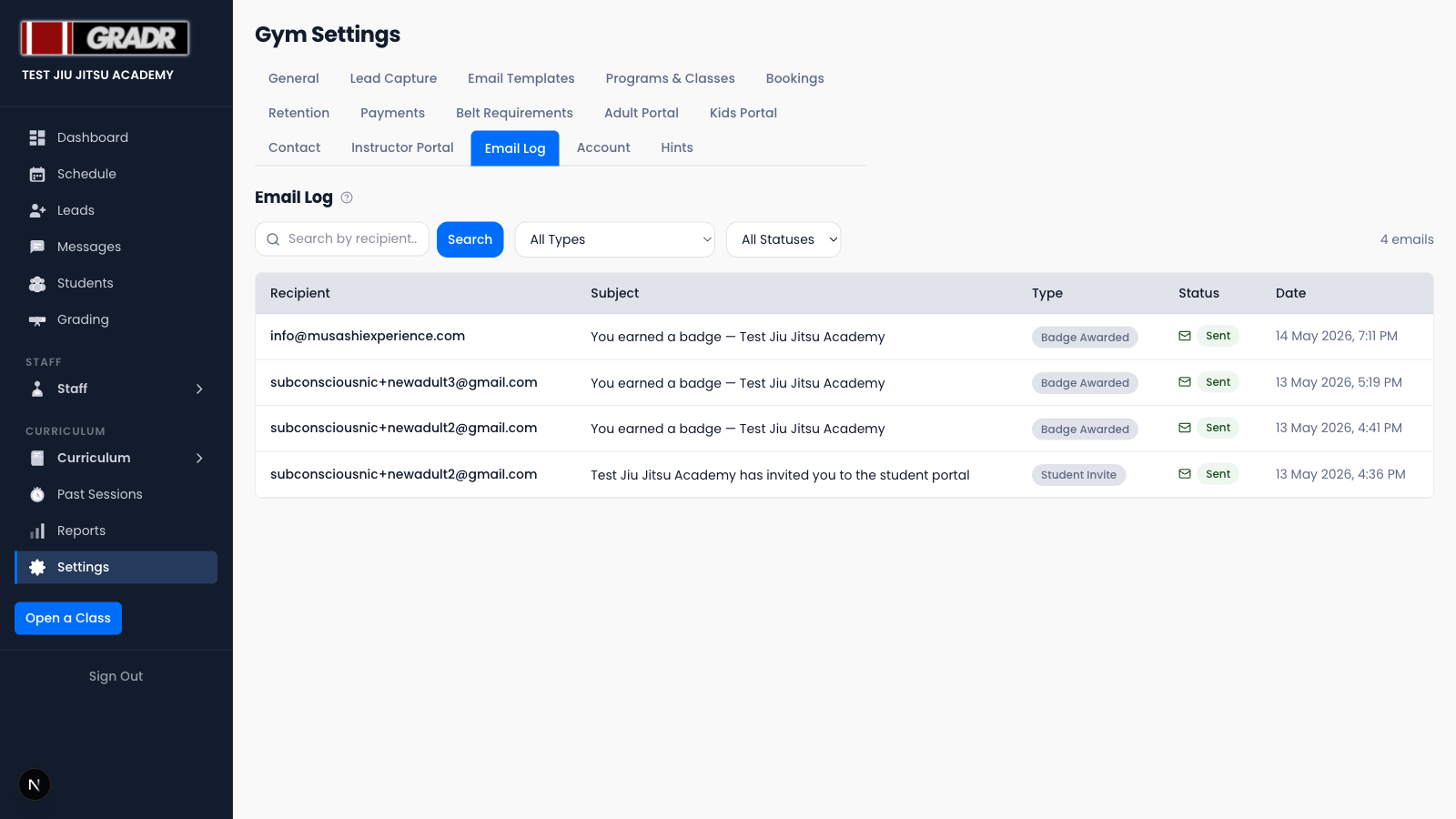
Reading the Log
The log is a table with five columns:
- Recipient — the email address the message was sent to
- Subject — the email's subject line
- Type — which template the email used
- Status — Sent, Failed, or Skipped
- Date — when GRADR attempted to send it
A Skipped status means GRADR had nothing to send to. Most often, the recipient had no email address on file.
Filtering the Log
Three controls narrow the list:
- Search by recipient — find all emails to a specific address.
- Type — filter to a single email type (defaults to All Types).
- Status — filter to Sent, Failed, or Skipped (defaults to All Statuses).
Troubleshooting Delivery Issues
If a student says they didn't get an expected email:
- Search the log for their email address.
- Check the Status:
- Failed — the send was attempted but didn't go through. Confirm the address is valid and try the action again.
- Skipped — GRADR had no address (or nothing to send). Add or correct the email on the student's profile, then re-trigger the email.
- If there's no entry at all, the trigger may not have fired. Confirm the underlying event happened (e.g. the booking was completed).
Relationship to Messages
The Email Log covers automated transactional emails. Broadcast campaigns you compose and send yourself are tracked separately in Messages.
Related
- Settings — Email Templates — customize the emails this log tracks
- Messages — broadcast campaigns, tracked separately from this log
- Settings — Bookings — configure the booking confirmation email