Class Tags
Class Tags live on the Programs & Classes settings tab, and they're custom labels you apply to classes in your Schedule to organize, filter, and report on them beyond what the built-in programs cover.
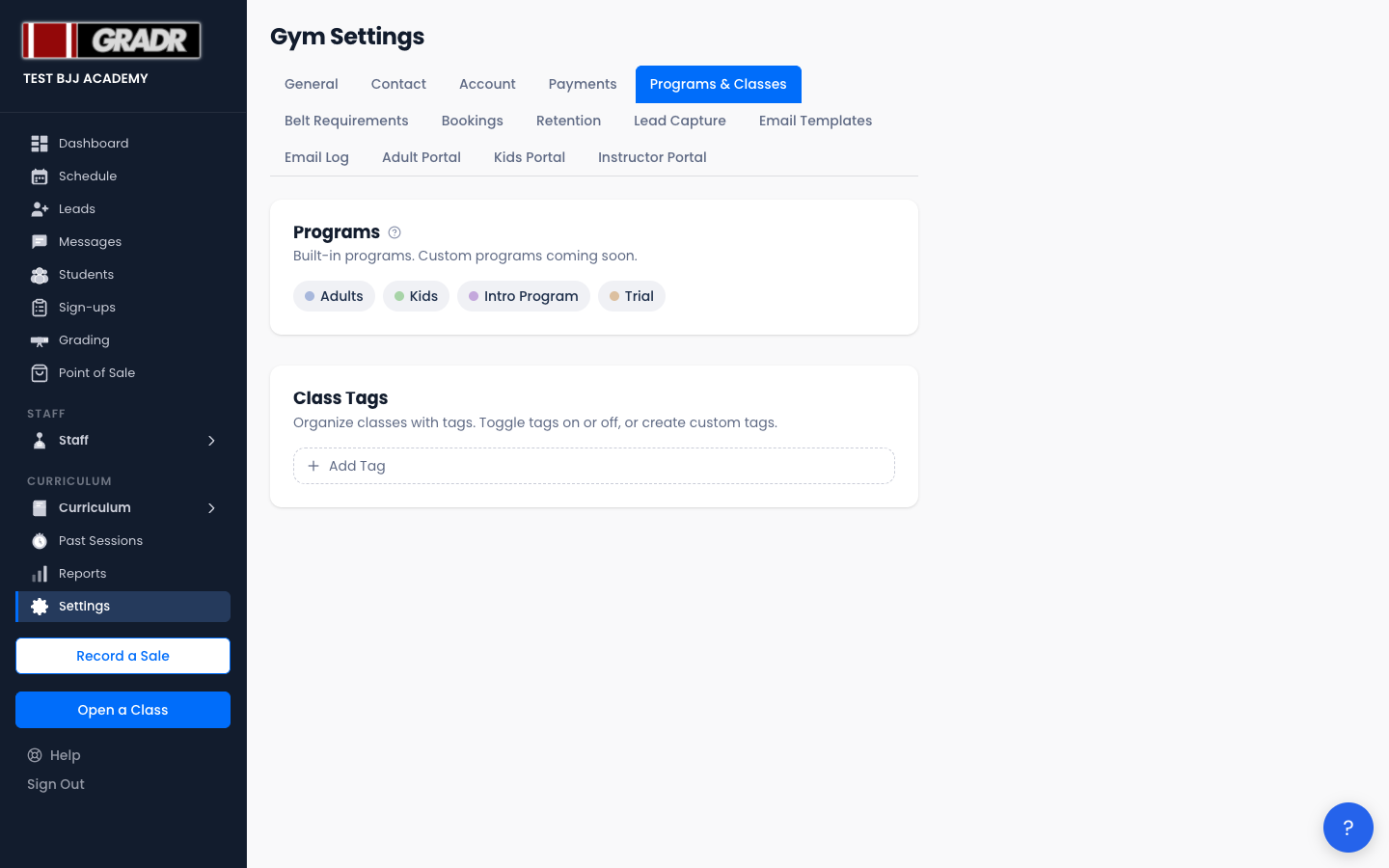
Programs
The top of the tab lists your Programs: the built-in class groupings Adults, Kids, Intro Program, and Trial, each shown with a colored dot. These can't be removed; custom programs are coming in a future release.
Class Tags
Below Programs, the Class Tags section lists every tag, each showing a colored dot, its name, an enable/disable toggle, and, for custom tags, edit and delete controls. Built-in tags can't be edited or deleted. They're marked (default) (Gi, No-Gi, Competition, Open Mat) and can only be toggled on or off.
Creating a tag
- Click Add Tag.
- Pick a color (click the color swatch) and enter the tag name.
- Click Add.
The tag is immediately available in the class editor on the Schedule.
Editing a tag
Click the pencil icon on a custom tag to edit it inline, change the color and name, then click the check to save. Built-in tags can't be edited.
Enabling and disabling
Use the toggle to retire a tag without deleting it. A disabled tag is greyed out and no longer offered when tagging classes, but existing classes keep it, and that's the right way to "retire" a built-in tag you don't use.
Deleting a tag
Custom tags have a trash icon. Deleting it removes the tag from the options and strips it from any classes it was on, and this can't be undone, so if you want to retire a tag without affecting existing data, disable it instead.
Related
- Schedule — apply tags to classes in the class editor
- Settings — full settings overview
- Tutorial: Building a Class Schedule