Bookings
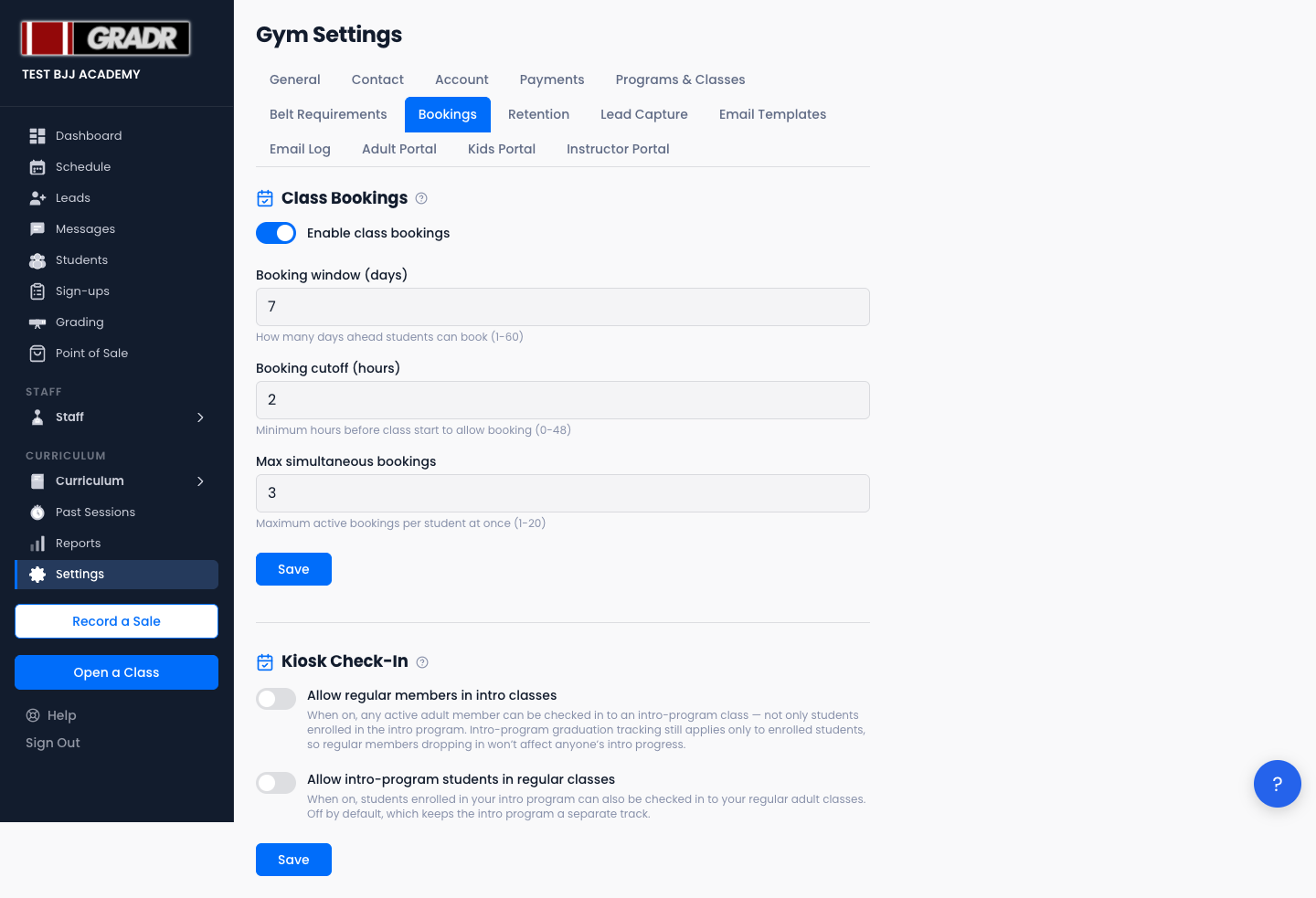
Control whether students can book themselves into classes online, and tune how that booking flow behaves. This tab also holds the kiosk cross-attendance settings that decide which adult students appear on which class rosters.
Class Bookings
The booking portal is off by default. To turn it on:
- Go to Settings → Bookings.
- Toggle Enable class bookings on.
- Set the configuration fields that appear (below).
- Click Save.
When enabled, students can book upcoming classes from their portal. (Lead trial booking is a separate, per-class control set on the Schedule, not here.)
With bookings enabled, three fields control the flow:
- Booking window (days) — how far ahead students can book (1–60, default 7).
- Booking cutoff (hours) — how close to class start bookings are still allowed (0–48, default 2).
- Max simultaneous bookings — how many active bookings a single student can hold at once (1–20, default 3).
Bookings don't replace check-in; students still check in at the kiosk when they arrive.
Kiosk Check-In (cross-attendance)
Below the booking settings, a separate Kiosk Check-In section controls which adult students show up on the kiosk roster across tracks. Both toggles are off by default (keeping the intro program a separate track), and they have their own Save button. These affect rosters only, never billing or graduation tracking.
- Allow regular members in intro classes — when on, any active adult member can be checked in to an intro-program class, not just enrolled intro students. Intro graduation still tracks only enrolled students.
- Allow intro-program students in regular classes — when on, students enrolled in your intro program can also be checked in to regular adult classes.
Booking Confirmation
When a student books online, GRADR sends them the Booking Confirmation email. See Email Templates.
Related
- Schedule — per-class trial booking and instructor assignment
- Leads — full reference for the Leads section
- Tutorial: Onboarding a New Student