Payments
Configure how GRADR collects student payments, manages cash-payment reminders, and pays your instructors. Everything in this area lives under one tab: Settings → Payments.
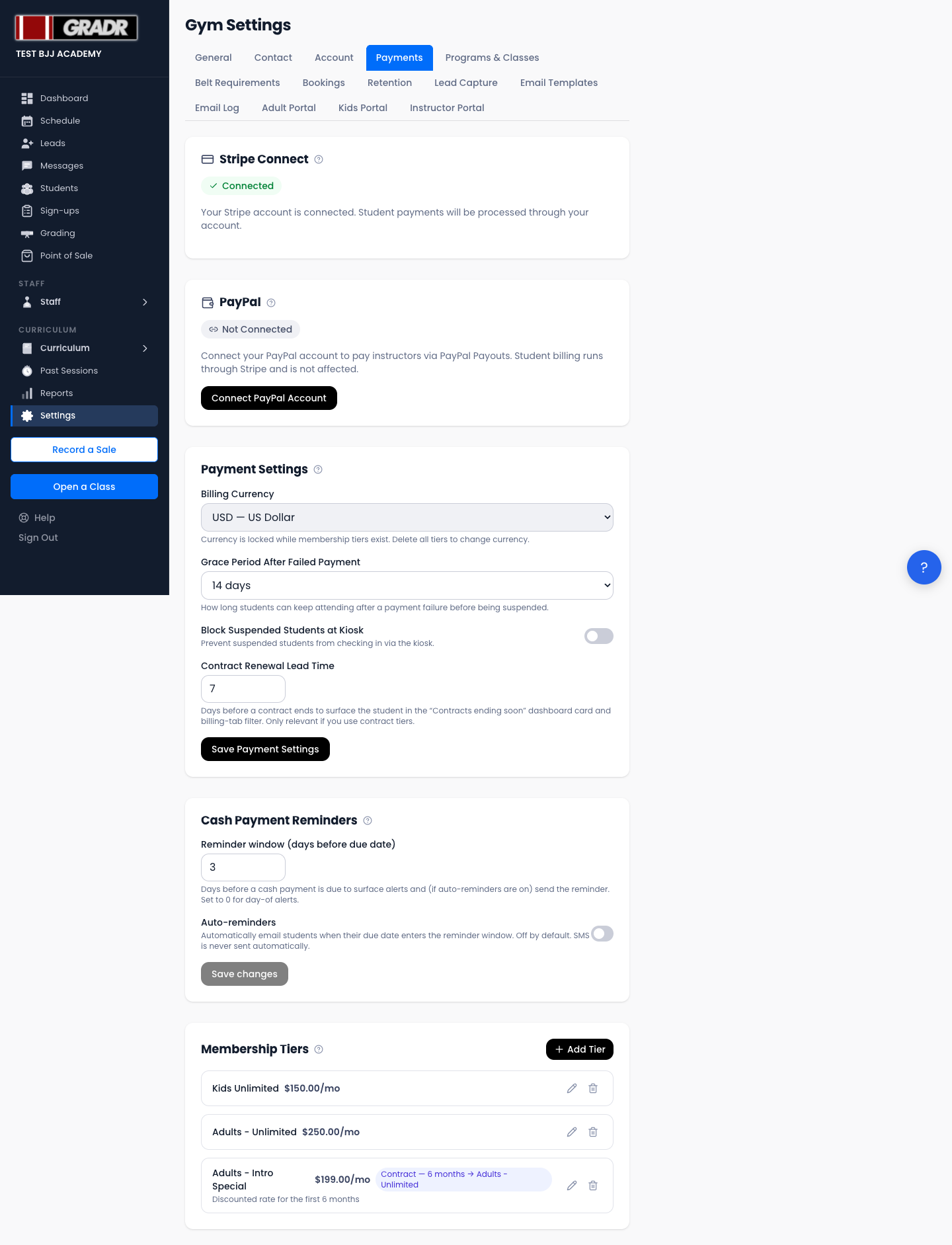
The Payments tab is organised into five sections, from top to bottom:
- Stripe Connect — your processor for student card payments and subscriptions.
- PayPal — your processor for instructor payouts from the Payroll page.
- Payment Settings — currency, grace period, kiosk-access rules, contract-renewal lead time.
- Cash Payment Reminders — alert window and auto-reminder toggle for manually-tracked cash payments.
- Membership Tiers — covered in detail on the Membership Tiers page.
Stripe Connect (Student Billing)
GRADR uses Stripe to process all student card payments and recurring subscriptions. Stripe is connected once during initial gym setup; the section shows your connection state.
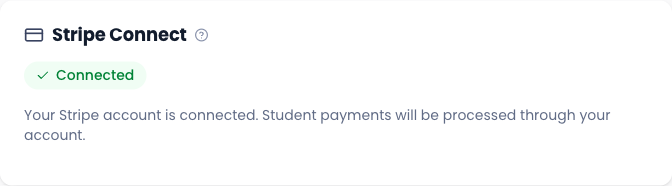
States:
- Not Connected — click Connect Stripe Account to start the Stripe OAuth flow.
- Onboarding Incomplete — Stripe needs additional information. Click Resume Stripe Setup to finish.
- Connected — payments are live. Subscription management, refunds, and dispute handling all happen in your Stripe dashboard.
Until Stripe is connected, the Payment Settings section below is read-only: you cannot save currency or grace-period changes without an active Stripe connection.
PayPal (Instructor Payroll)
PayPal is used for instructor payouts only, paying your instructors from the Payroll page. PayPal is not a payment option for students; all student card payments go through Stripe.
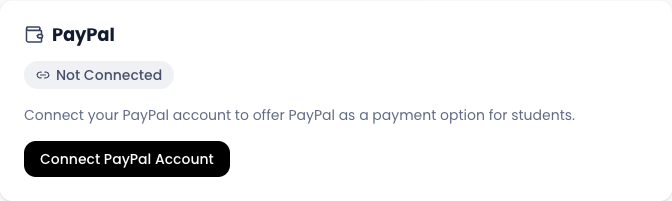
Connecting PayPal
- Click Connect PayPal Account.
- Complete the PayPal OAuth flow. GRADR redirects you to PayPal to authorise sending payouts on your behalf.
- Once connected, your PayPal account email is displayed and instructor payouts are enabled in Payroll.
Each instructor must also add their own PayPal email in their profile before they can be paid.
Disconnecting PayPal
Click Disconnect PayPal and confirm. Future payroll runs will require manual payment until you reconnect.
Payment Settings
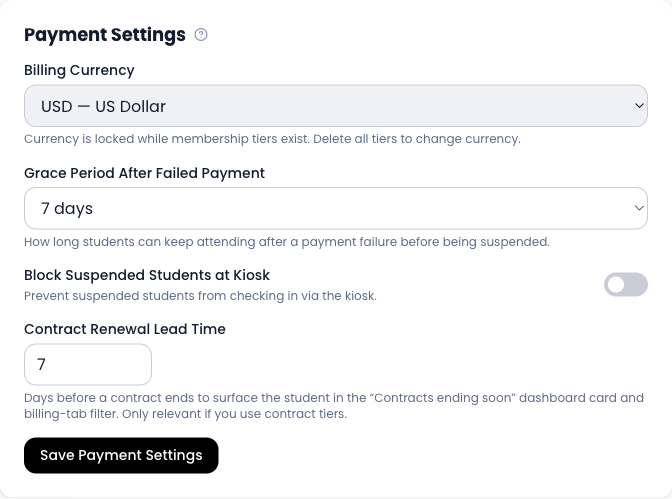
Billing Currency
The gym's billing currency. Used for every membership tier price and all student billing.
Choose the currency before creating any membership tiers. Once an active tier exists, the dropdown is locked. To change currency later, you have to deactivate every tier first, change the currency, then recreate the tiers.
GRADR supports USD, AUD, GBP, EUR, CAD, NZD, SGD, HKD, JPY, CHF, SEK, NOK, DKK, MXN, BRL, INR, ZAR, AED, MYR, PHP, THB, and PLN.
Grace Period After Failed Payment
How long a student can keep attending after a Stripe payment fails before they're automatically suspended.
Options: 3, 7, 14, or 30 days. Default is 7. After this window, the student's status flips to Suspended and (if the kiosk block below is on) they're blocked from checking in.
Block Suspended Students at Kiosk
When on, students in Suspended status cannot check in via the kiosk. This is the gym owner's enforcement lever; turning it off lets suspended students keep attending while you sort their payment out.
Contract Renewal Lead Time
Days before a contract tier's commitment-end date that the student appears in the Contracts ending soon dashboard card and in the billing-tab filter on the Students page.
Default is 7. Range 1–90. Only relevant if you use contract tiers.
Cash Payment Reminders
GRADR supports a manual cash-billing workflow for gyms whose students pay in cash. This section controls how (and whether) GRADR reminds students before their cash payment is due.
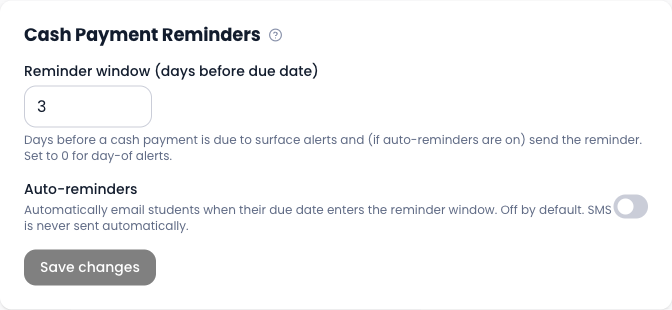
This section is independent of Stripe. It's always available, even if you haven't connected Stripe.
Reminder Window
Days before a student's cash-payment due date to:
- Surface them on the Dashboard's cash-due alert.
- Send them an email reminder (only if Auto-reminders below is on).
Set to 0 for day-of alerts only. Default is 3.
Auto-Reminders
When on, GRADR automatically emails a student when their due date enters the reminder window. Off by default.
GRADR will never send SMS reminders automatically. A payment reminder text goes out only when you press Send Reminder on the student's profile, and only if that student has opted in to text messages. See Text message consent.
Membership Tiers
The fifth section on this tab is your membership-tier catalogue. Because the tier model has several moving parts (recurring vs fixed-duration, contracts, session caps), it has its own page:
- See Membership Tiers for the full configuration reference.