Schedule
Manage your weekly class calendar, instructor assignments, and gym closures. The Schedule is the source of truth for which classes run, who teaches them, and when your academy is open.
Two Views: Template and Week
The Schedule has two distinct modes. Understanding the difference is important before making changes.
Template View
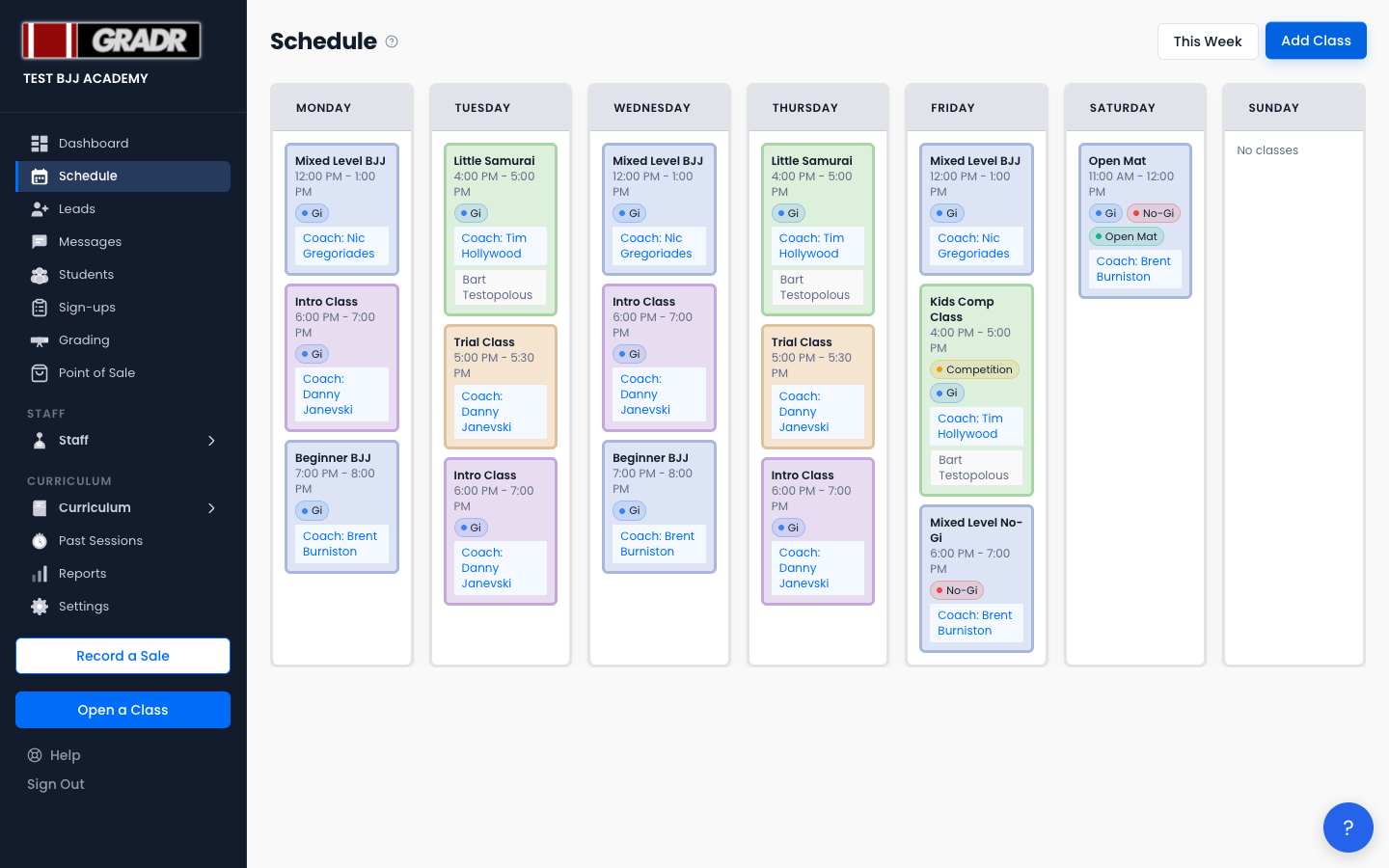
Template view shows your recurring class structure with no specific dates. This is where you define which classes exist, on which days, and at what times. Changes here affect every future week. Adding a class in Template view means it appears permanently on the schedule going forward, and deleting a class here removes it from all future weeks.
Use Template view to:
- Add a new recurring class
- Remove a class permanently
- Change a class's time, type, or default settings
Week View
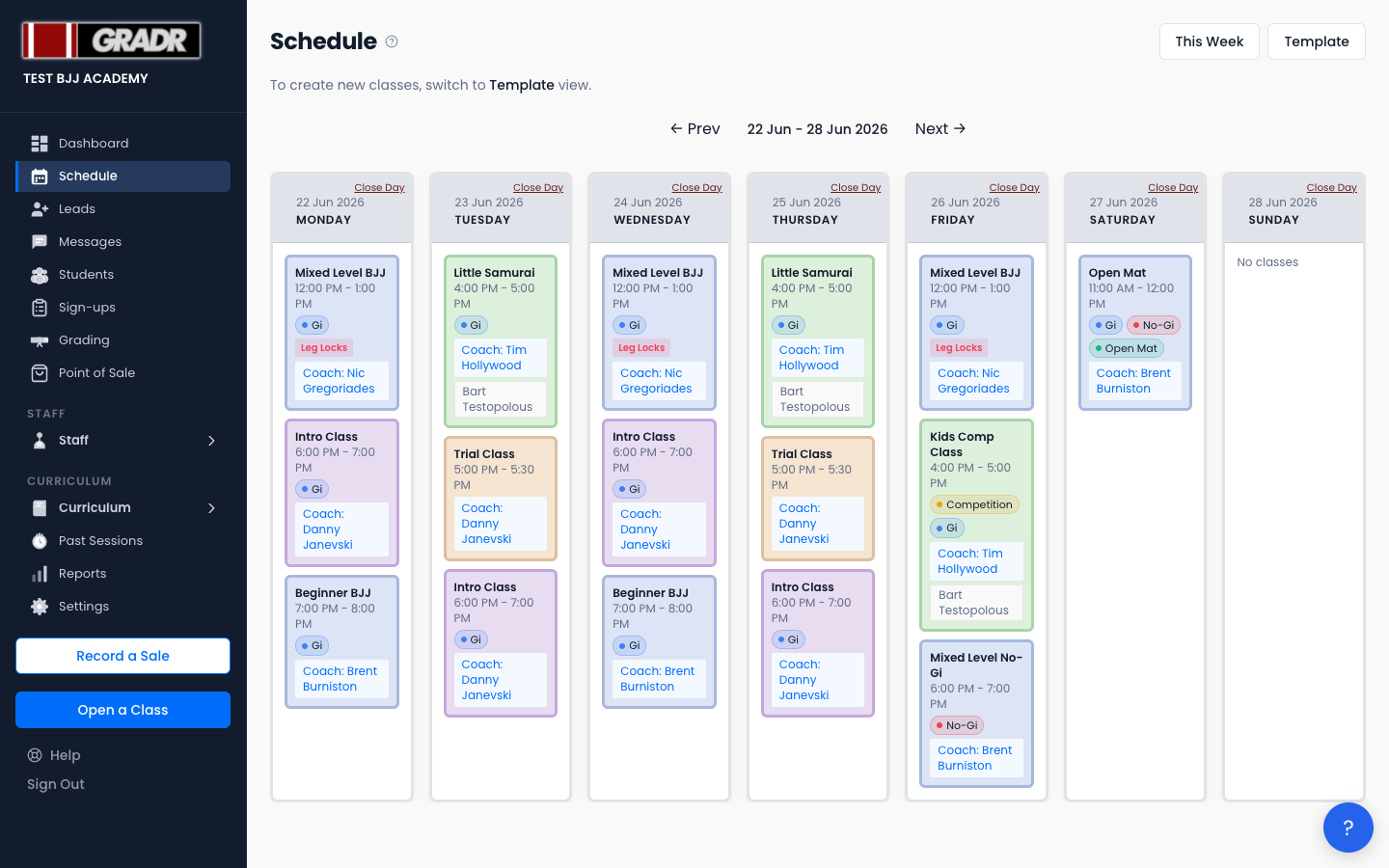
Week view shows actual class instances for a specific week, with real instructor assignments. Use this for day-to-day operations: assigning instructors, cancelling individual classes, and closing the gym for a day.
Navigate between weeks using the ← Prev and Next → arrows, or click This Week to return to the current week.
Class Detail Panel
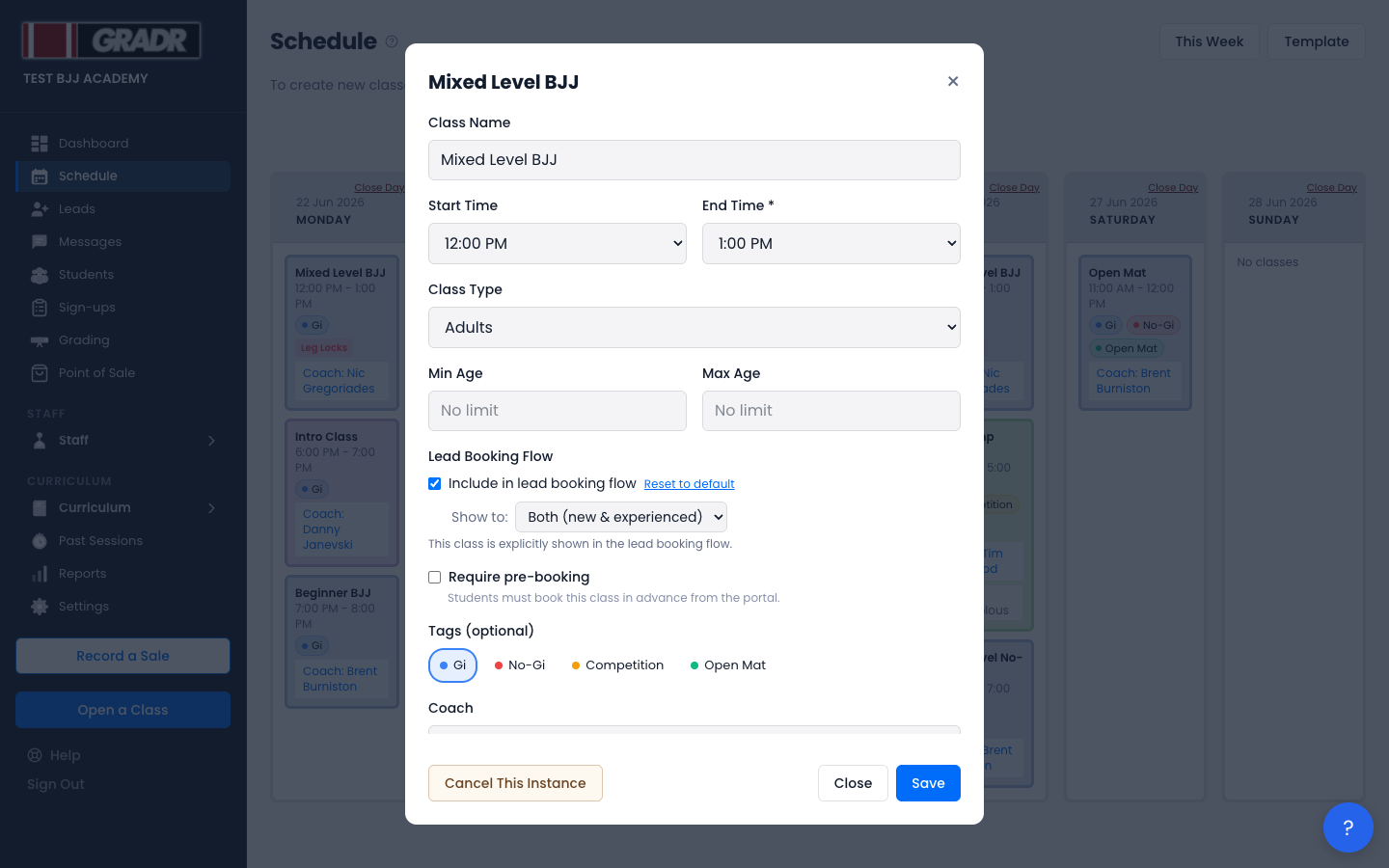
In Week view, click any class to open its detail panel on the right. From here you can:
- Edit the class name, time, type, and age range
- Manage coach and assist assignments
- Configure lead bookability and experience filters
- Cancel this single occurrence (without affecting the template)
- Delete the class entirely (Template view only)
Changes made in the panel to a specific week's class affect only that occurrence. To change the class permanently, switch to Template view first.
Adding a Class
- Switch to Template view.
- Click Add Class.
- Fill in the class name, day(s) of week (you can pick more than one to create the class on several days at once), start time, end time, class type, and any tags. You can also set the Coach and assistants here.
- Click Create Class. The class appears on your schedule every week going forward.
Assigning Instructors
Instructor assignment is done in the class detail panel. There's no separate "Assignments" list with an "Add Assignment" button.
- In Week view, click the class you want to staff.
- Pick the Coach from the dropdown (only coach-qualified instructors appear here).
- Tick up to four Assistant Instructors from the checklist.
- Click Save.
Unassigned classes appear as a warning in the Dashboard's Uncovered Shifts widget.
Cancelling a Single Class
To cancel one occurrence without removing the class from your template:
- In Week view, click the class.
- Click Cancel This Instance.
- A confirmation form appears with pay and reason options; complete it and click Confirm Cancel. The class is marked as cancelled for that date only.
If the cancelled class had students booked into it, GRADR automatically creates a draft message in Messages so you can notify them.
To permanently remove a class from your schedule, delete it in Template view instead.
Closing the Gym for a Day
- In Week view, click Close Day for the date.
- Confirm in the Close Academy dialog. All classes on that day are marked as closed.
To reopen a closed day, click Reopen Day on the same date.