Point of Sale
Sell physical and non-membership items (gis, rashguards, belts, drop-in fees, privates) directly from GRADR, taking payment by cash or card. Point of Sale (POS) is a self-contained register with its own catalog, currency, and sales history. It is completely separate from membership billing: setting up POS changes nothing about how your members are charged.
POS is available to gym owners and owner-instructors. You can reach it from Point of Sale in the sidebar, or jump straight to the register with the Record a Sale shortcut.
Getting Set Up
The first time you open Point of Sale, GRADR walks you through a short setup ladder.
- Confirm your currency. Pick the currency you charge in. It applies to your whole POS catalog and is frozen onto every sale. This is separate from your membership billing currency, so confirming it here won't change anything in billing. You only do this once.
- Add your first product. Build your catalog before you can ring anything up.
- (Optional) Connect Stripe if you want to take card payments. Cash sales work without it.
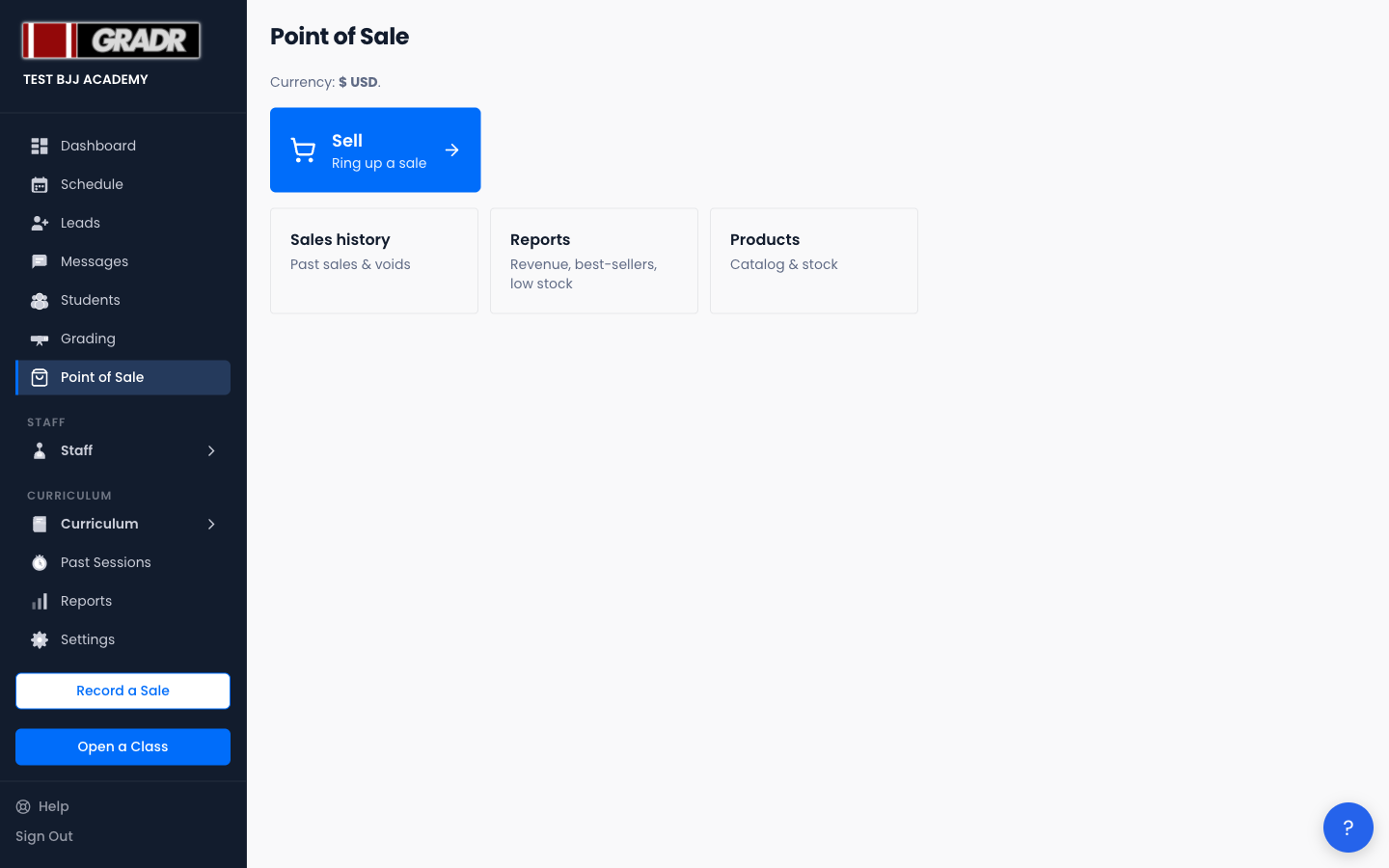
Once your currency is confirmed and you have at least one product, the Point of Sale page becomes a hub: a prominent Sell button plus shortcuts to Sales history, Reports, and Products.
Products
The Products page is your catalog. Each product has a name, a price, optional stock tracking, and an optional image.
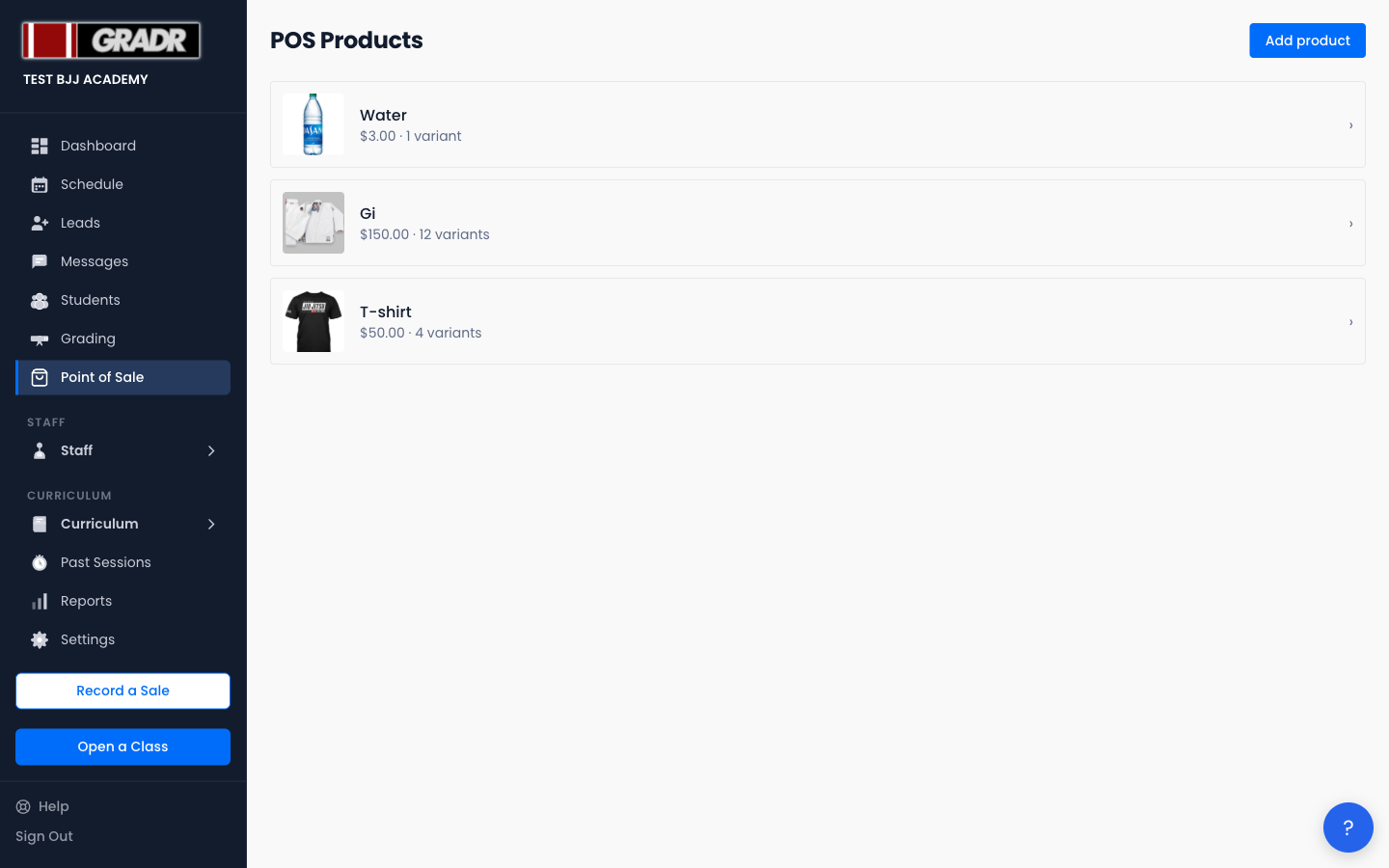
Click any product to edit it.
Variants
A product can have up to two variant dimensions, for example Size (A1, A2, A3, A4) and Colour (White, Blue, Black). GRADR combines them into every variant (4 × 3 = 12 in this example). Each variant tracks its own stock, can carry a price override, and has its own low-stock threshold.
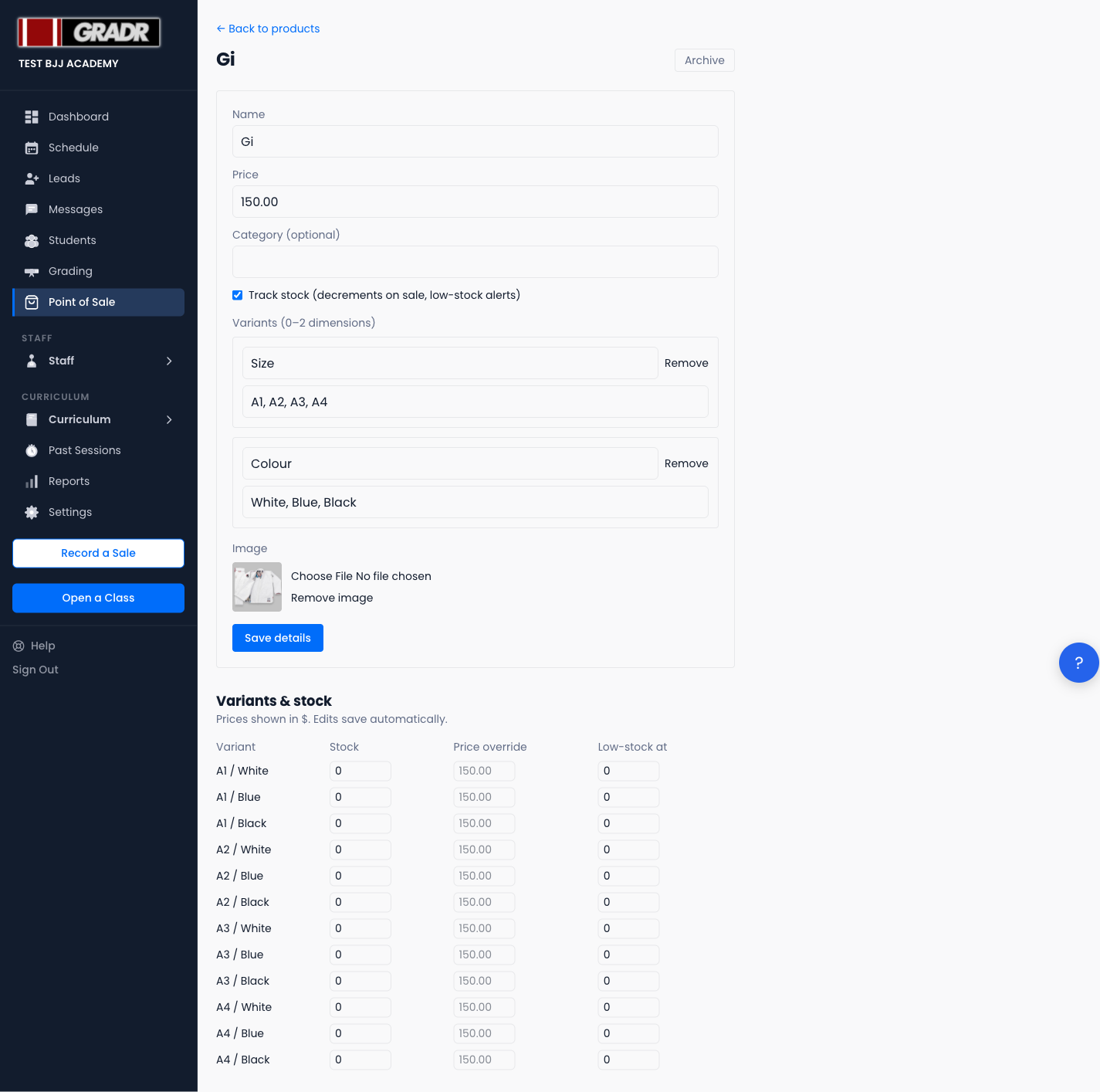
- Track stock — when enabled, stock decrements on each sale and feeds the low-stock alerts. Turn it off for items you don't count (e.g. drop-in fees).
- Price override — set a per-variant price that differs from the product's base price.
- Low-stock at — the count at or below which the variant shows up in low-stock alerts.
GRADR never blocks a sale because an item is out of stock. A payment you've taken always decrements the count, even past zero. This keeps your numbers honest: a negative count tells you exactly how far you oversold.
Deleting a product archives it rather than removing it, so your past sales history stays intact.
Recording a Sale
Open the register from the Sell button (or the Record a Sale sidebar shortcut).
-
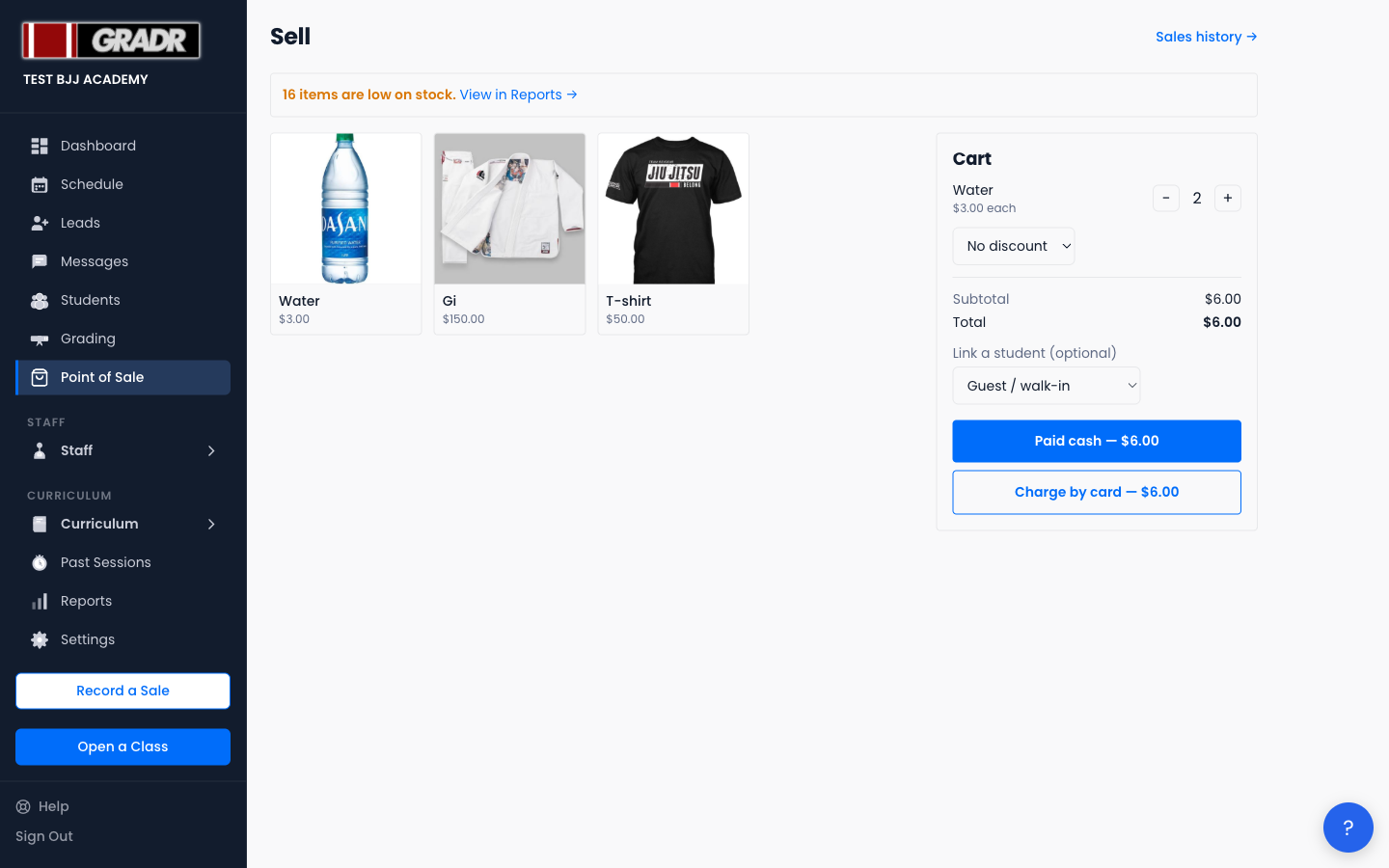
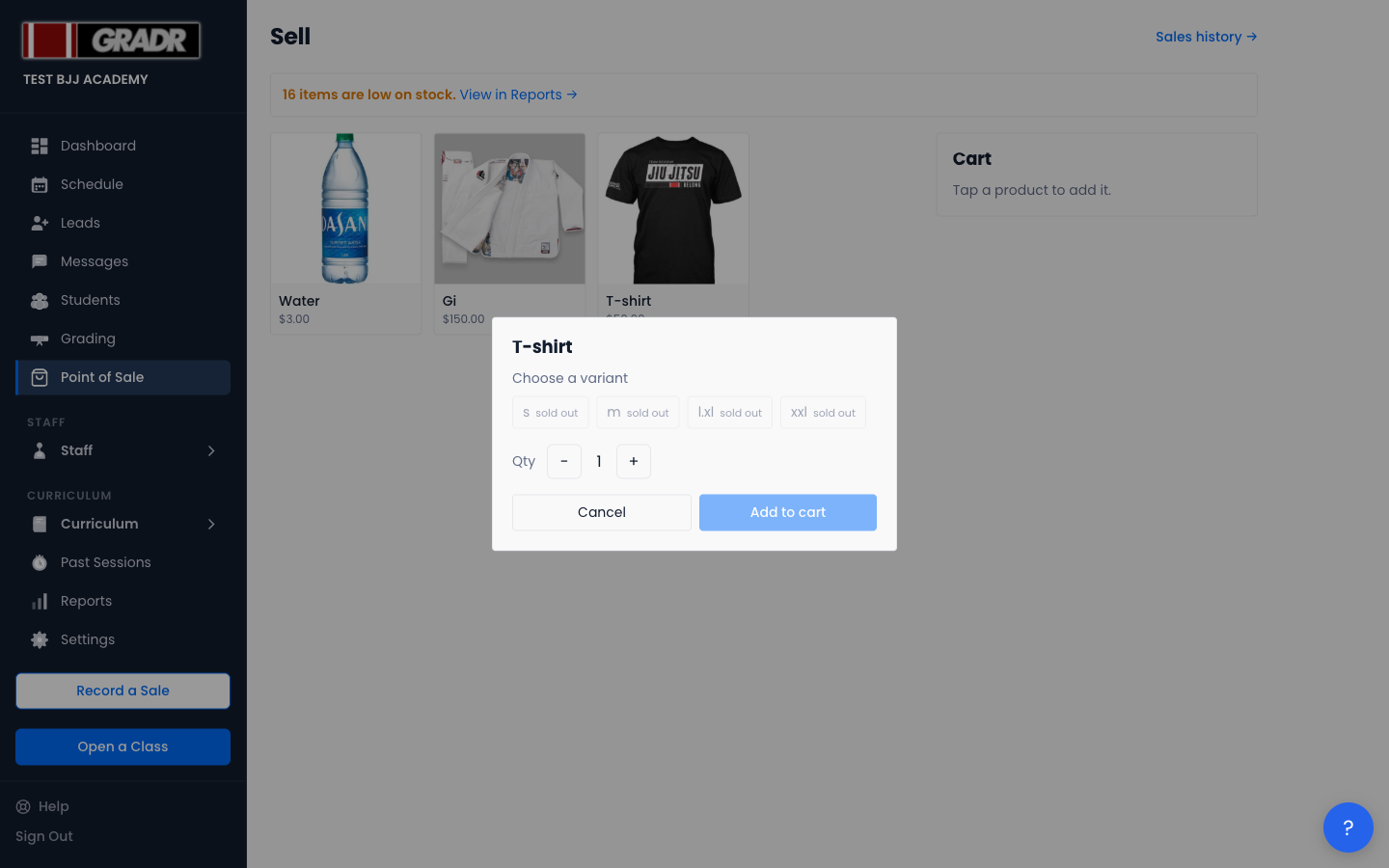
Tap a product to add it. If it has variants, choose the variant and quantity, then Add to cart.
-
Adjust quantities in the cart with the − / + steppers.
-
Apply a discount (optional) — a flat amount or a percentage off the cart.
-
Link a student (optional) — attach the sale to a student or leave it as a guest / walk-in.
-
Take payment — Paid cash or Charge by card.
Cash
Cash sales complete instantly. GRADR records the sale, freezes the line items, and decrements stock. You'll see a confirmation that the sale was recorded.
Card
Charging by card requires a connected Stripe account. When you tap Charge by card, GRADR shows a QR code for the customer to scan and pay on their own phone.
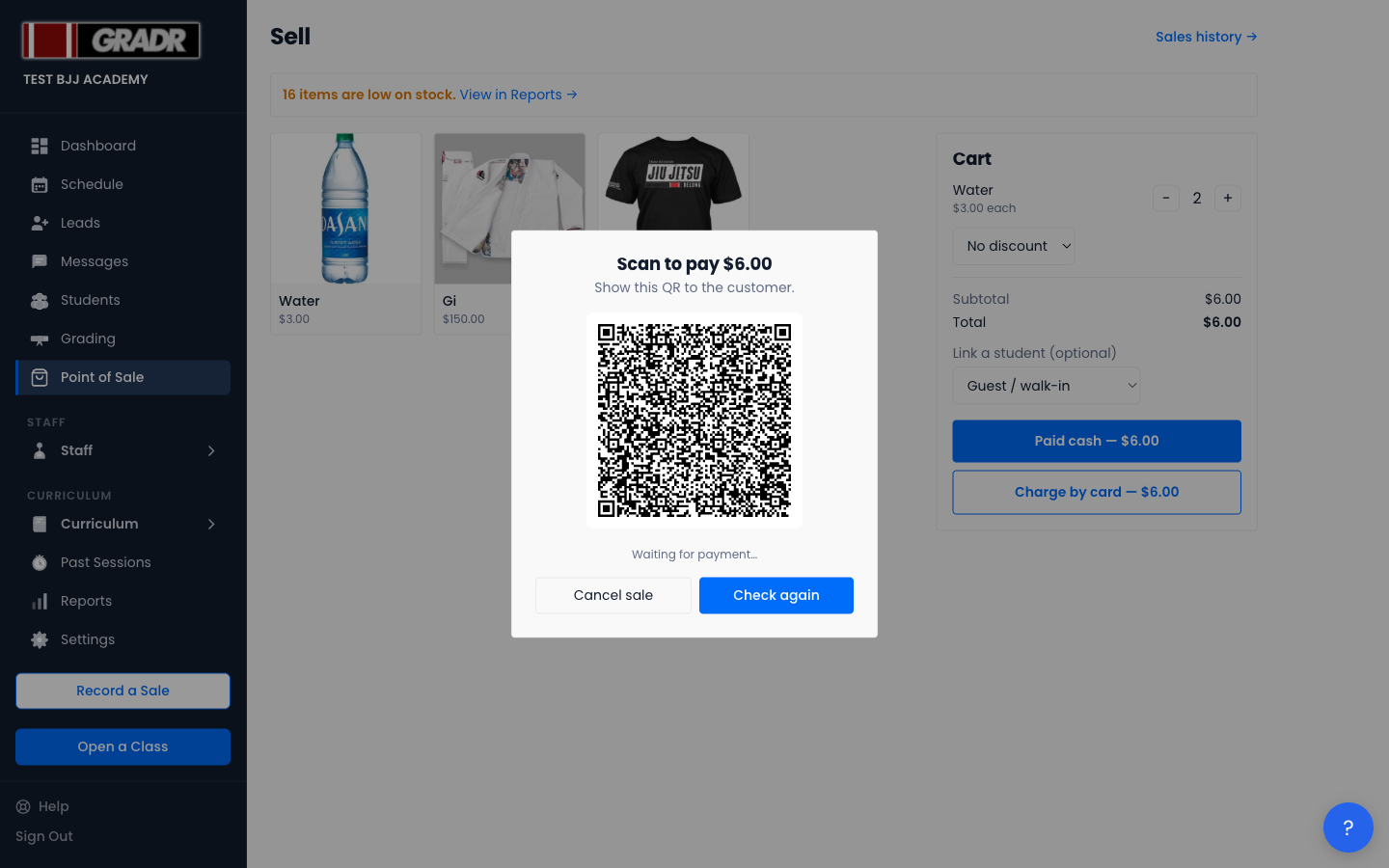
- Payment normally confirms within a few seconds, and the register resets for the next sale.
- If the customer has paid but the screen is still waiting, tap Check again to confirm with Stripe.
- If the customer walks away, tap Cancel sale. No stock is touched and nothing is charged.
A few currencies (such as JPY, VND, and CLP) aren't supported for card payments. Cash sales work in any currency.
Sales History
The Sales history page lists every sale with its frozen line items, timestamp, payment method, linked student (or guest), total, and status.
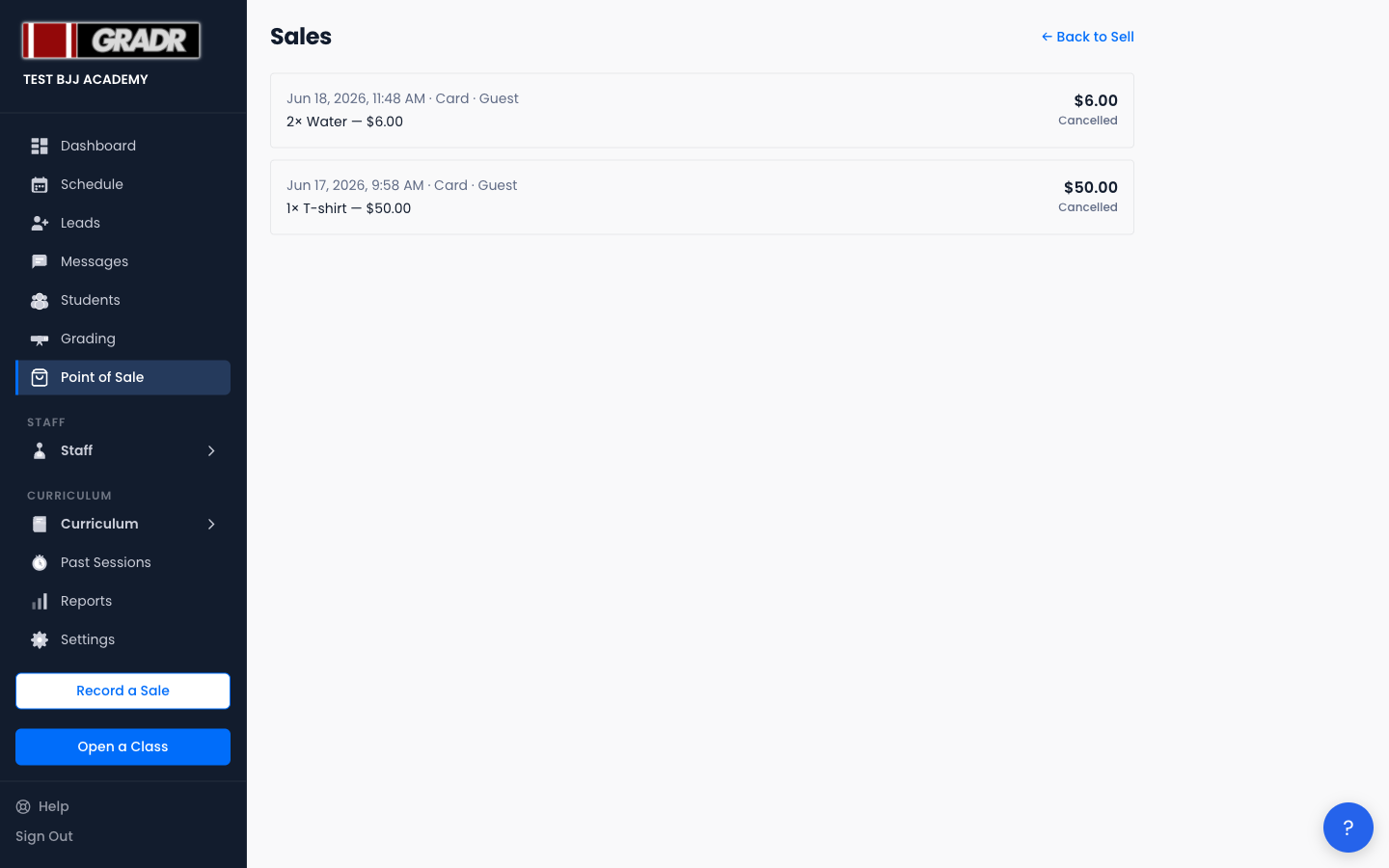
Line items are frozen at the moment of sale. The product name, variant, and price you charged are recorded permanently, so later catalog edits never rewrite past sales.
Voiding a sale
You can void a completed cash sale. Voiding removes it from your revenue and restores the stock it decremented.
Card sales cannot be voided in-app. Issue a refund through Stripe instead.
Reports
The Reports page summarizes your completed sales. Use the period buttons (This month, Last month, This year, All time) to change the range.
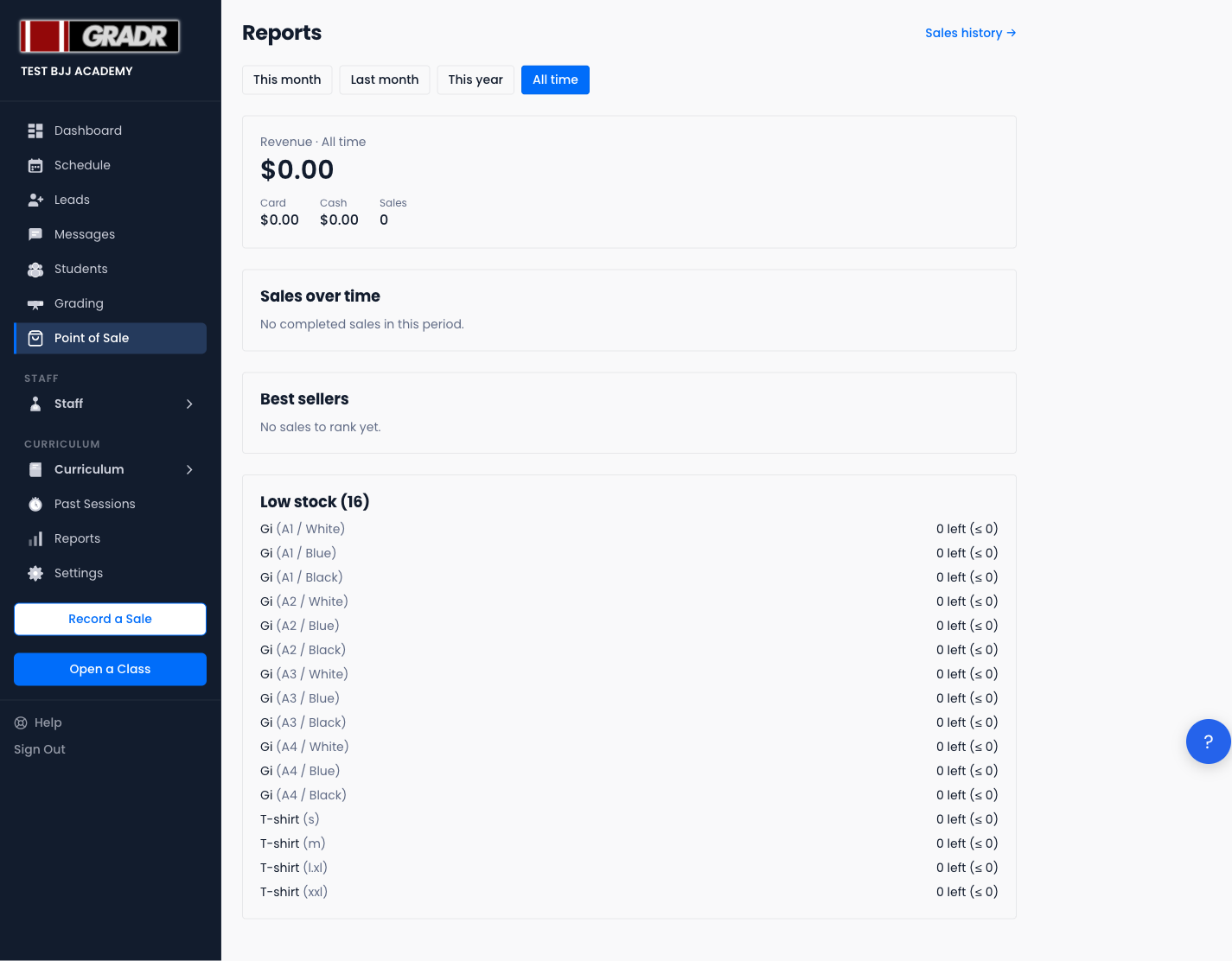
- Revenue — total takings for the period, split into card and cash, with a sale count.
- Sales over time — a daily trend for the period.
- Best sellers — your top-selling products.
- Low stock — every tracked variant at or below its low-stock threshold, so you know what to reorder.
Reports count completed sales only. Cancelled and voided sales never appear in revenue.
Related
- Recording a sale — a step-by-step walkthrough of a single sale.