Payroll
Calculate and pay your instructors on a weekly basis. GRADR generates payroll from the classes each instructor was assigned to during the week, applying their configured pay rates. You can review totals, add adjustments, and pay out via PayPal or record a manual payment.
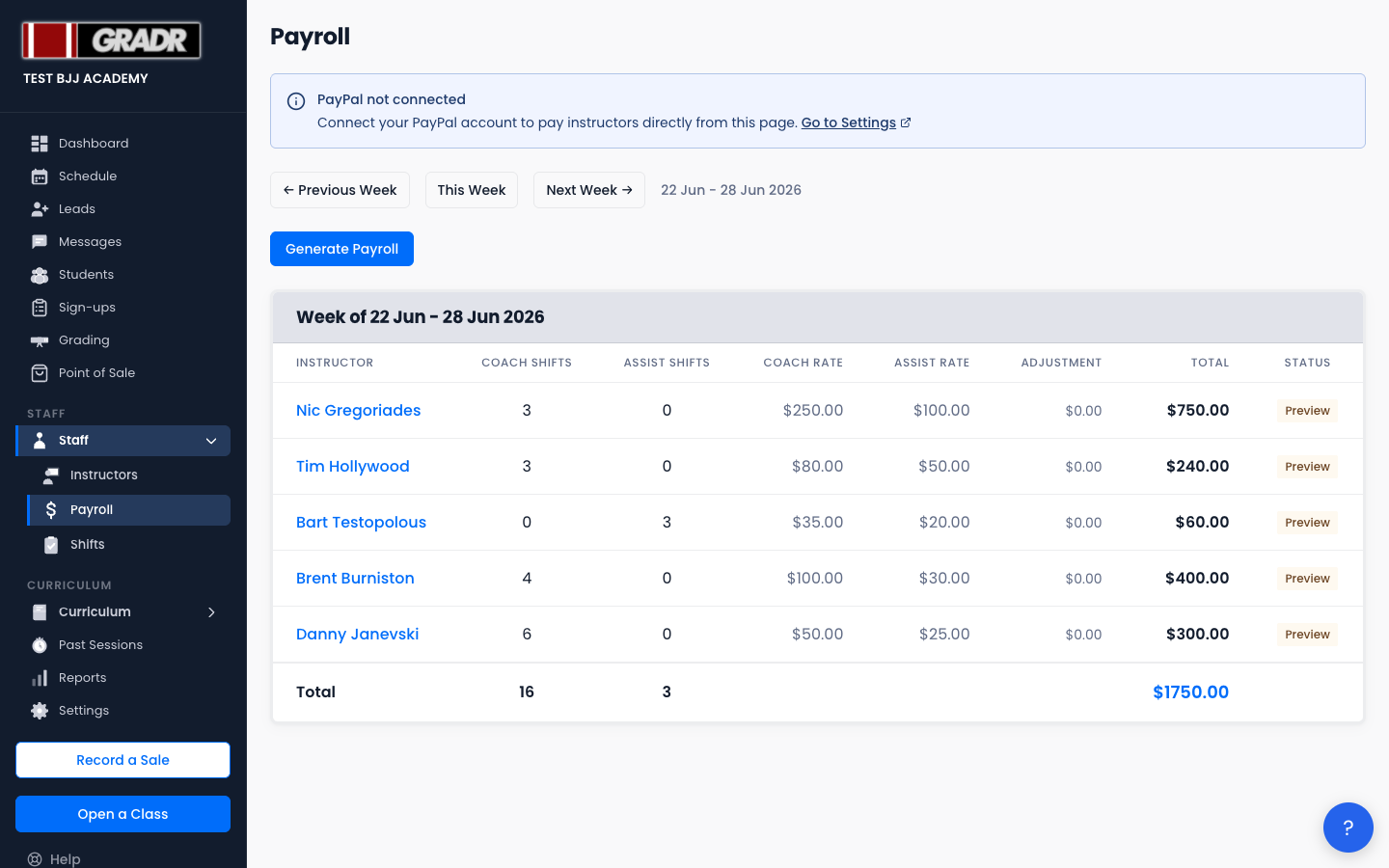
Payroll Statuses
| Status | Meaning |
|---|---|
| Pending | Generated but not yet paid |
| Processing | PayPal payout initiated |
| Paid | Payment confirmed |
| Failed | PayPal payout failed |
Generating Payroll for a Week
- Navigate to the week using the Previous Week / This Week / Next Week buttons.
- Click Generate Payroll. GRADR calculates each instructor's pay from their coach and assist shifts that week, applying their coach and assist rates.
- Review the totals before paying out.
Payroll can only be generated for weeks that have passed. You cannot generate payroll for the current or future weeks.
Adding an Adjustment
To add a bonus, deduction, or correction for a specific instructor, click the amount in their adjustment cell and type the value (positive for a bonus, negative for a deduction). There's no separate edit icon and no note field. The adjustment is entered inline and rolled into the instructor's total for that week.
Instructor Detail View
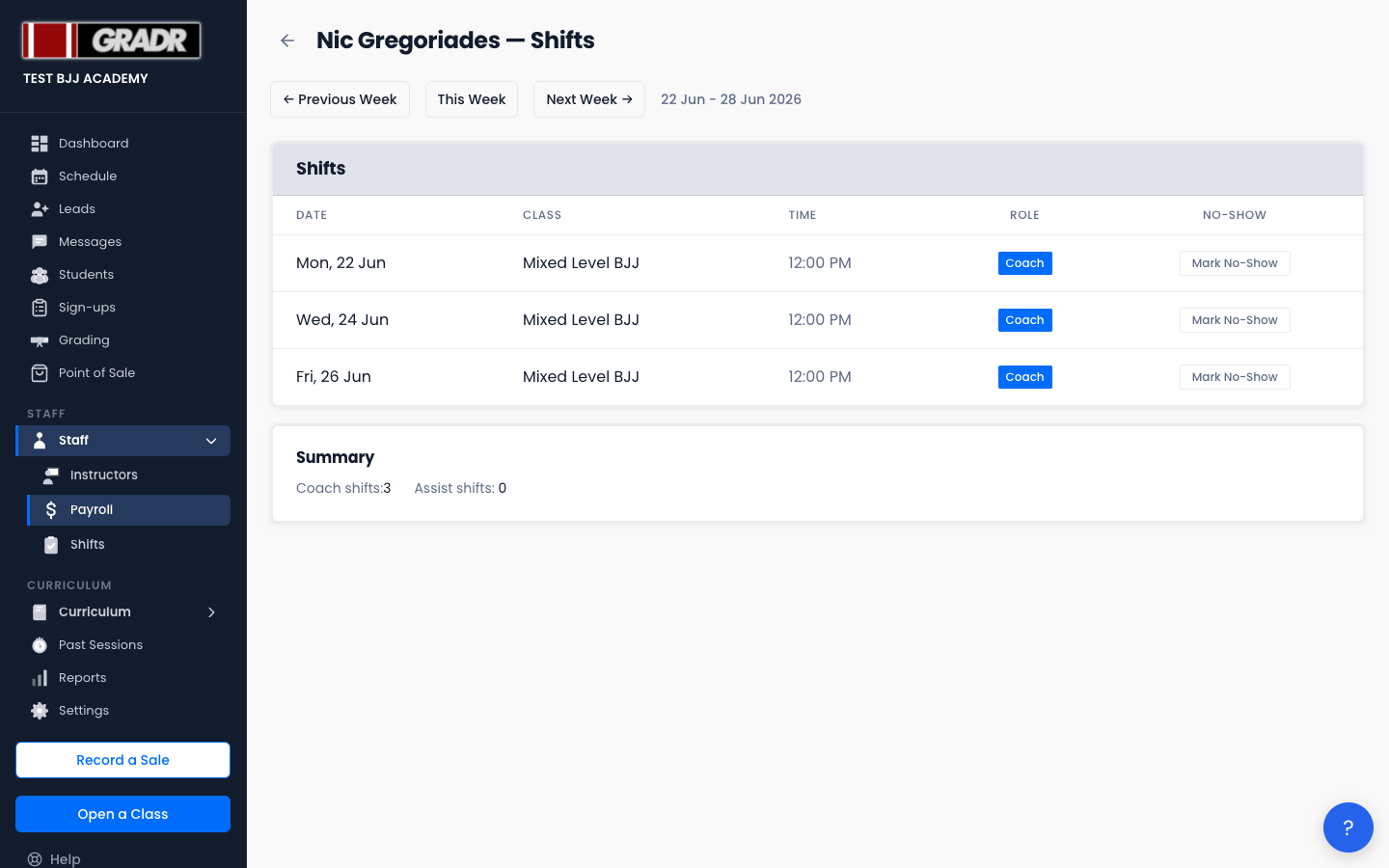
Click an instructor's name to open their detail for the week. This is a Shifts table, one row per shift they worked, showing the Date, Class, and Role (coach or assist).
Each shift row has a No-Show toggle. Flip it on to exclude that shift from the instructor's pay, useful when an instructor was scheduled but didn't actually teach. The instructor's total recalculates accordingly.
Connecting PayPal
If PayPal is not yet connected, a banner at the top of the Payroll page will prompt you to connect it. Click Go to Settings in that banner, or navigate to Settings → Billing & Payments and follow the PayPal connection steps. Once connected, the payout buttons become active on the Payroll page.
Paying via PayPal
- Review all payroll records for the week.
- Click Pay All via PayPal to initiate a batch payout, or click Pay next to an individual instructor (shown when they have a PayPal email on file) to pay them separately.
- GRADR initiates the payout and updates each record's status to Processing.
Completed payouts update to Paid once PayPal confirms delivery. Failed payouts can be retried individually, or settled with Mark Paid.
Marking as Paid Manually
If you pay instructors by cash, bank transfer, or another method:
- Click Mark Paid next to an instructor's record (or Mark All Paid to settle the whole week at once).
- Confirm. The record status updates to Paid.
Viewing Payroll History
Use the week navigation to review any past week's payroll records, including adjustments and payment status.