Messages
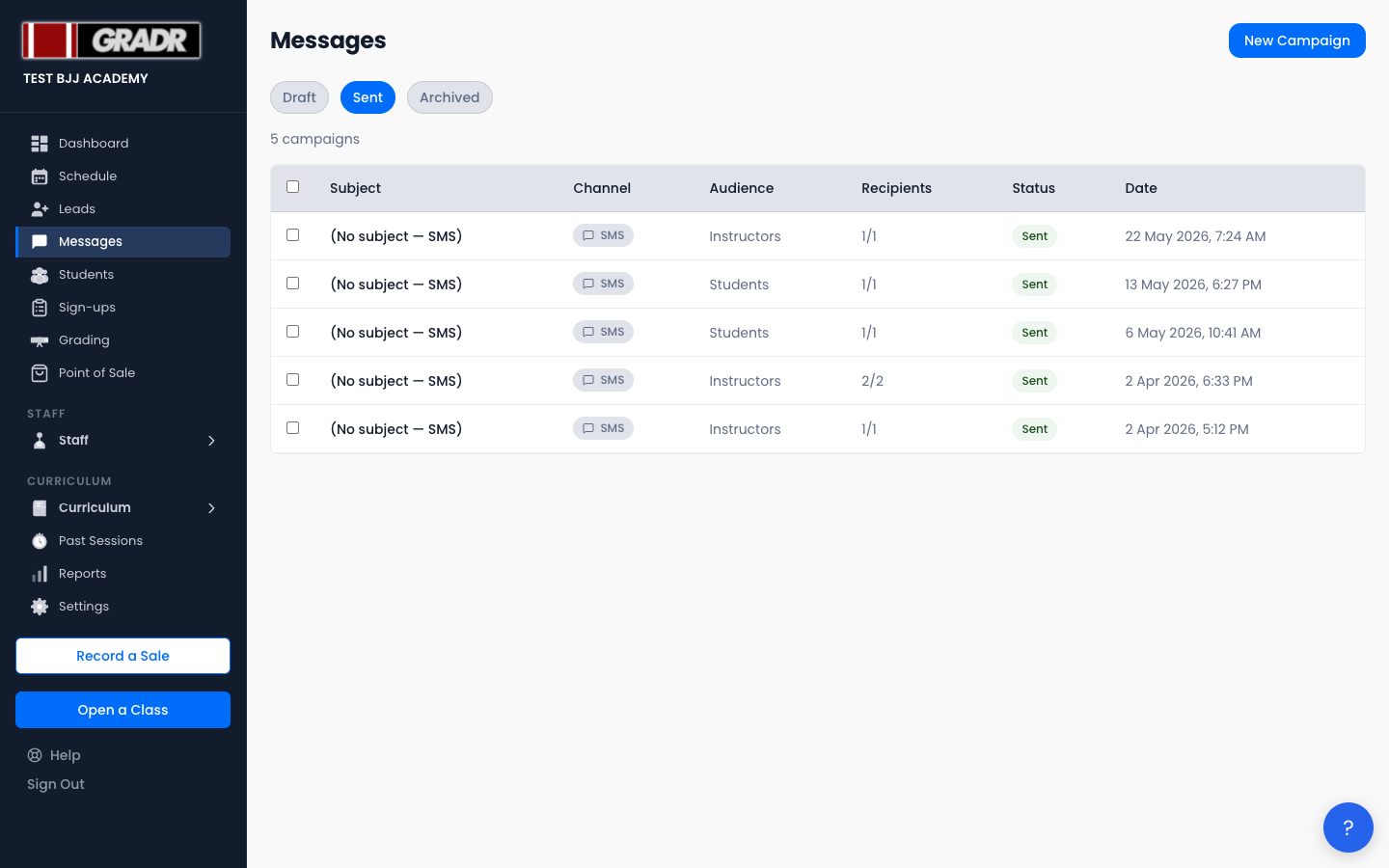
Send SMS and email broadcasts to your students, instructors, or leads. Messages are organized as campaigns. Each has an audience, a body, and a delivery status.
Campaign Statuses
| Status | Meaning |
|---|---|
| Draft | Written but not yet sent |
| Sending | Currently being delivered to recipients |
| Sent | Delivery finished |
| Failed | Delivery failed |
The campaign list also has an Archived tab. Archiving is an action you take, not a delivery status.
Composing a Message
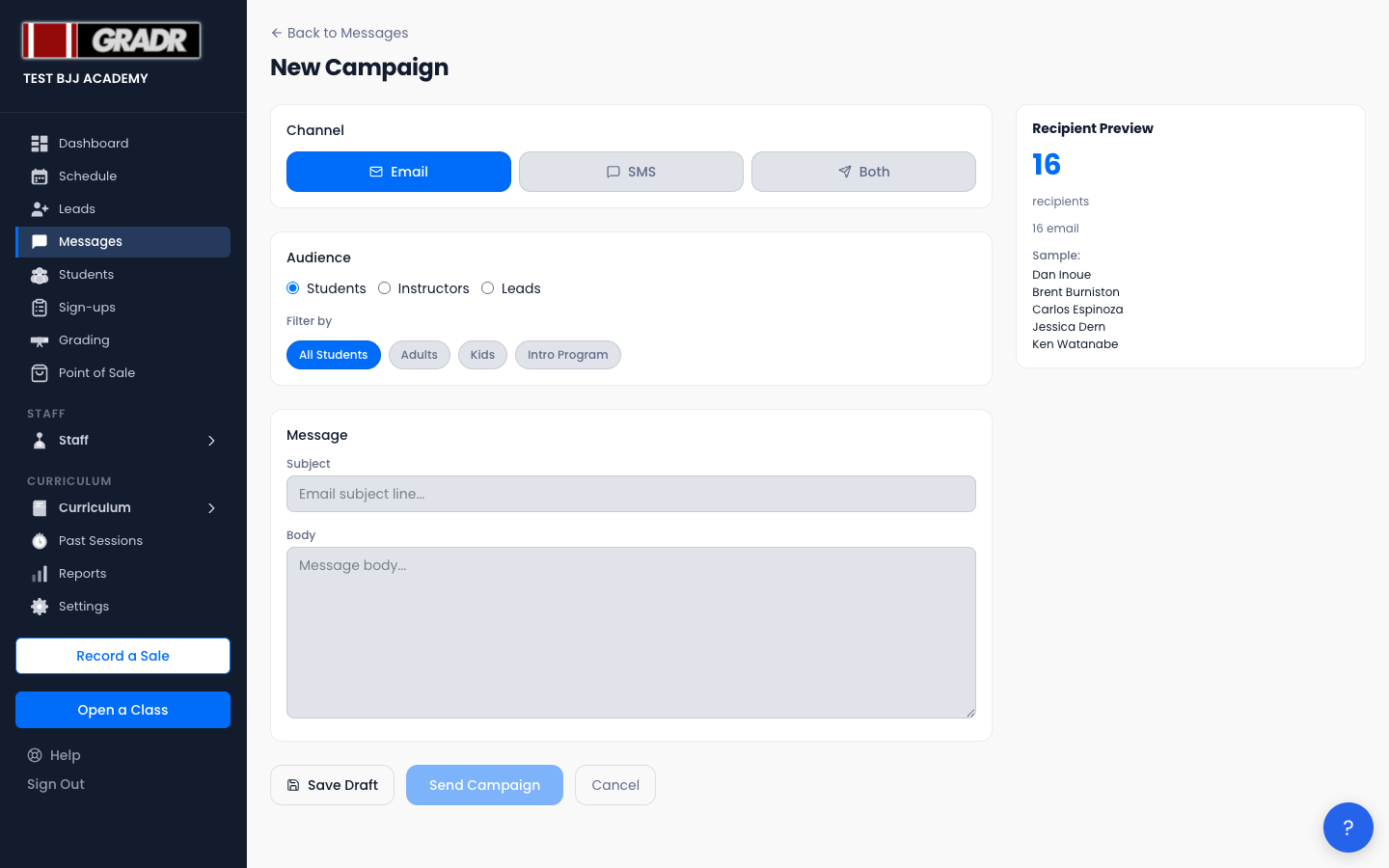
- Click New Campaign.
- Pick the audience (Students, Instructors, or Leads) and narrow it with the available filters.
- Choose the channel: Email, SMS, or Both. Text messages only go to people who have opted in themselves, so an SMS audience is usually smaller than your full roster. See Who can receive a text below.
- Write your message. A Recipient Preview sidebar shows who it will go to.
- Click Send Campaign and confirm in the Confirm Send dialog, or click Save Draft to finish later.
Who can receive a text
GRADR only sends text messages to people who have agreed to receive them. This applies to students, instructors, and leads alike.
That means an SMS campaign reaches fewer people than an email campaign to the same audience, sometimes far fewer, especially when you first start using texts. The Recipient Preview sidebar shows the real number before you send, so check it there rather than assuming your whole roster is included. If the count looks surprisingly low, it's because most of that audience hasn't opted in yet.
You cannot opt someone in on their behalf. To invite a student or instructor to opt in, use the Ask for SMS opt-in button on their profile. See Text message consent for the full process.
Sending a Draft
Open a draft from the list, review the content and recipient count, then send it.
Checking Delivery Status
Open a sent campaign to see delivery stats: sent, failed, pending, and bounced counts. Failed recipients are flagged individually.
Resuming a Stuck Campaign
If a campaign gets stuck mid-send, open it and click Resume Sending to re-attempt delivery to the recipients who haven't received it yet. (This only appears on a campaign that's stuck in the Sending state.)
Auto-Drafted Messages
Some actions elsewhere in GRADR create a draft for your review. For example, cancelling a class that had students booked drafts a notification for them. Check Messages after a cancellation to review and send it.
Archiving and Deleting
- Archive — moves the campaign to the Archived tab without deleting it.
- Delete — permanently removes the campaign and its delivery records.
Related
- Students — text message consent and opt-in process
- Leads — one of the audiences you can message
- Settings — Email Templates — customize automated email content