Lessons
Lessons are individual technique tutorials that make up your curriculum library. Each lesson has a class type, an optional video, and a set of technique components, and can be shared with your instructors or published to the student portal.
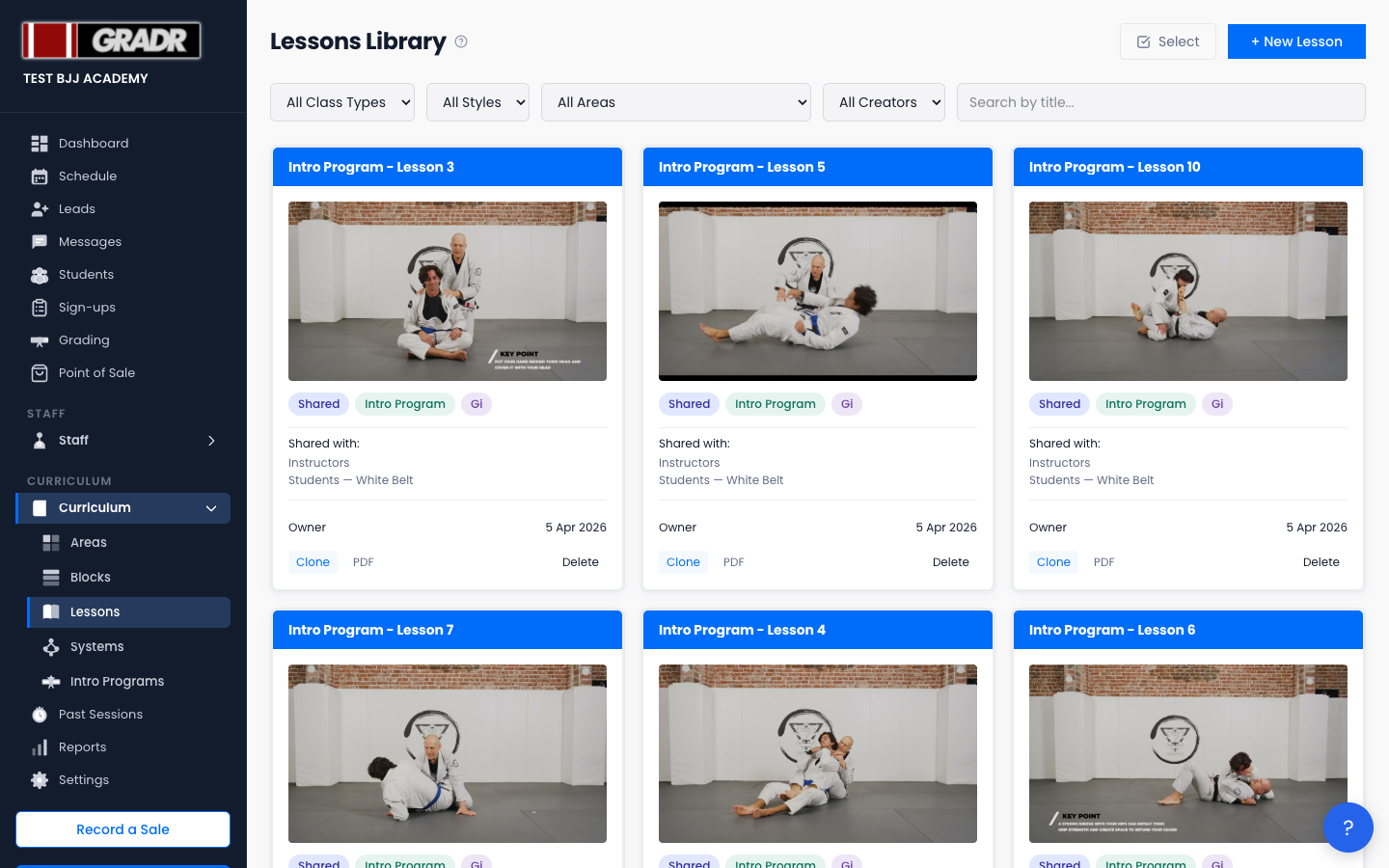
The page (Curriculum → Lessons, titled "Lessons Library") lists your lessons with an Area filter and a class type filter. Each card has a Clone action to duplicate the lesson.
:::tip Your gym already has Lessons
New gyms start with a template lesson library already loaded. Those lessons arrive unpublished, so nothing is visible to your students until you publish it. Review them, edit anything you want to teach differently, and publish the ones you're happy with. Clone is often faster than starting a new lesson from scratch. :::
Creating a Lesson
- Click + New Lesson.
- Enter the lesson title and choose the class type: Gi, No-Gi, or Both.
- Add a YouTube video URL if you have one.
- Add components (the individual moves, positions, or sequences the lesson covers). Each component can carry its own duration; the lesson's total time is the sum of its components.
- Click Save Lesson.
There is no separate "difficulty level" or lesson-level duration field; detail lives in the components.
Publishing to the Student Portal
Publishing is a toggle inside the lesson editor, not a standalone button. Switch Published on to make the lesson visible in the student portal, and use the belt and track targeting to control which students see it. Switch it off to unpublish.
Sharing with Instructors
Sharing is also a single toggle in the editor: Share with instructors. Turn it on to make the lesson available to your instructors in their portal. There's no recipient picker or send step. It's on or off.
Bulk Actions
Click Select to enter selection mode, tick the lessons you want, and use the panel that appears at the bottom to apply an action (such as publishing) to all selected lessons at once with Apply.
Cloning a Lesson
To base a new lesson on an existing one, click Clone on the lesson's card in the library. A duplicate is created for you to edit.