Leads
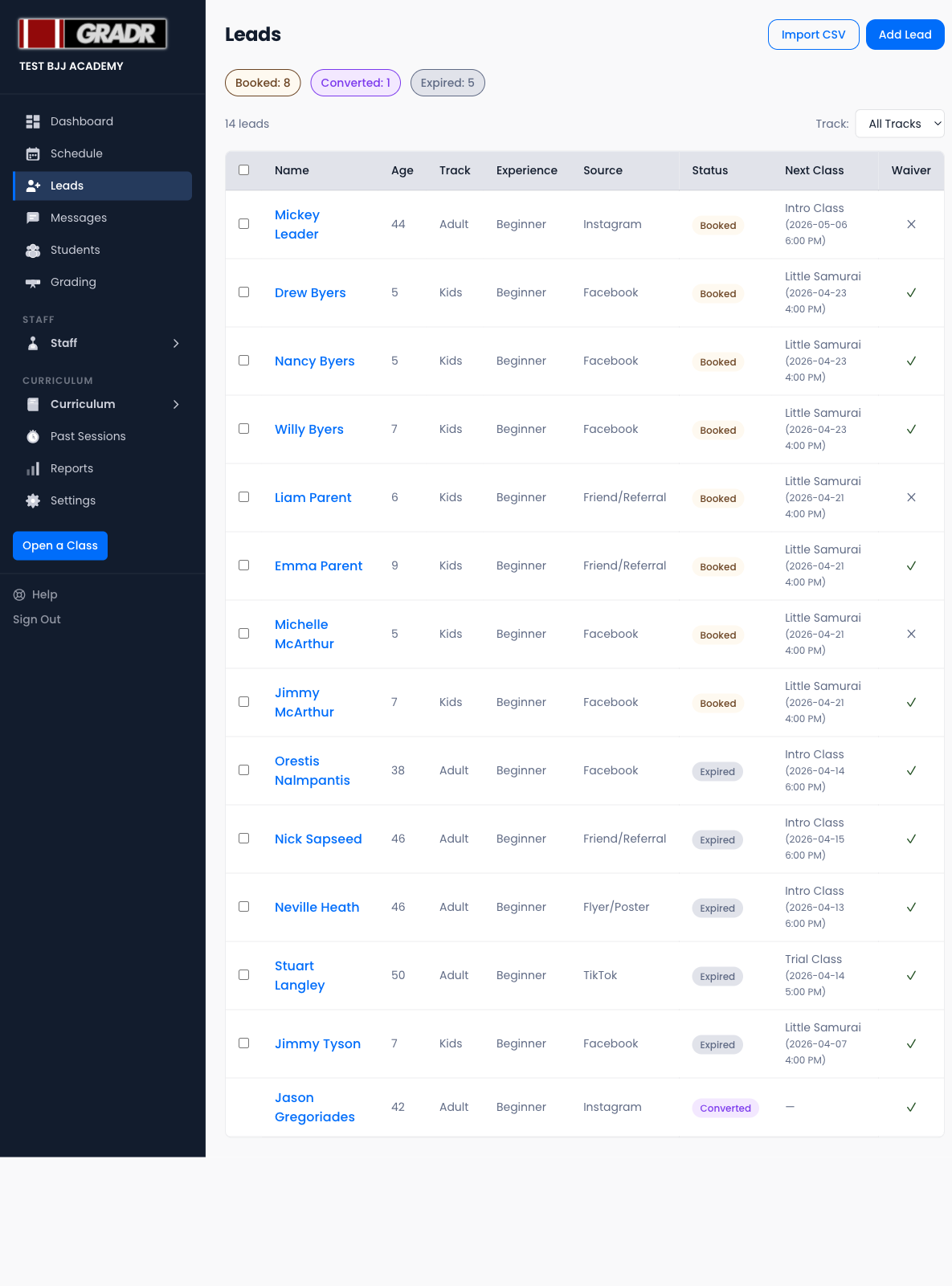
Track and convert trial prospects into paying students. Every person who expresses interest in your gym starts as a lead, whether you add them manually, import a list, or they come through your booking page.
Lead Statuses
Each lead moves through a lifecycle:
| Status | Meaning |
|---|---|
| New | Added but not yet booked into a class |
| Booked | Scheduled for an upcoming trial or intro class |
| Attended | Checked in for their trial |
| Converted | Added to your student roster |
| Expired | A New or Booked lead that's gone 30 days since it was created |
| Archived | Manually archived (leads are never auto-archived) |
Adding a Lead
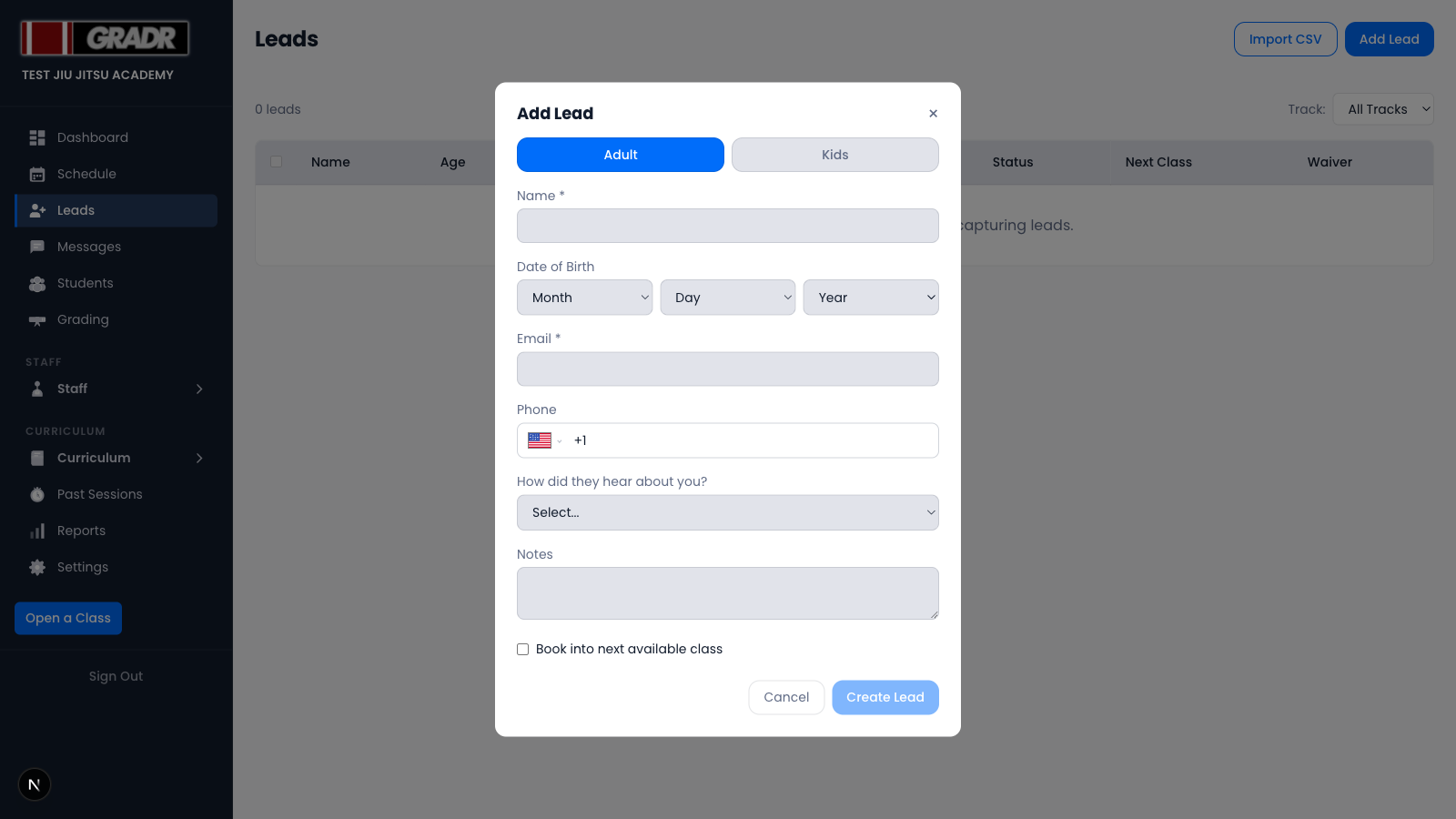
- Click Add Lead.
- Choose the track: Adult or Kids.
- Enter name, contact details, date of birth, and referral source.
- Optionally check Book into next available class to schedule their trial right away.
- Click Create Lead (or Create & Book if you chose a class).
Importing Leads from CSV
- Click Bulk Import.
- Download the template if needed, then prepare your file with the required columns.
- Upload the file. GRADR validates each row and reports any errors before importing. Imports are capped at 30 rows per file and have a daily limit.
Booking a Lead into a Class
- Click the lead's name to open their record.
- Click Book Trial Class.
- Select an available trial slot from the upcoming schedule.
- Click Confirm Booking.
The lead's status changes to Booked and they receive a confirmation if an email address is on file.
Filtering Leads
Use the status filters at the top of the list to focus on a specific group. For example, all Attended leads who haven't converted yet, or Booked leads for the coming week.
Active leads (New, Booked, or Attended) that have gone quiet are flagged as Stale. Follow up or archive them to keep your pipeline clean.
Bulk Actions
Select multiple leads using the checkboxes, then use the bulk action menu to:
- Archive — move to archived status
- Delete — permanently remove