Lead Flow
The Lead Flow is GRADR's built-in trial booking system. It gives your gym a public booking link that prospective students can use to book a free trial class, without any back-and-forth. The lead's contact details, experience level, class booking, waiver signature, and referral source are all captured automatically and appear directly in your Leads section.
How It Works
When someone follows your booking link, they are guided through a short multi-step flow:
- Who they are booking for (themselves or a child)
- Their contact details and date of birth
- Their experience level (adult bookings only)
- How they heard about your gym
- Class selection from available trial slots in the next 7 days
- A review and confirmation screen
- Digital waiver signing
Once submitted, the lead appears in your Leads section, a confirmation email is sent to the prospect, and you receive an in-app notification.
Setting Up Your Booking Link
Go to Settings → Lead Capture to configure your public booking page.
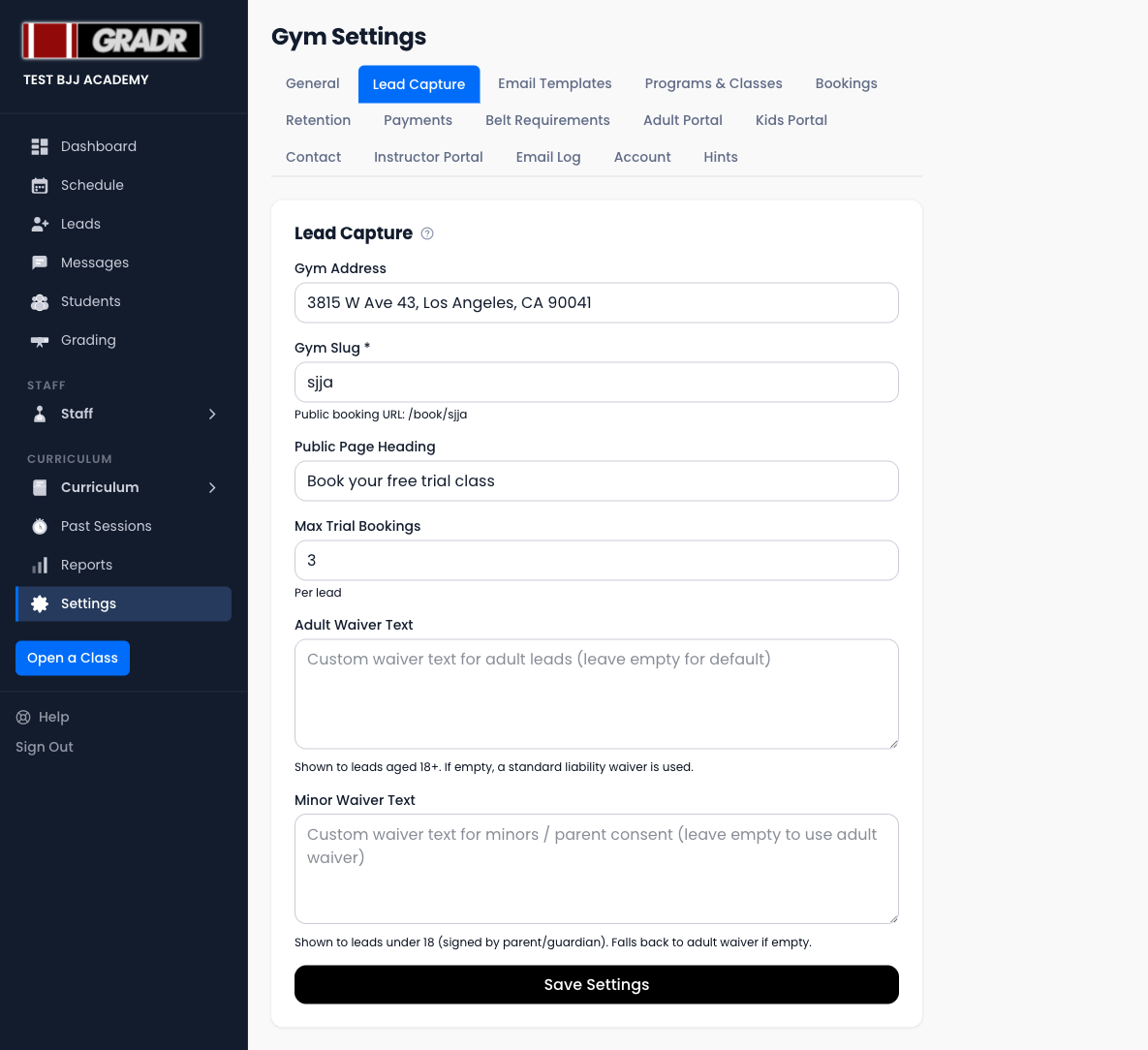
| Field | Description |
|---|---|
| Gym Slug | A short URL-friendly identifier for your gym (e.g. my-gym). This determines your public booking URL: gradrjj.com/book/your-slug |
| Gym Address | Shown to prospects during the booking flow |
| Public Page Heading | The welcome text displayed at the top of your booking page (default: "Book your free trial class") |
| Max Trial Bookings | Maximum number of trial classes a single person can book at your gym |
| Adult Waiver Text | Custom liability waiver shown to leads aged 18 and over. Leave blank to use the standard GRADR waiver |
| Minor Waiver Text | Custom parent/guardian consent waiver for leads under 18. Falls back to the adult waiver if left blank |
Once your slug is set, your booking link is live immediately at gradrjj.com/book/your-slug. You can share this link on your website, social media, or anywhere you promote trials.
Controlling Which Classes Appear
Only classes marked as bookable for leads appear in the flow. This is controlled per class on the Schedule class editor, not in Settings:
- Include in lead booking flow — a checkbox that adds this class to the public trial-booking flow.
- Show to: — a dropdown that, for adult classes, restricts the slot to beginners, experienced students, or everyone.
Classes are shown in a 7-day window from today. Slots at or near capacity are automatically hidden.
The Booking Flow (Prospect's View)
When a prospect follows your link, they see your gym name, logo, and heading.
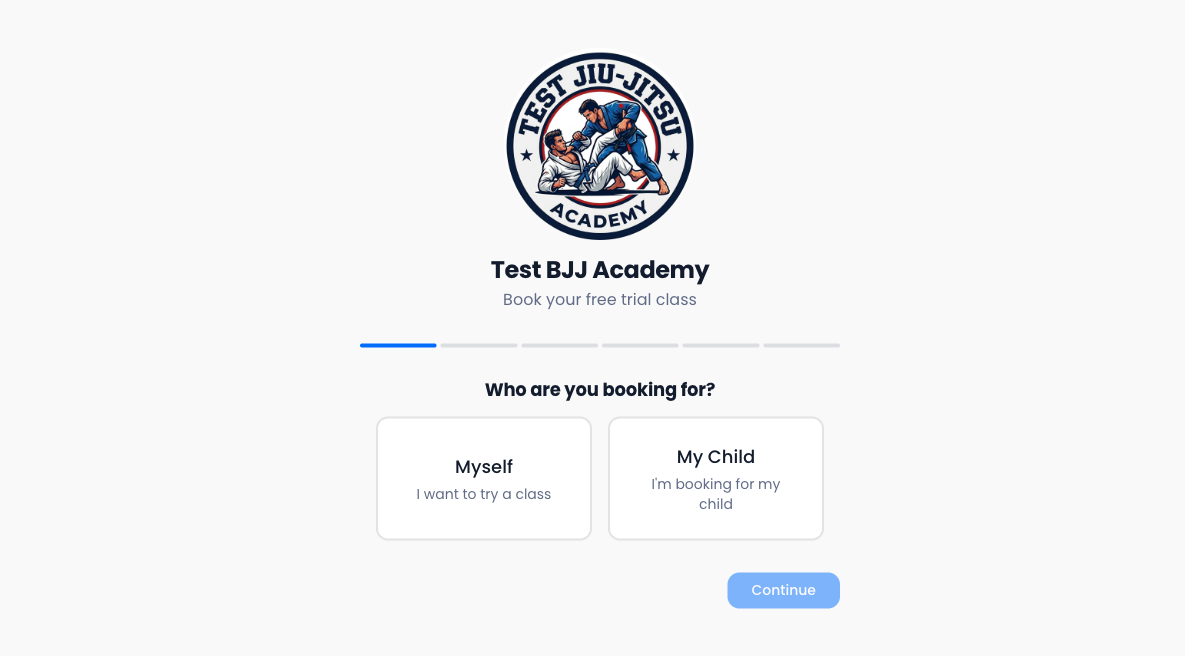
They choose whether they are booking for themselves or for a child. For child bookings, a parent can enroll multiple children in a single flow. Each child goes through their own waiver signing at the end.
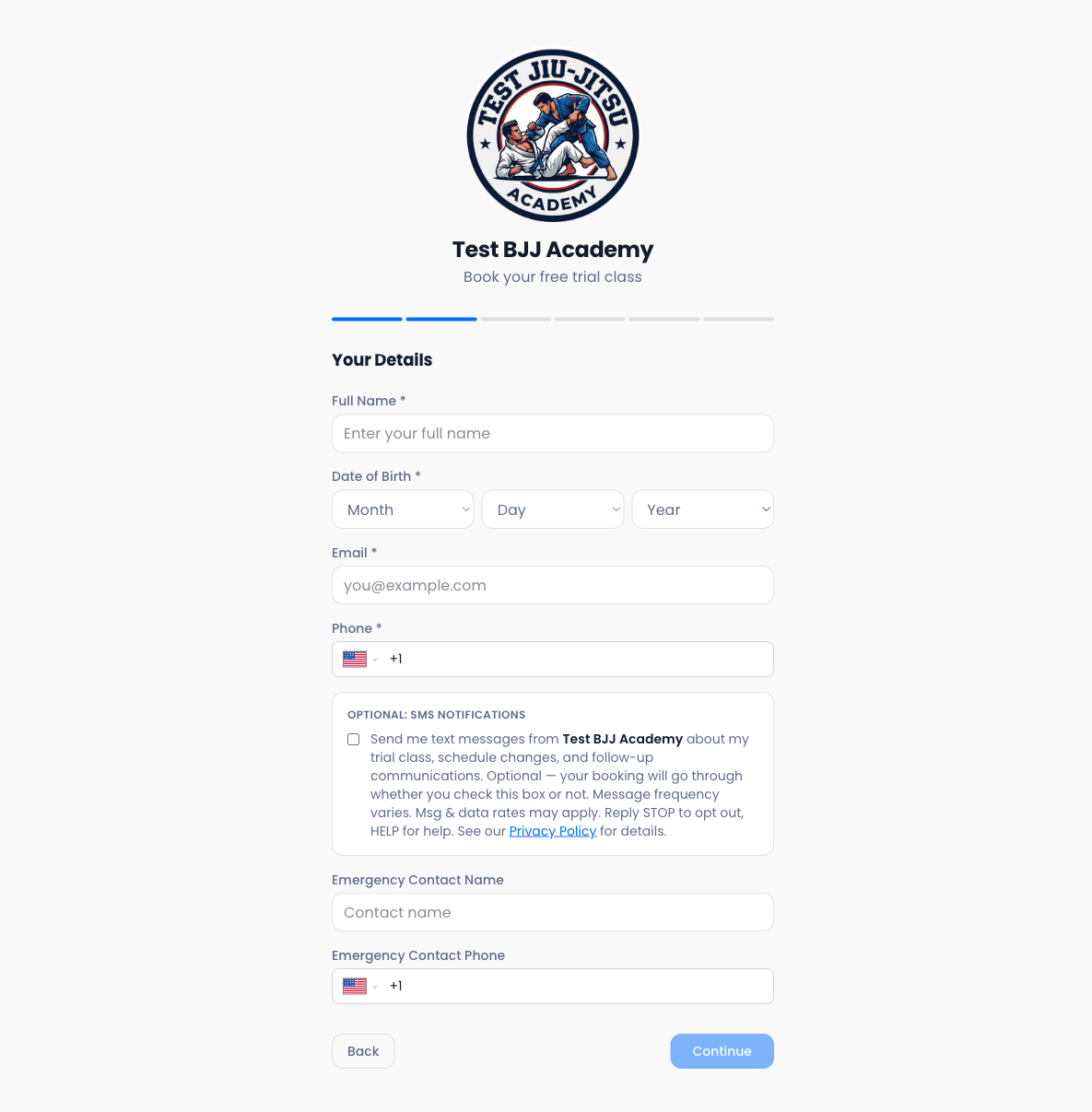
After submitting, the prospect signs a digital waiver. For minors, the parent or guardian signs. A confirmation email is sent automatically.
Managing Leads
All incoming leads appear in the Leads section of your portal.
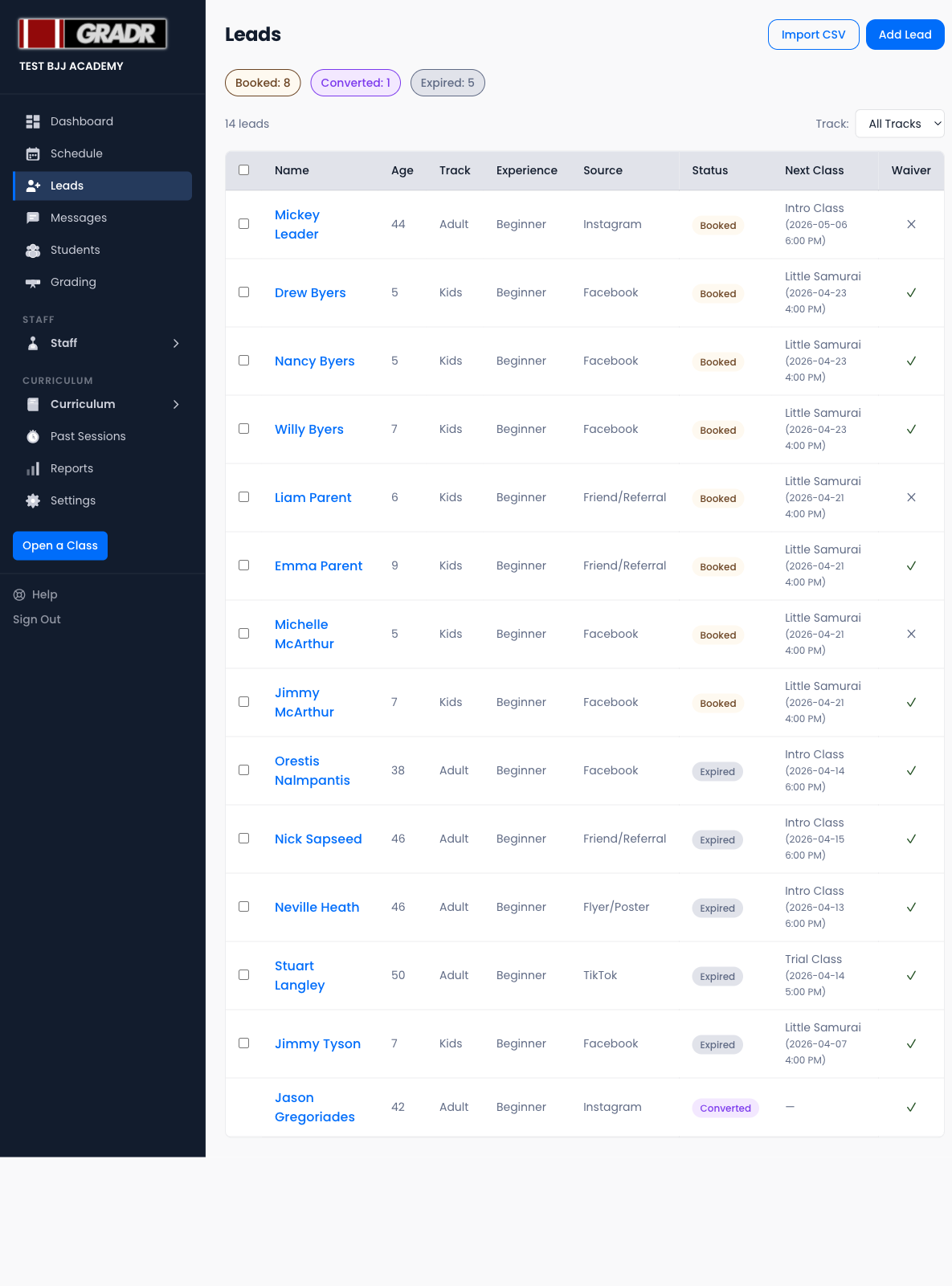
Each lead shows their name, age, track (adult or kids), experience level, referral source, current status, next booked class, and whether their waiver is signed.
Lead Statuses
| Status | Meaning |
|---|---|
| New | Created but not yet booked into a class |
| Booked | Booked into a trial class, awaiting attendance |
| Attended | Completed their trial class |
| Converted | Converted to a paying student |
| Expired | A New or Booked lead that's reached 30 days since it was created (auto-set) |
| Archived | Manually archived by you |
Lead Detail
Click any lead to open their detail page.
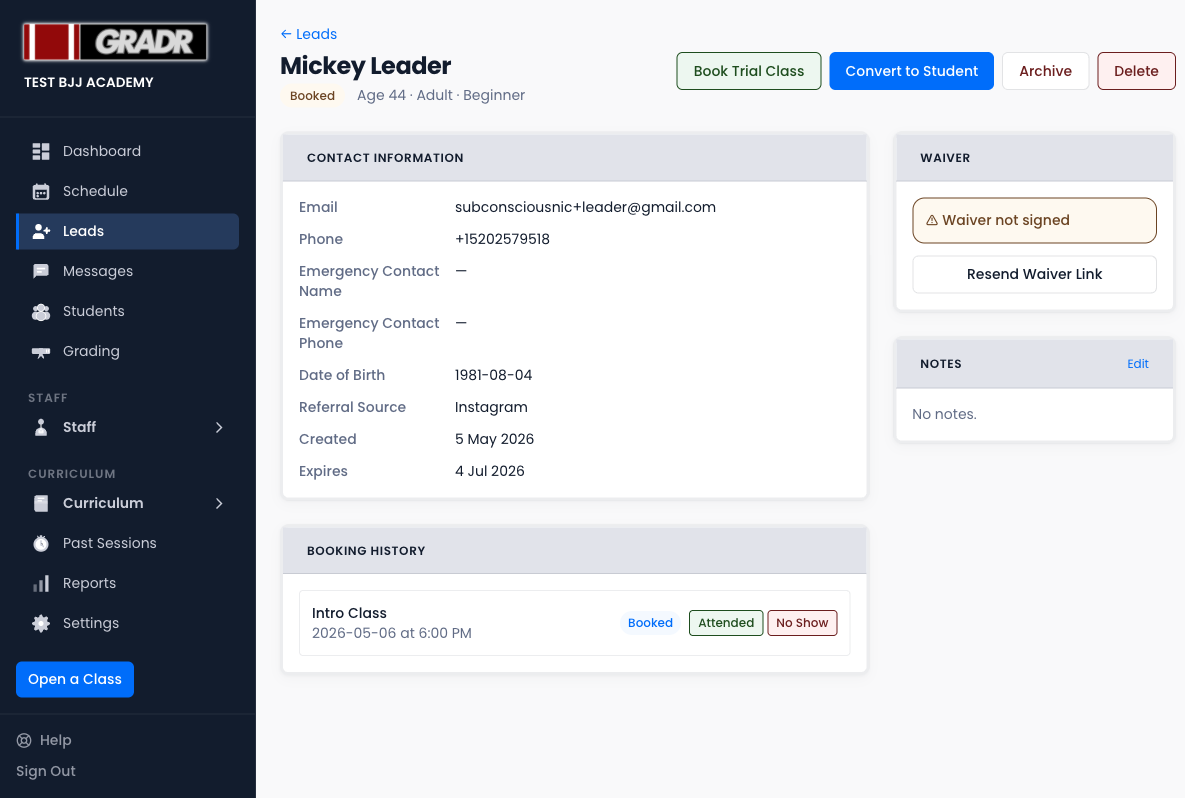
From the detail page you can:
- Book Trial Class — manually add a trial booking for this lead
- Convert to Student — convert the lead into a paying student record
- Resend Waiver Link — resend the waiver signing link if they haven't signed
- Archive — remove from the active list (can be reactivated)
- Delete — permanently remove the lead and their booking history
Bulk Actions
From the leads list, check one or more leads and use the bulk action bar to archive or delete multiple leads at once.
Importing Leads
Use the Bulk Import button to add leads from a CSV. The file requires three columns: Name, Email, and Phone. Files are capped at 30 rows, with a daily limit.
Automated Emails
GRADR sends automatic emails at key points in the lead lifecycle. You can customize the content of all of these in Settings → Email Templates:
| Template | When it sends |
|---|---|
| Booking Confirmation | Immediately after a lead books a trial class |
| Trial Reminder | The day before their trial class |
| No-Show Follow-up | When a lead is marked as a no-show |
| Waiver Reminder | When a lead has not yet signed their waiver |
| New Lead Notification | Sent to you when a new lead books |
Related
- Leads — full reference for the Leads section
- Settings — Bookings — booking window, cutoff time, and capacity settings
- Tutorial: Onboarding a New Student