Kiosk
The Kiosk is a tablet-optimized check-in interface designed to run at the mat during class. Instructors and owners use it to open a class session, check students in, grade and award badges from the mat, and close the class when it ends.
Opening the Kiosk
Navigate to Kiosk in the owner portal sidebar. The kiosk opens in a protected mode that warns you before navigating away, preventing accidental exits during class.
Selecting a Class
The home screen lists every class scheduled for today at your gym.
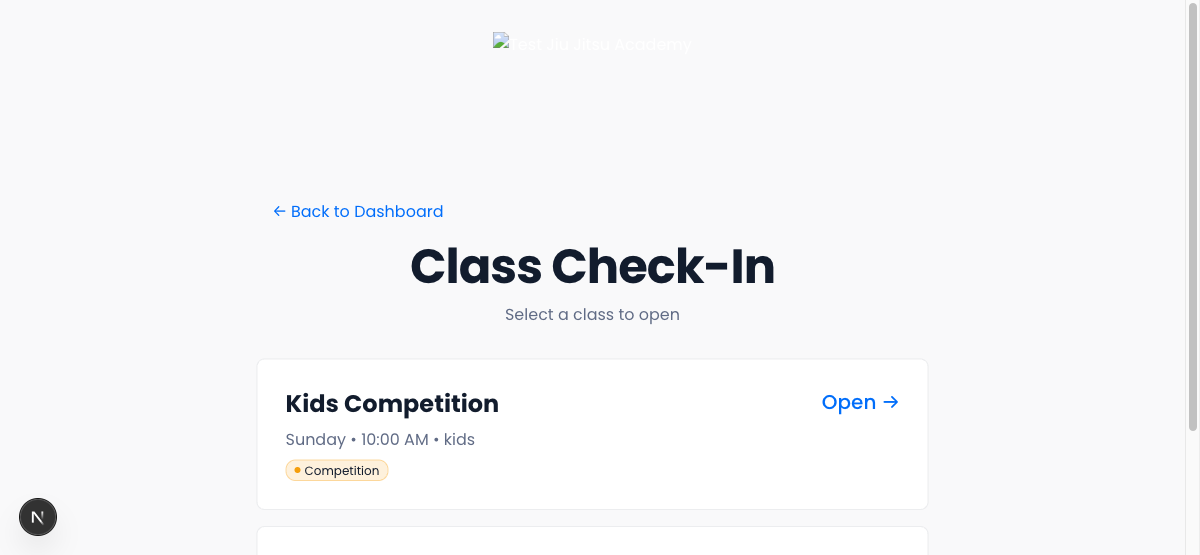
- Owners see all classes for the day.
- Instructors see only the classes they are assigned to.
- Cancelled classes appear grayed out and cannot be opened.
Each class tile shows the class name, start time, class type, and any color-coded tags. The status badge tells you where the session stands:
| Status | Meaning |
|---|---|
| Open → | Class has not been started yet |
| Resume → | A session is already open; tap to continue |
| Class completed | Session has been closed and finalized |
Tap a class to open it. If the session was already opened (e.g., by another instructor), you will resume it rather than create a duplicate.
Checking In Students
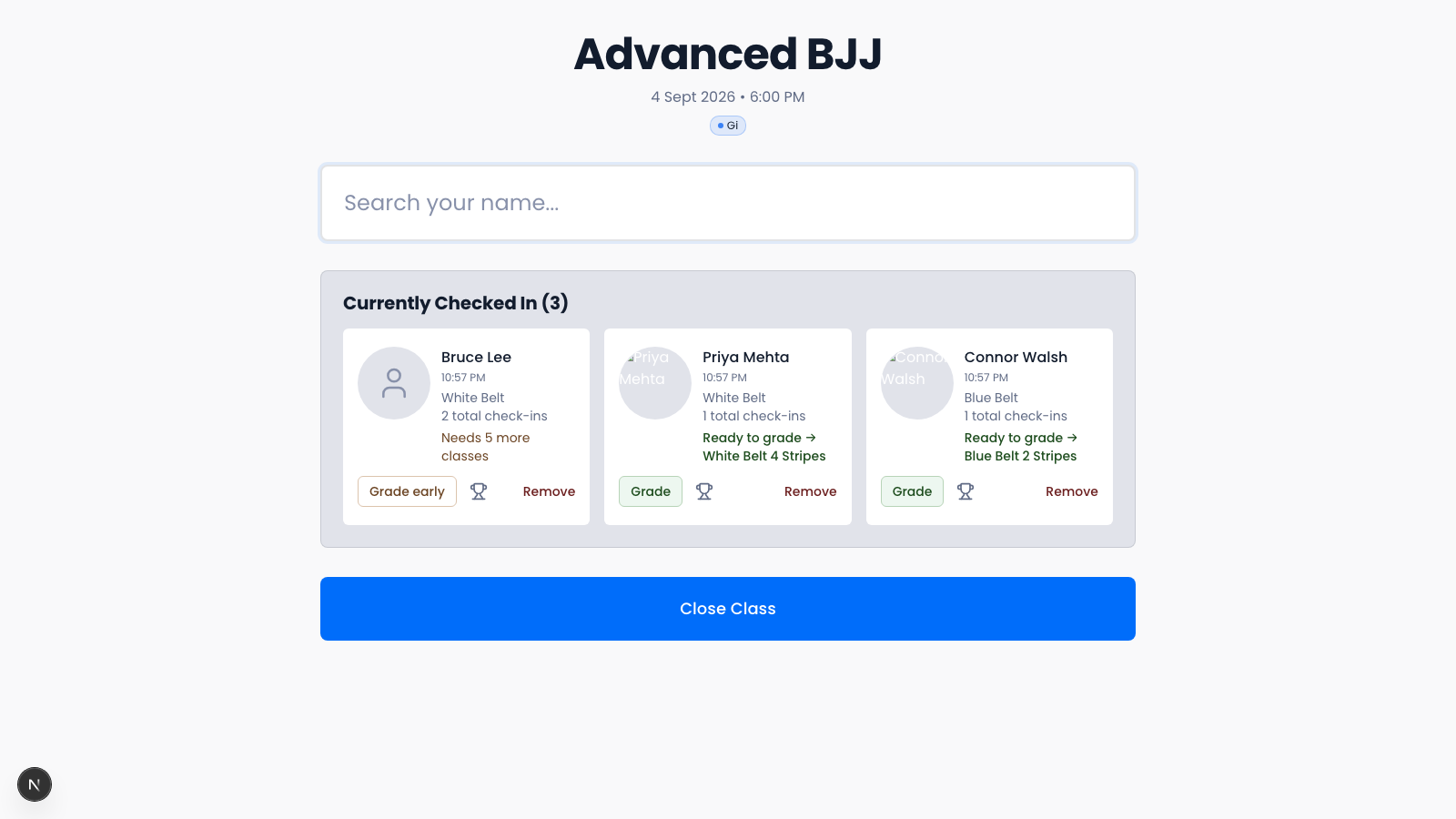
Once a class is open, the check-in screen shows a search field and the checked-in roster.
Booked students
If the class has pre-booked students (enrolled members or trial leads), their tiles appear at the top. Tap a tile to check them in and move them to the checked-in roster.
Search
Type a student's name in the Search your name… field to find them. Results update in real time and show each student's name, belt rank, and check-ins. Tap a student to check them in.
Checked-in roster
Students who have been checked in appear as cards showing their name, check-in time, belt rank (or discipline), and total check-ins. The roster refreshes every 10 seconds. Each card also carries the class-time actions described under Working the roster.
Check-In Snapshot
After a successful check-in, a snapshot card appears briefly showing the student's name, belt rank, stripe count, and all badges they have earned. It dismisses automatically.
Session Limits
If a student's membership tier caps how many sessions they can attend (per week or per month) and they've reached it, check-in is blocked. A notice shows how many of their sessions they've used.
The limit can be bypassed by entering the 4-digit kiosk PIN. The override is gated by the PIN, not by who's standing at the kiosk. Anyone with the PIN can authorize it.
To set or change the kiosk PIN, go to Settings → General. New gyms start with the PIN 0000; change it before you put a tablet on the mat.
Working the roster
Everything below happens on the check-in screen during class, with no PIN. The kiosk is a staff tool. The PIN's only job is to stop someone at the tablet from leaving the kiosk for the owner portal (see Leaving the kiosk).
Removing a student
Tap Remove on a student's card to take them off the roster. Use this to correct an accidental check-in. The card disappears immediately; if the removal fails, an error appears at the top of the roster.
Grading a promotion
A student who has met all the requirements for their next rank (class count, time at rank, and the minimum age) shows a Ready to grade → [next rank] line on their card and a green Grade button. Tap Grade, confirm, and the promotion is recorded; the card updates on the spot.
Promoting a student who isn't ready yet
You do not have to wait for the requirements. A student who hasn't met all of them shows their outstanding items on the card, for example "Needs 3 more classes" or "Not old enough yet", alongside an amber Grade early button. Tap it, confirm what you're waiving, and the promotion is recorded exactly like any other. It's saved to their history marked as an early promotion, so you can always see later that the requirements were waived.
This is the same promotion either way. The requirements decide which button you see, not whether you're allowed to promote. The call is yours.
Two students are never offered either button: members whose disciplines don't include the gym's graded discipline (they show a discipline pill instead of a belt), and students already at the top rank, who have nothing left to be promoted to.
Awarding a badge
Tap the trophy icon on any card to open the badge award modal. Select a badge and optionally add a note.
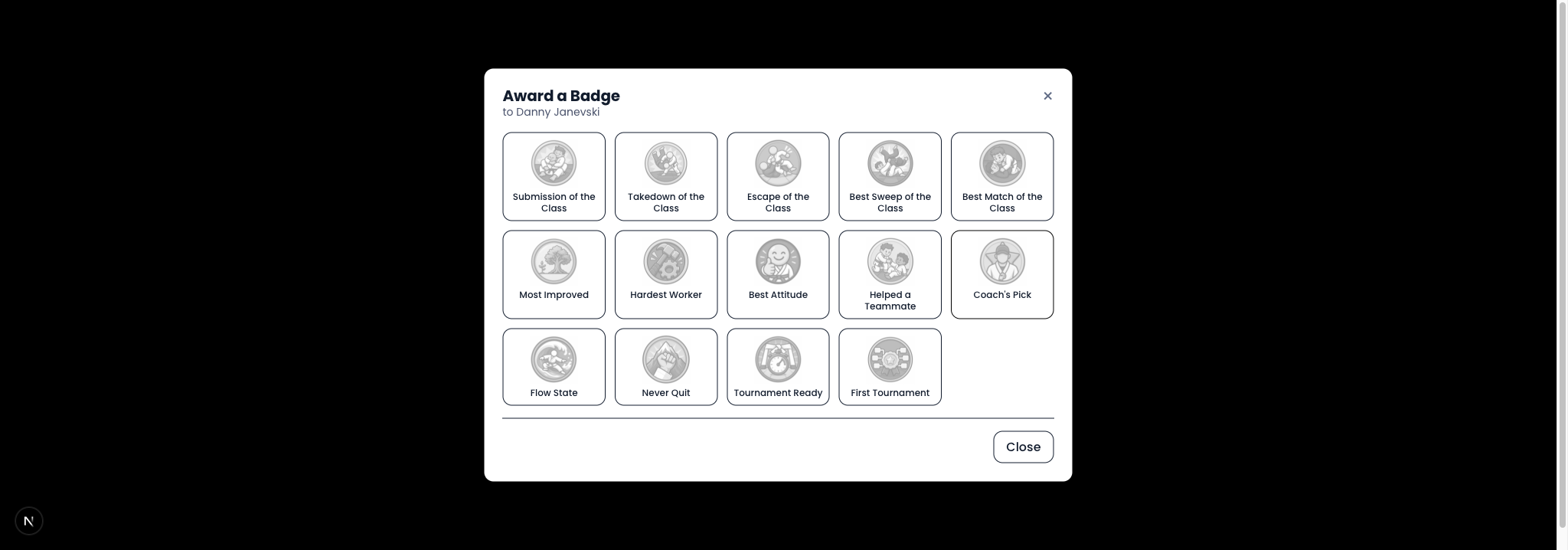
See Badges for details on badge types and constraints.
Intro Program classes
For intro program classes, today's lesson (title, description, and duration) appears at the top of the check-in screen. When you close the session, the lesson index automatically advances so the next class picks up at the next lesson.
If any enrolled students have met the intro program completion threshold, they are automatically graduated when the class is closed. Their status is updated, the "Intro Program Graduate" badge is awarded, and their names appear in a message on the class selection screen (tap Dismiss to clear it).
Closing a class
When class is over, tap Close Class at the bottom of the screen. One tap, no PIN, no confirmation. The button reads Closing… while it works, then you land back on the class selection screen with that class marked Class completed.
Closing the class:
- Increments the cumulative class count for every checked-in student.
- Advances the intro program lesson index (intro classes only).
- Auto-graduates any eligible intro students.
- Recalculates auto-badges for all attendees.
- Marks the session as closed.
Attendance is taken from what the server has recorded; check-ins made from the owner portal or a second tablet during the class are kept. Closed sessions cannot be reopened from the kiosk; use Past Sessions for corrections.
If the class was already closed elsewhere (for example from the owner portal), tapping Close Class simply returns you to the class selection screen.
Leaving the kiosk
The kiosk stays in kiosk mode between classes so the tablet can be left on the mat. To return to the owner portal, tap ← Back to Dashboard (instructors see ← Back to Schedule) on the class selection screen and enter the 4-digit kiosk PIN. The PIN submits itself on the fourth digit; there is no button to press. This is the only PIN prompt on the kiosk.
If the PIN is entered wrong too many times in a row, the kiosk pauses PIN attempts for a few minutes; wait and try again.
Related
- Badges — badge types and rules that apply to kiosk awards
- Past Sessions — correct attendance after a session is closed
- Schedule — the class list the kiosk pulls from each day
- Settings — Gym Profile — set or change the kiosk PIN