Instructors
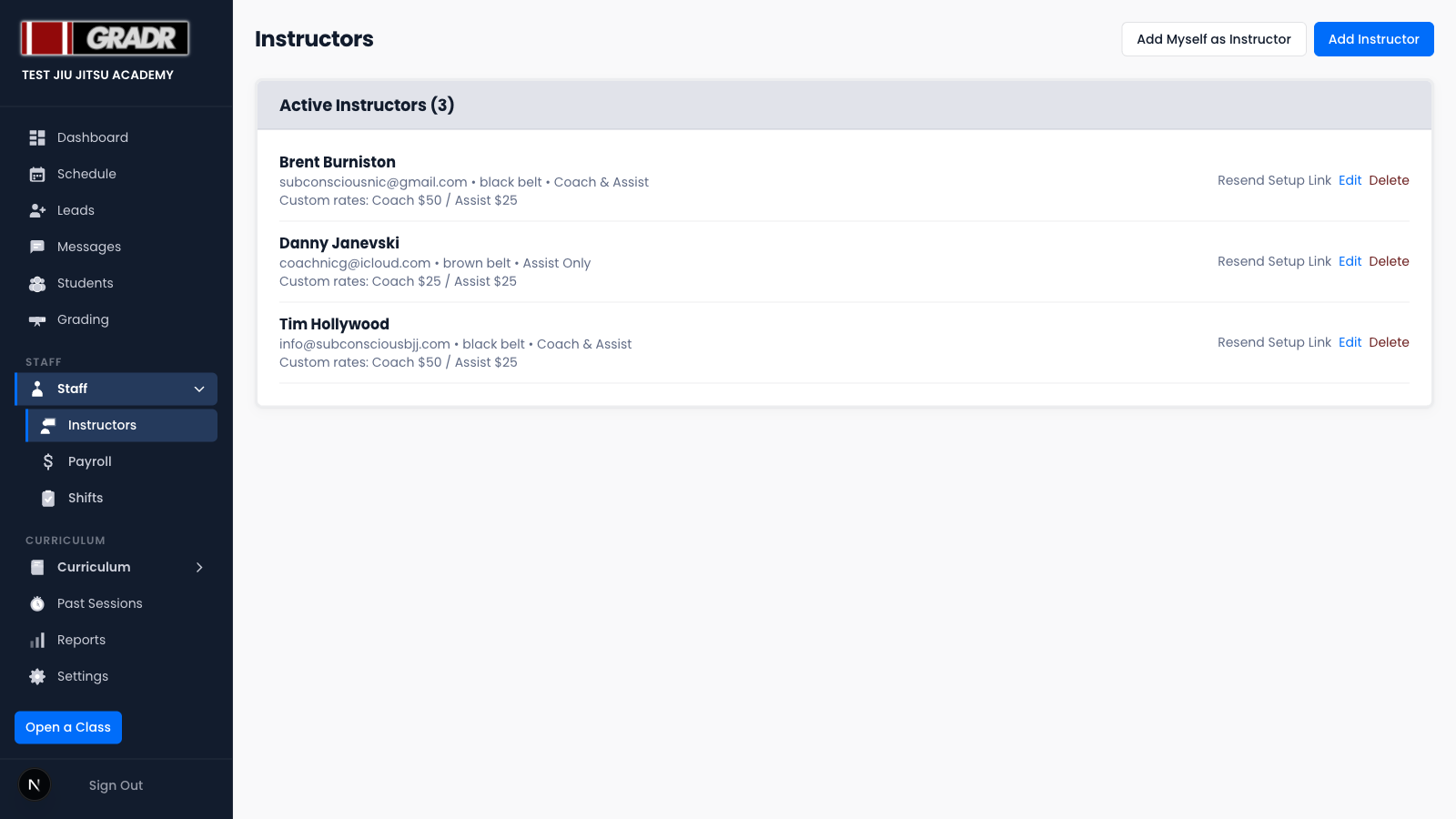
Manage your coaching staff: their contact details, belt rank, teaching qualification, and pay rates, all in one place. Instructors must be added here before they can be assigned to classes in the Schedule.
Adding an Instructor
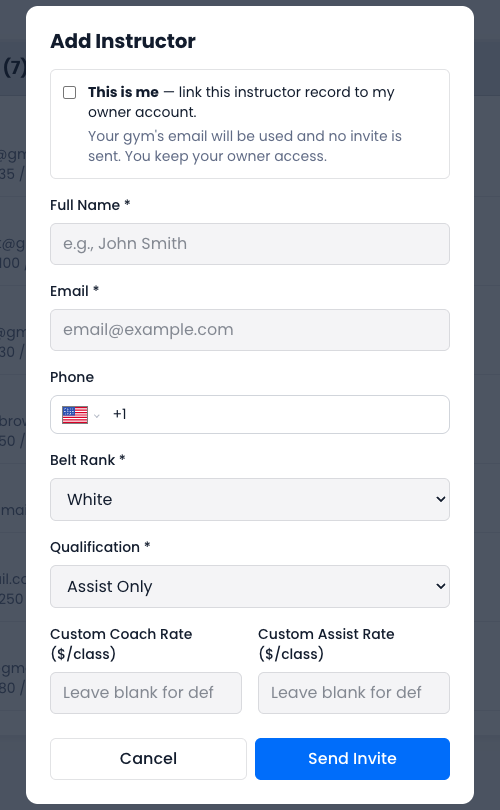
- Click Add Instructor.
- Enter the instructor's name, email, and (optionally) phone.
- Set their belt rank and qualification: Coach & Assist (can lead a class or assist) or Assist Only (can support but not lead).
- Optionally set a Custom Coach Rate and/or Custom Assist Rate. These override the gym's default rates (configured in Settings → General); leave them blank to use the defaults.
- Click Add as Instructor. If the instructor isn't you, GRADR sends them an email (Send Invite) to set up their login.
Registering Yourself as an Instructor
If you teach at your own gym, you don't need a separate flow. Just tick the This is me checkbox in the Add Instructor form, and that links the instructor record to your owner account (no invite email is sent) so you'll then appear in the Schedule's coach and assist pickers.
Editing an Instructor
- Click Edit on the instructor's row to open the Edit Instructor modal.
- Update any field: name, contact, belt rank, qualification, or custom rates.
- Save.
Rate changes apply to future payroll only; past records aren't retroactively updated.
Text message consent
The Edit Instructor modal also shows whether the instructor has agreed to receive text messages, and you can't switch this on for them yourself. Click Ask for SMS opt-in instead. GRADR emails them a link to decide for themselves.
Until they opt in, they're left out of any SMS campaign sent to instructors, which is the usual reason a text to your staff reaches nobody. See Text message consent.
Activating and Deactivating
An instructor's active state is the status dropdown (Active / Inactive) inside the Edit Instructor modal; there are no separate Deactivate/Reactivate buttons. Setting an instructor to Inactive removes them from Schedule pickers and payroll without deleting their history. Switch back to Active to restore them.
Resending a Setup Invite
If an instructor lost their setup email, click Resend Setup Link on their row to send a fresh link.
Removing an Instructor
To remove an instructor entirely, use the Delete action. If you only need them off the schedule for now, set them Inactive instead; that preserves their history.