Grading
Run belt promotion sessions and keep a permanent history of every promotion your gym has awarded. Grading is organized into three tabs: Create, Upcoming Gradings, and Past Gradings.
Promotions happen in two stages: first you create a session by picking the students to grade, then you commit the promotions from the session's detail page. Belt ranks do not change when you create a session, only when you grade it.
Grading only applies to BJJ students. Members who train non-BJJ disciplines never appear on these screens. See Disciplines & Non-BJJ Members.
Create New Grading
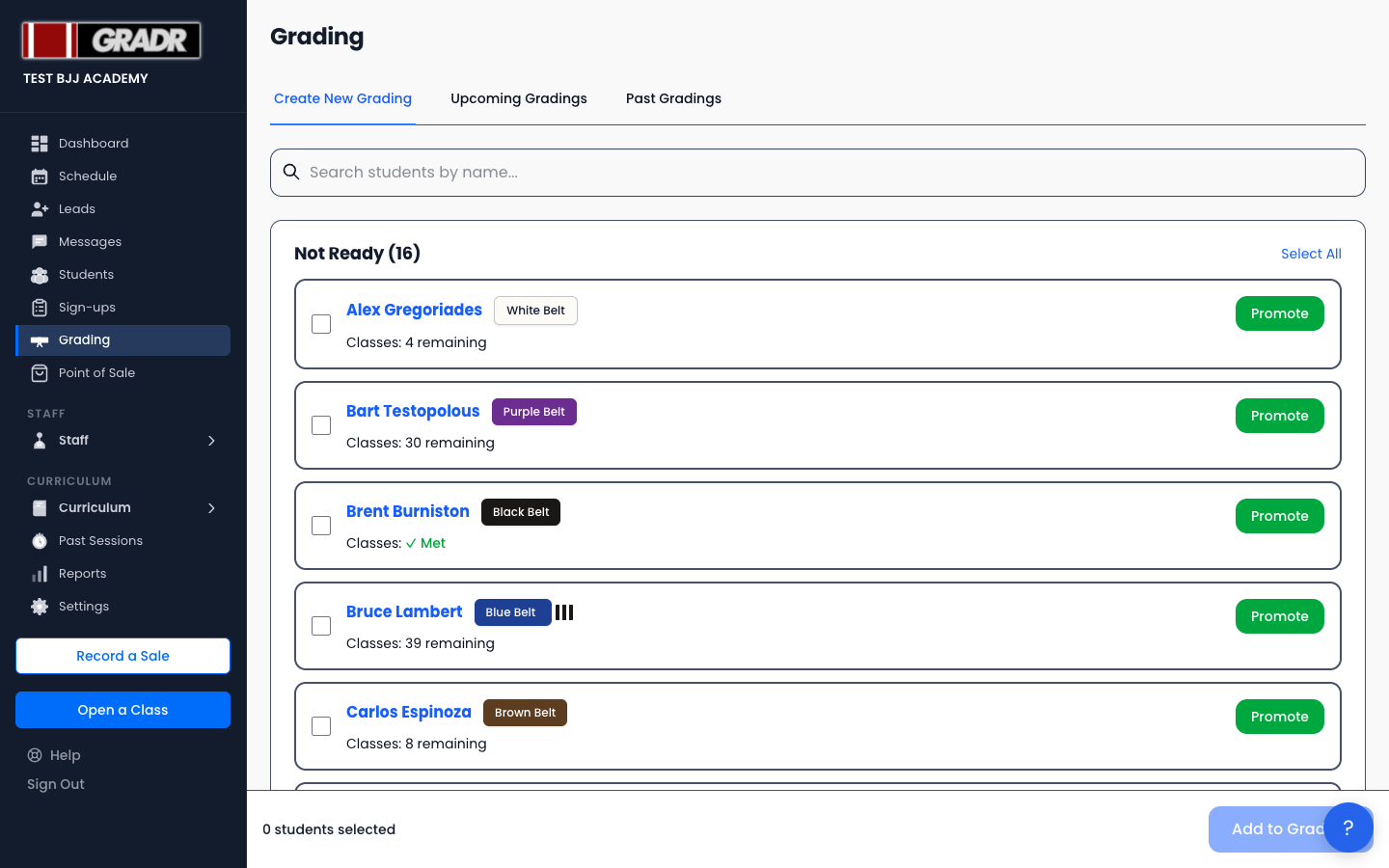
The Create New Grading tab lists your students grouped by how close they are to their next rank, so you can pick who to include in a session.
Students appear in three groups:
- Ready — they have met the class-count requirement for their next belt or stripe.
- Age-Blocked — they have met the class count but not the minimum age for the next rank.
- Not Ready — they still have classes remaining before they qualify.
Each row shows the student's current belt, their classes status (✓ Met or the number remaining), and any age requirement that isn't met yet.
To build a session:
- Use the search box to find students by name, or scroll the groups.
- Tick the checkbox on each student you want to grade. Use Select All on a group header to select everyone in that group at once.
- The sticky bar at the bottom shows how many students are selected. Click Add to Grading.
- Give the session a name (e.g. "Spring 2026 Belt Ceremony") and click Create.
The session is created as an upcoming grading. The target rank for each student is calculated automatically; you don't choose it here.
Creating a session does not change any belt ranks. It schedules the grading. Promotions are committed later, from the session detail page (see Grading a session below).
Promote a single student
Each student row also has a green Promote button. Use this to promote one student immediately without building a full session, handy for a one-off mid-cycle promotion.
Upcoming Gradings
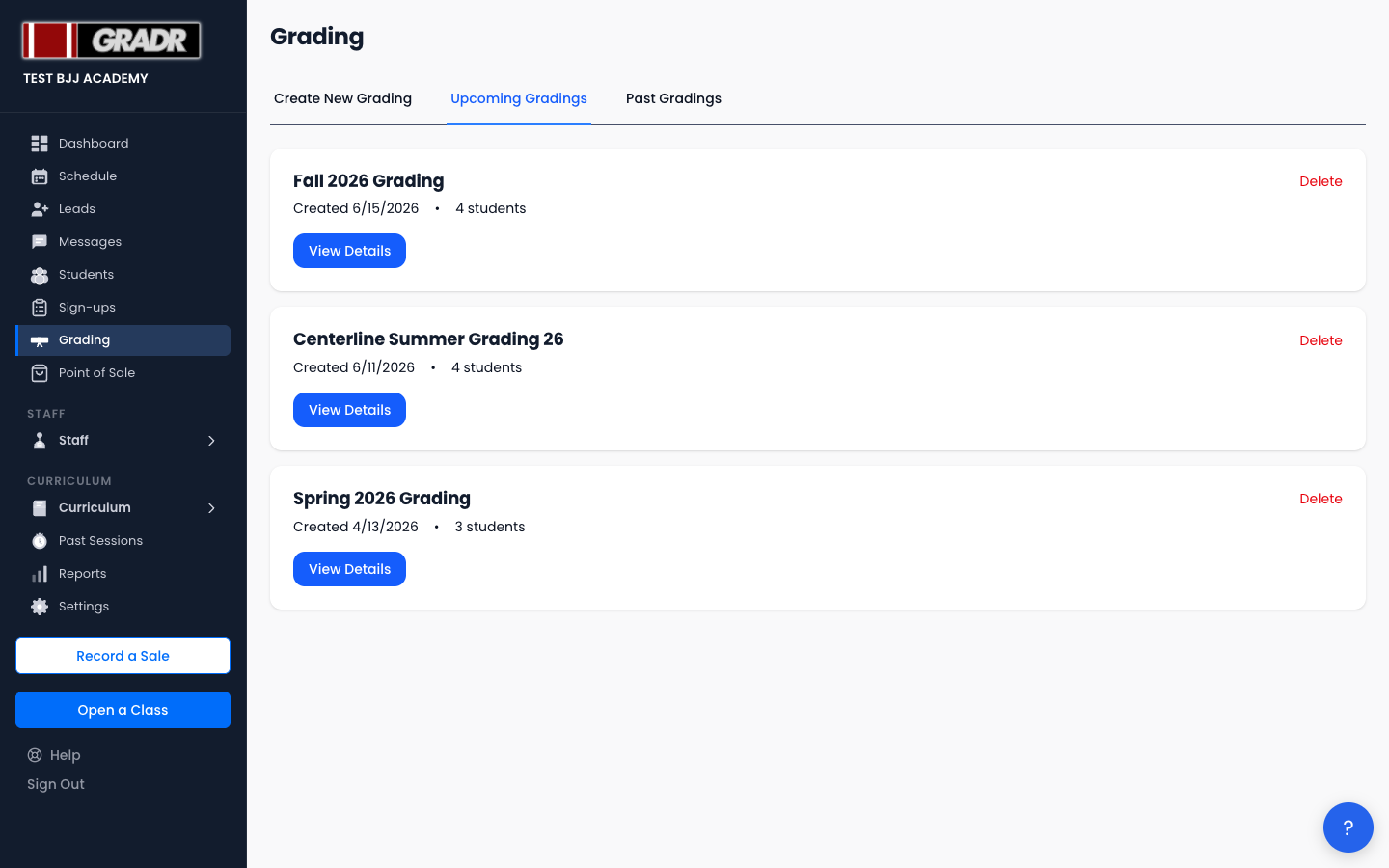
Every session you've created but not yet graded appears here. Each card shows the session name, the date it was created, and the number of students. Click View Details to open the session, or Delete to remove a session you no longer need.
Grading a session
Opening a session from Upcoming Gradings shows the full roster with each student's Current Rank and the Grading To rank they'll be promoted to. The Curriculum Req. column shows whether the student has met all curriculum area requirements for their current belt (✓ met, ✗ not met, — none configured); it's informational and does not block promotion.
From here you can:
- Override — click Override on any row to change that student's target belt or stripes. An overridden target is marked with a Custom badge.
- Download PDF — generate a printable grading sheet listing each student and the rank they're grading to. Useful to take onto the mat.
- Grade All — commit the promotions. You'll confirm the promotion date, and every student in the session is promoted to their target rank.
When you click Grade All, the students' belt ranks update, the session moves to Past Gradings, and you're returned to the grading overview.
Past Gradings
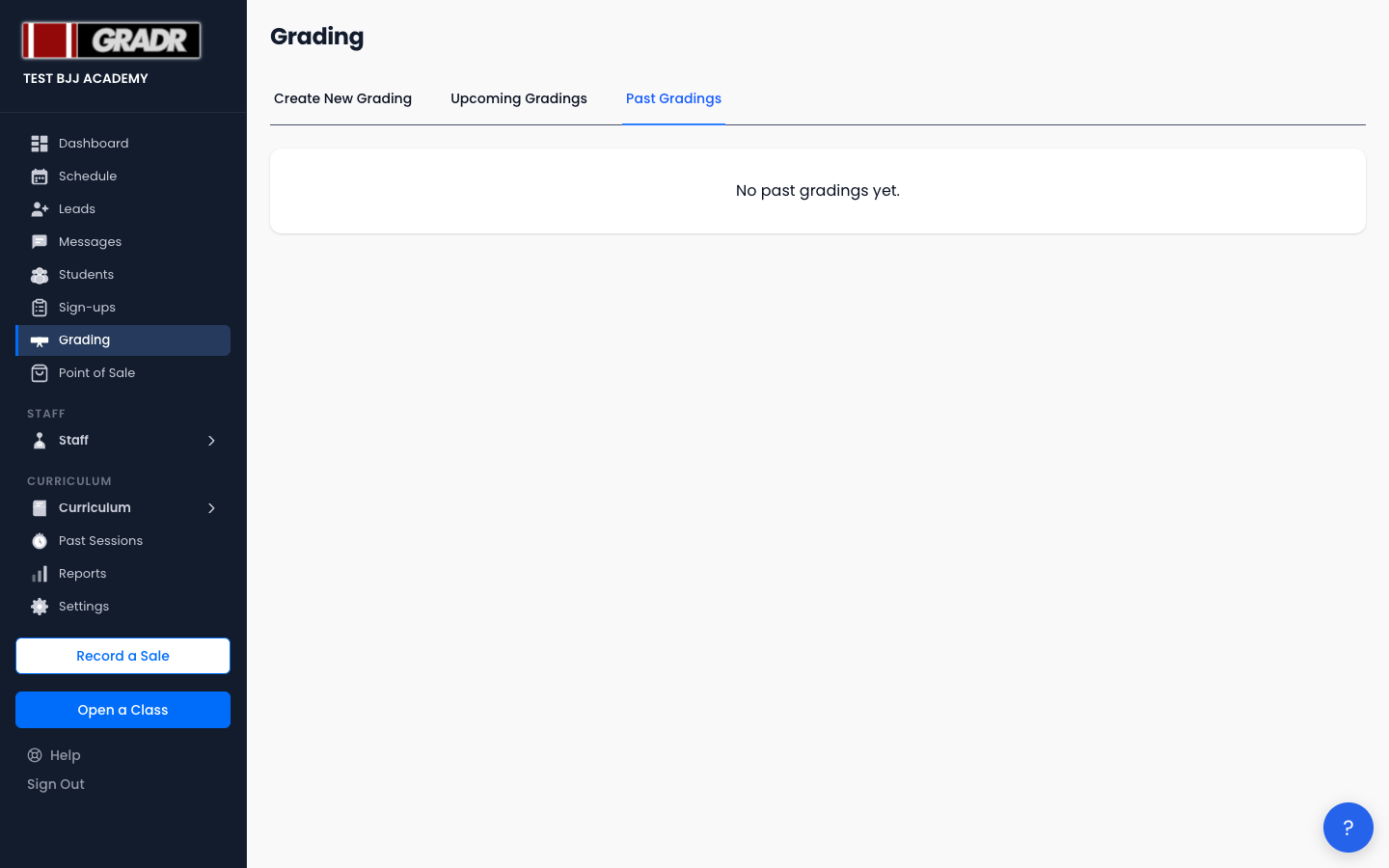
A reverse-chronological archive of every completed session. Each card shows when the session was completed and how many students were promoted. Click View Details to see the roster with each student's Promoted From and Promoted To rank, and to Re-download the grading sheet PDF.
Past Gradings is a permanent record, and promotions can't be edited from this page. To correct a mistake, open the student's Student Profile, go to the Progression tab, and edit the entry in Promotion History.
Don't make the correction by changing the belt on the Edit Student form. That records a brand-new promotion and resets the student's class count. See Changing a belt or stripe on the Edit form is a promotion.
Promotion Alerts
The Dashboard helps you decide who to grade. The Ready to Promote KPI counts students who have met the class-count minimum for their next rank, and the Promotion Alerts widget lists them. Use it as a starting point when building a session. Class-count thresholds are configured in Settings → Belt Requirements.
These alerts are a suggestion, not a gate. You can promote anyone at any time, whether or not GRADR lists them as ready. See Promoting a student who isn't ready yet for doing it straight from the mat.
Promoting from the Kiosk
You don't have to run a full grading session to promote someone. During any class, the kiosk shows a Grade button on a student's card once they've met their requirements, and a Grade early button when they haven't. Either one records a real promotion that appears in their history and on their profile.
This is the quickest way to award a stripe at the end of a class. See Grading a promotion.