Dashboard
Your gym's home base: an at-a-glance view of what's happening today, what needs attention, and how your business is performing.
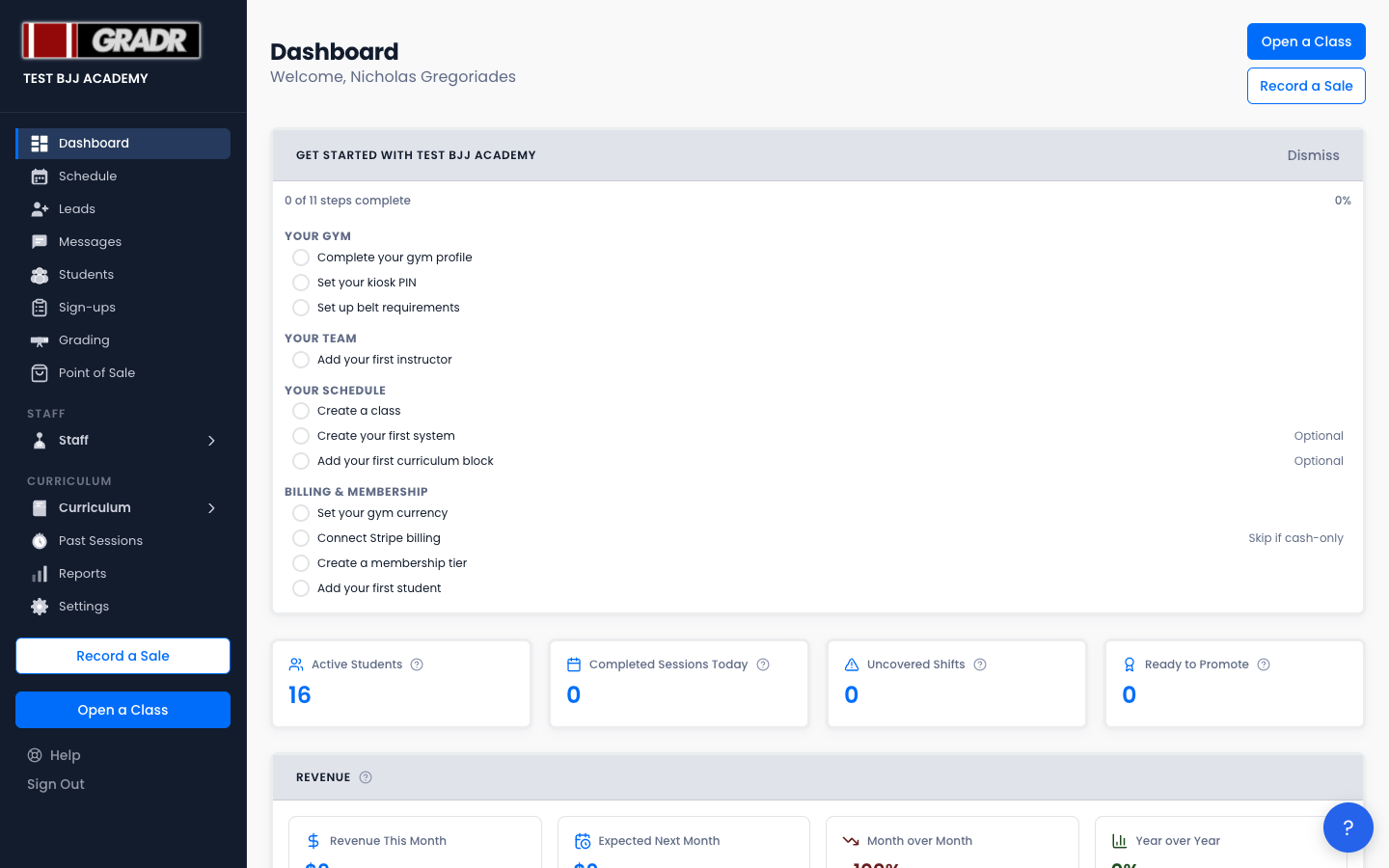
Two buttons sit in the top-right of the page:
- Open a Class — launches the kiosk, the check-in interface your students use at the start of each session.
- Record a Sale — opens the Point of Sale sell register to ring up a product or merchandise sale.
Onboarding Checklist
When your account is first approved, the Dashboard shows a setup checklist to help you configure your gym. Work through the items at your own pace. Once every item is complete the checklist switches to an All Set state. It stays on the page until you dismiss it, and once dismissed it won't return.
KPI Summary Bar

The row of key metrics at the top of the page shows four cards:
- Active Students — students with a payment status of Active or Overdue. A dropping number signals churn worth investigating in Reports.
- Completed Sessions Today — class sessions opened and closed via the Kiosk today. A zero means no classes ran, or the Kiosk was never opened.
- Uncovered Shifts — class shifts in the next 7 days with no assigned instructor. A non-zero count turns the card amber; resolve it from Schedule.
- Ready to Promote — students who have met the IBJJF minimum class count for their next belt or stripe. Act on these from Grading.
If a curriculum block in your active schedule is about to end, a banner appears above the cards warning you to set up the next block.
Widgets
Below the KPI bar, the Dashboard stacks a series of widgets. Each one only appears when it has something to show.
Notifications
Recent activity from across your gym: new sign-ups, payment failures, booking confirmations, and system alerts. Click any notification to navigate to the relevant page.
Revenue
Four metric cards summarizing your billing: Revenue This Month (collected so far), Expected Next Month (based on active subscriptions set to renew), Month over Month, and Year over Year. This widget only appears once Stripe billing is connected.
Upcoming Trials
Leads who are booked into a trial class in the next 7 days. Use this to prepare for incoming prospects.
Open Shifts Available
Appears only if you are registered as an instructor. Lists shifts on the schedule that have no assigned instructor and are open for you to claim as the owner-instructor. Click Claim to add yourself. Your claim is auto-approved because you're an owner.
Uncovered Shifts
Classes scheduled in the coming week with no coach assigned. Resolve these by going to Schedule and assigning an instructor.
Transition Alerts
Students approaching the age threshold for moving from a kids program to an adult program. Review these so you can have a conversation with the family before their next belt test.
Promotion Alerts
Students who have met your configured minimum requirements and may be ready for a belt promotion. Navigate to Grading to build a session.
Retention Alerts
Students who have not checked in recently and may be at risk of cancelling. Take action before they go quiet entirely.
Cash Payments Due
Students with a cash payment plan whose next payment date is approaching or overdue. Follow up directly to collect.
Contracts Ending Soon
Students on a contract membership tier whose commitment period is ending within your renewal lead window (set in Settings → Payments, default 7 days), plus any whose contract has already expired. Each row has two actions you can take without leaving the Dashboard:
- Renew — swap the student onto the contract's successor tier (or lift the commitment if there's no successor).
- Decline — cancel the student's subscription.
Related
- Reports — deeper analytics behind the KPI summary bar
- Schedule — resolve uncovered shifts shown on the Dashboard
- Grading — act on students flagged as ready to promote
- Settings — Payments — configure the contract renewal lead window