Blocks
Blocks are rotating curriculum sequences assigned to your classes. A Block defines which Areas your classes cycle through, week by week. You build a block, assign it to one or more classes, and activate it. GRADR then maps each week's Area automatically.
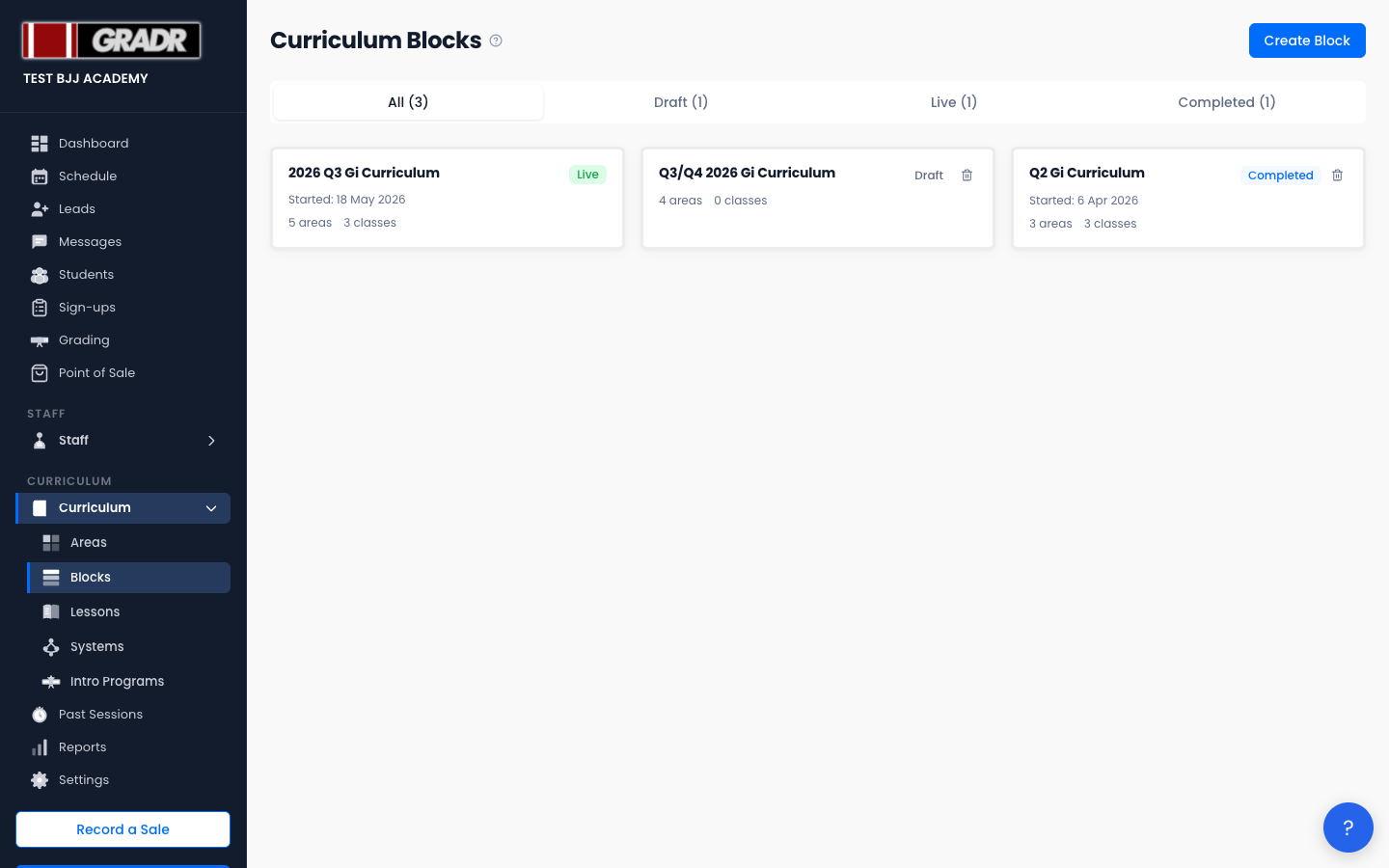
The Blocks page (Curriculum → Blocks, titled "Curriculum Blocks") lists your blocks as cards showing each block's status, its Area and class counts, and a start date once live. Tabs across the top filter by status: All, Draft, Live, Completed.
Block Statuses
| Status | Meaning |
|---|---|
| Draft | Being built; not yet running on any class |
| Live | Activated and running on one or more classes |
| Completed | Finished, marked done, with a history record kept |
Creating a Block
Click Create Block. The create screen asks only for a Block Name. Click Create Draft Block and GRADR opens the block's editor, where you build everything else.
In the editor:
- Add Areas — click + Add Area to add each Area the block rotates through, in order, and set the weeks each Area runs for. The header shows the total week count.
- Assign classes — in Class Assignments, tick the class (or classes — a block can run on several) that should follow this block, then click Save Class Assignments.
- Activate — once the block has at least one Area, click Activate Block and confirm with Activate. The status changes to Live and the Schedule starts showing the current week's Area for each assigned class.
Editing a Draft Block
A block in Draft can be edited freely: add, remove, and reorder Areas, adjust weeks, and change class assignments. Once a block is Live, its structure is locked to avoid disrupting the running schedule.
Completing and Re-activating a Block
When a live block has run its course, open it and click Complete Block. A history record is created and the block moves to Completed. A completed block can be brought back with Re-activate Block.
Deleting a Block
Draft and completed blocks can be deleted from the list with the trash icon on the card (live blocks can't be deleted; complete them first). Deletion is permanent.