Badges
Badges recognize student milestones and achievements. They appear on a student's profile and in their student portal. Manually-awarded badges send the student (or their parent, for minors) an email; automatic milestone badges do not email.
Badges are accessed through a student's profile under Students.
Badge Types
Auto badges
Auto badges are awarded automatically based on measurable progress. You don't take any action. GRADR recalculates eligibility whenever a student checks in at the kiosk, has attendance backdated, is promoted, or graduates an intro program, and awards any newly-earned badges at that point. Auto badges do not send an email.
| Badge | Earned when |
|---|---|
| First Step | First class attended |
| 10 / 25 / 50 / 100 / 150 / 200 / 300 Classes | Cumulative attended classes reaches that count |
| The 500 Club | 500 classes attended |
| Six-Month Veteran | 6 months since joining |
| One Year Strong | 12 months |
| 18 Months In | 18 months |
| Two-Year Legacy | 24 months |
| Five-Year Legend | 60 months |
| First Stripe | First promotion of any kind |
| Suited & Belted | First belt promotion (a promotion that changes the belt) |
| Intro Graduate | Student graduates their intro program |
(There are additional tenure badges between the ones listed; the full set is visible in a student's Achievements view.)
Awarded badges
Awarded badges are given manually by gym staff to recognize things the system can't measure. Examples include Student of the Month, Student of the Year, Podium (competition placement), First Tournament, and the in-class awards Submission / Takedown / Escape / Best Sweep / Best Match of the Class.
Non-repeatable badges can only be awarded once per student; the system blocks a second award. Repeatable badges (like Student of the Month) can be awarded any number of times and show a count on the student's profile.
Some badges are restricted to gym owners. Instructors cannot award these, even from the kiosk.
Awarding a Badge (Owner Portal)
- Go to Students and open the student's profile.
- Click the Progression tab and scroll to the Badges section.
- Open the award badge dialog. It shows a grid of badge tiles titled "Award a Badge". Badges the student has already earned that aren't repeatable appear disabled.
- Tap the badge you want to award.
- On the confirmation screen, optionally add a note describing the achievement, then click Confirm.
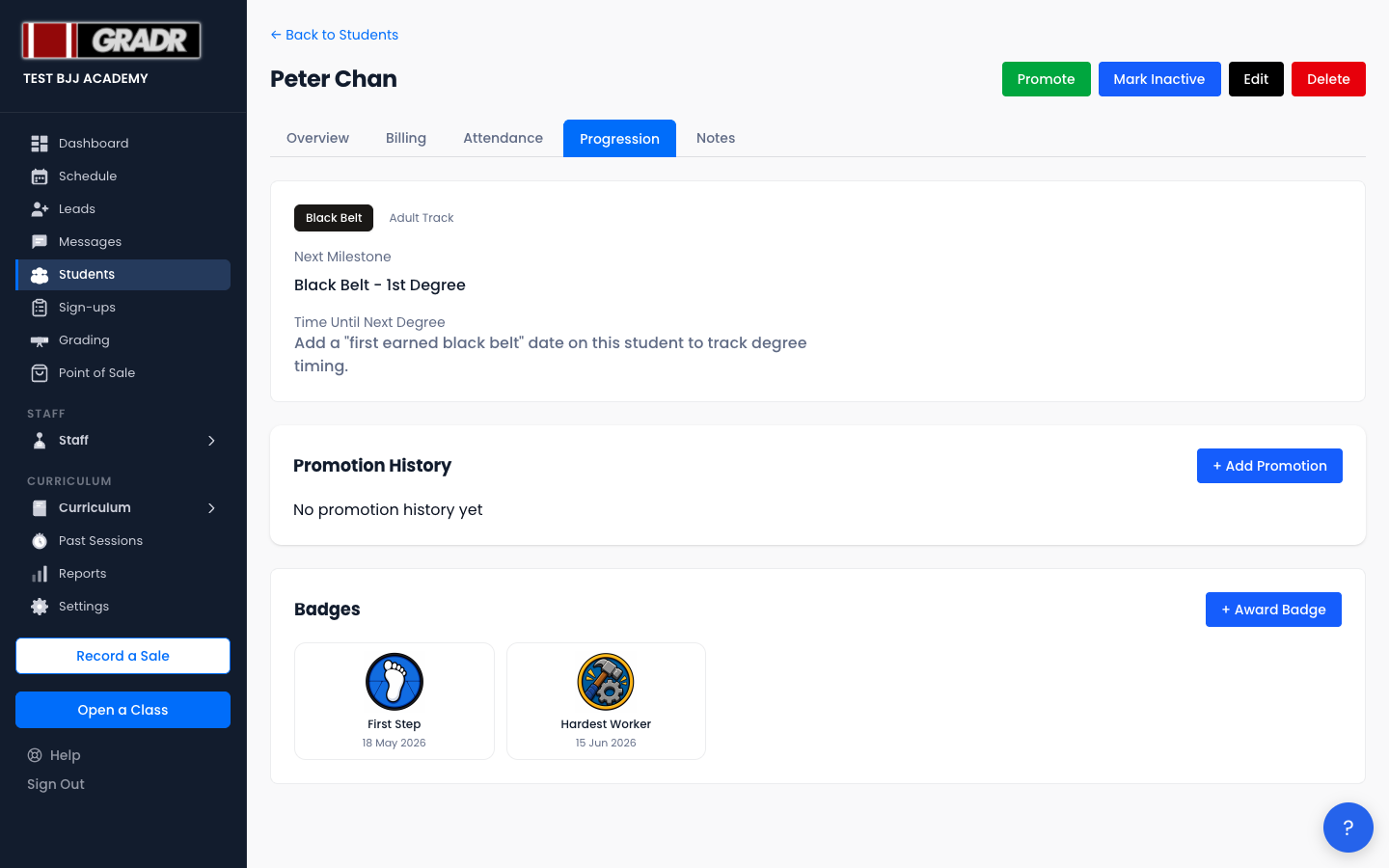
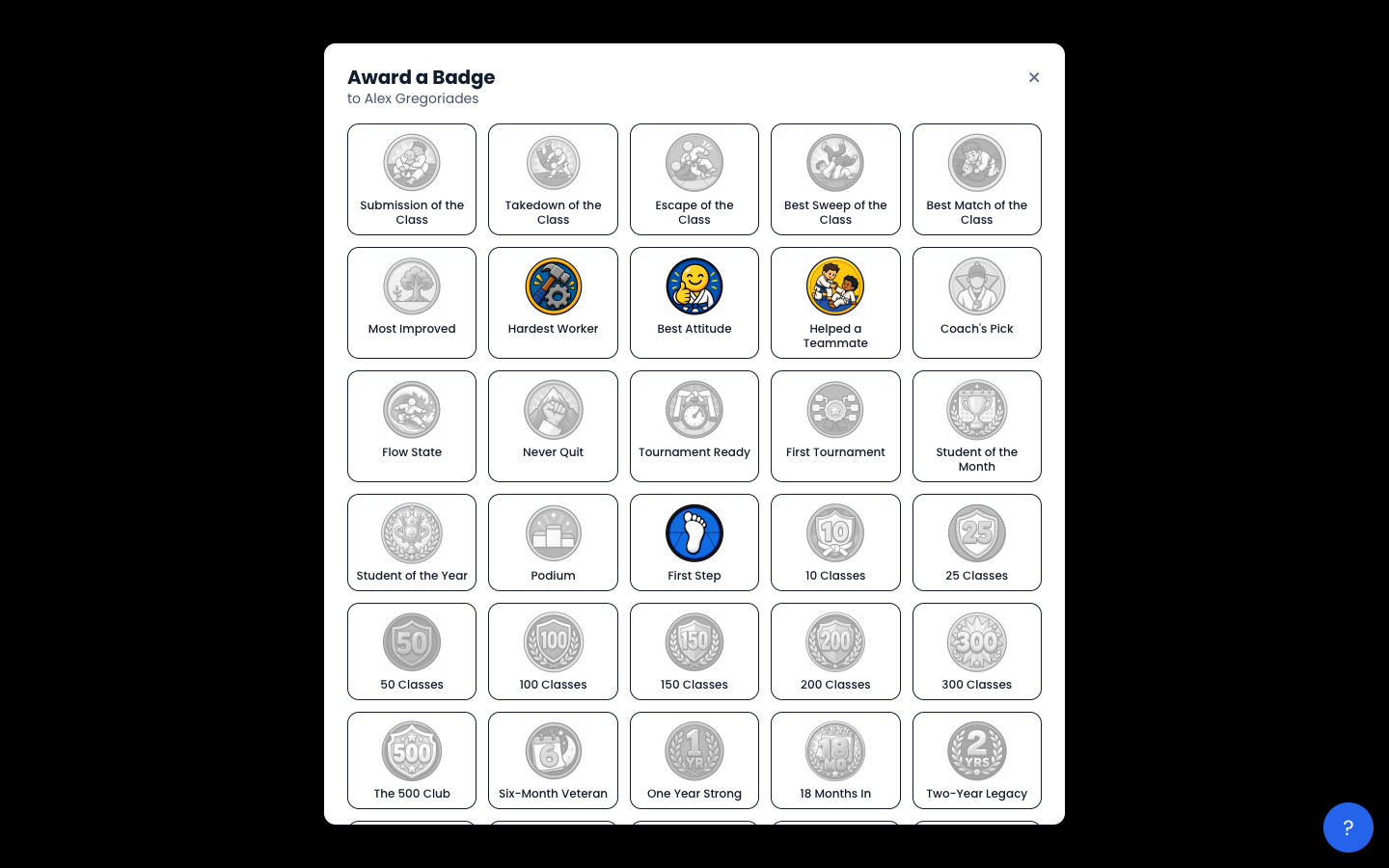
The student receives an email about the award, and the badge appears immediately on their profile.
Awarding a Badge from the Kiosk
During class you can award badges from the Kiosk check-in screen without returning to the owner portal. Tap the trophy icon on a student's card, pick a badge, add an optional note, and confirm. The same rules apply: instructors can't award owner-only badges, and already-earned non-repeatable badges are unavailable.
Student View
Students see their full badge collection in their student portal under Achievements. The page shows every badge in the catalog. Earned badges display their award count and most recent date; unearned badges appear as goals to work toward.