Areas
Areas are the positional categories that organize your curriculum, for example Guard, Side Control, Mount, or Back. Each Block is built from one or more Areas, and Systems are grouped within them.
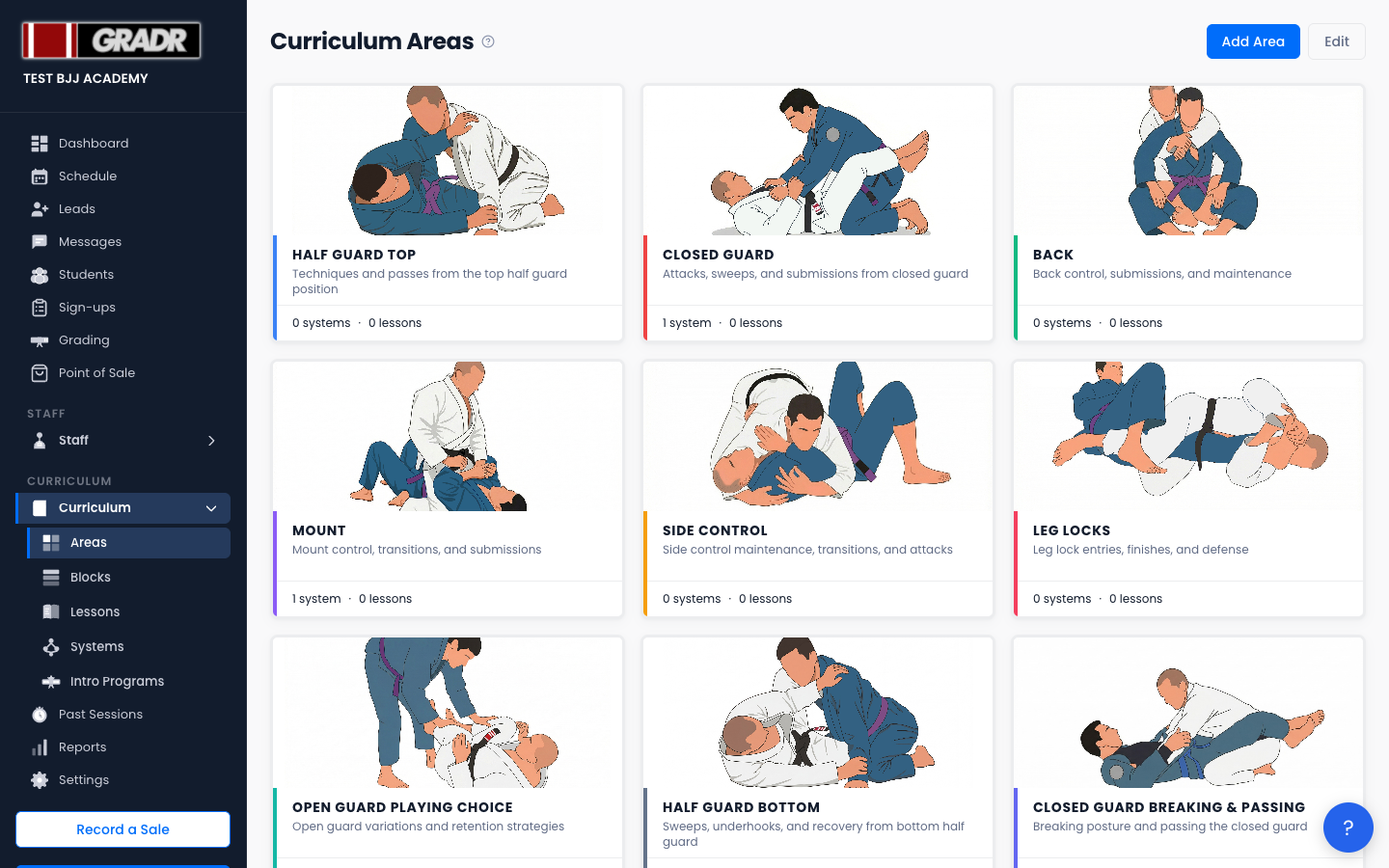
The page (Curriculum → Areas, titled "Curriculum Areas") shows each Area as a card with a colored accent. Click a card to open its detail page, where that Area's Systems and Lessons live.
:::tip Your gym already has Areas
This page won't be empty on your first visit. New gyms start with GRADR's standard set of Areas already loaded, so treat what's there as a starting point: rename, recolor, or delete anything that doesn't match how you teach, and add your own alongside it. :::
Adding Areas
Click Add Area to open the add panel. You have two options:
- Load Default Areas — loads GRADR's standard set of positional Areas in one click. Your gym already received these when it was created, so you'll mainly need this if you deleted some and want them back.
- Add Custom Area — create your own. Enter a name, an optional short description, and pick a color (required, since it drives the card's accent). You can also upload a thumbnail image to make the Area easy to spot.
Editing and Deleting Areas
Editing, deleting, and reordering all happen in Edit mode. Click Edit at the top of the page to switch it on, and the button becomes Done. From there you can change an Area's name, description, color, and image, reorder Areas, or delete one. Click Done when you're finished.
Deletion is guarded. GRADR blocks it whenever the Area is still referenced by a System, a Block, a belt requirement, or a student's area credits, so remove those references first.
How Areas Fit Into the Curriculum
- Areas define what position or situation a class focuses on.
- Systems are technique sequences that live within an Area (e.g. specific sweeps within the Guard area).
- Blocks rotate through Areas on a schedule — each week of a Block maps to a different Area.
Related
- Blocks — how curriculum blocks rotate through Areas on a schedule
- Systems — technique sequences that live within an Area
- Settings — Belt Requirements — area requirements used per belt rank